How It Works
Dungeon Architect builds a level in one of two ways:
- It generates the whole level and dresses it with your art, following rules you set (a theme).
- You block out the rooms yourself, give them any theme, and it stitches them together into a new layout every time.
Generated levels (left) go through the three steps below. Once you know them, every other part of these docs fits into place. Stitched levels (right) are further down.
1. Layout
Section titled “1. Layout”A builder decides the shape of the level: where the rooms are, how they connect, where the doors and stairs go. For generated levels:
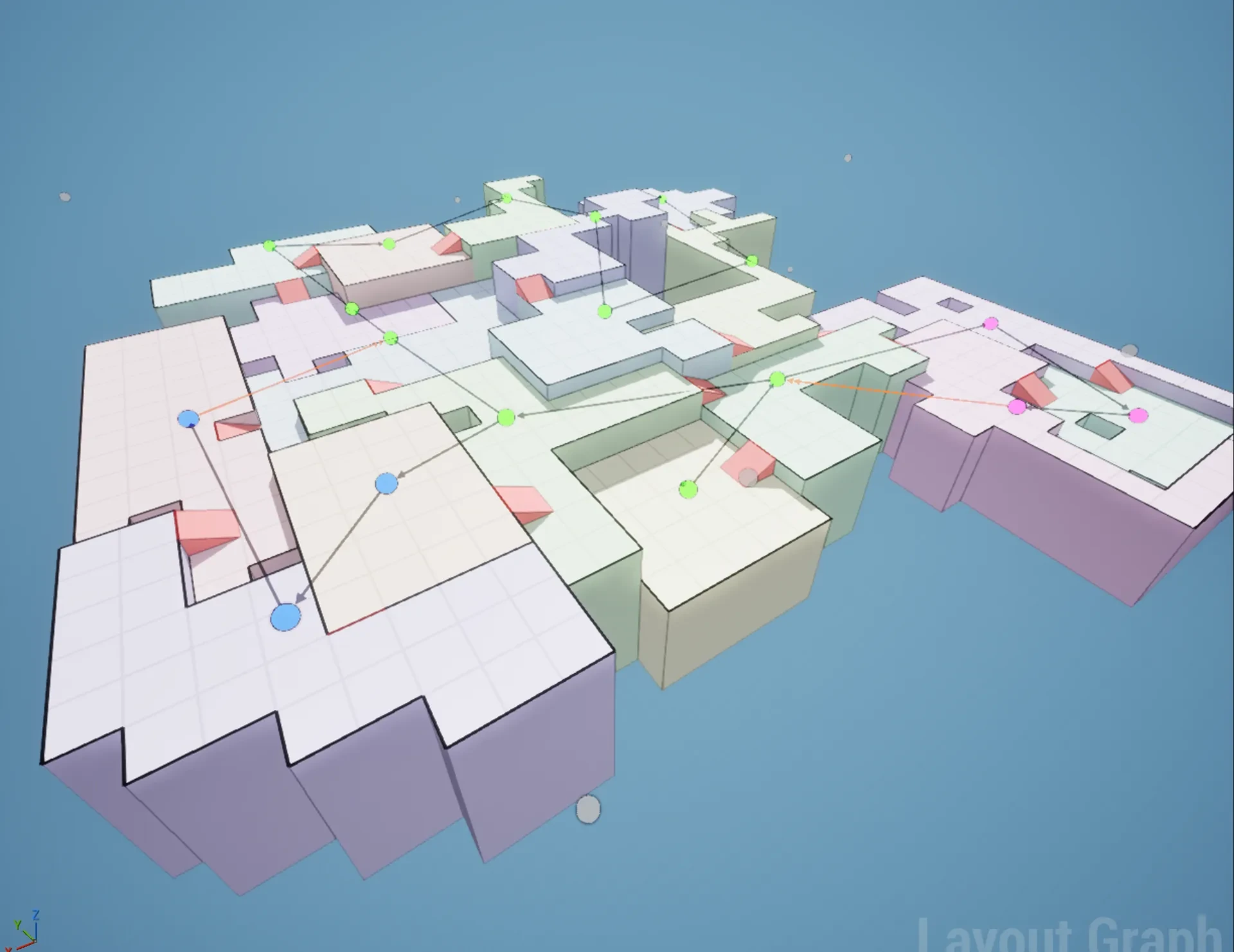
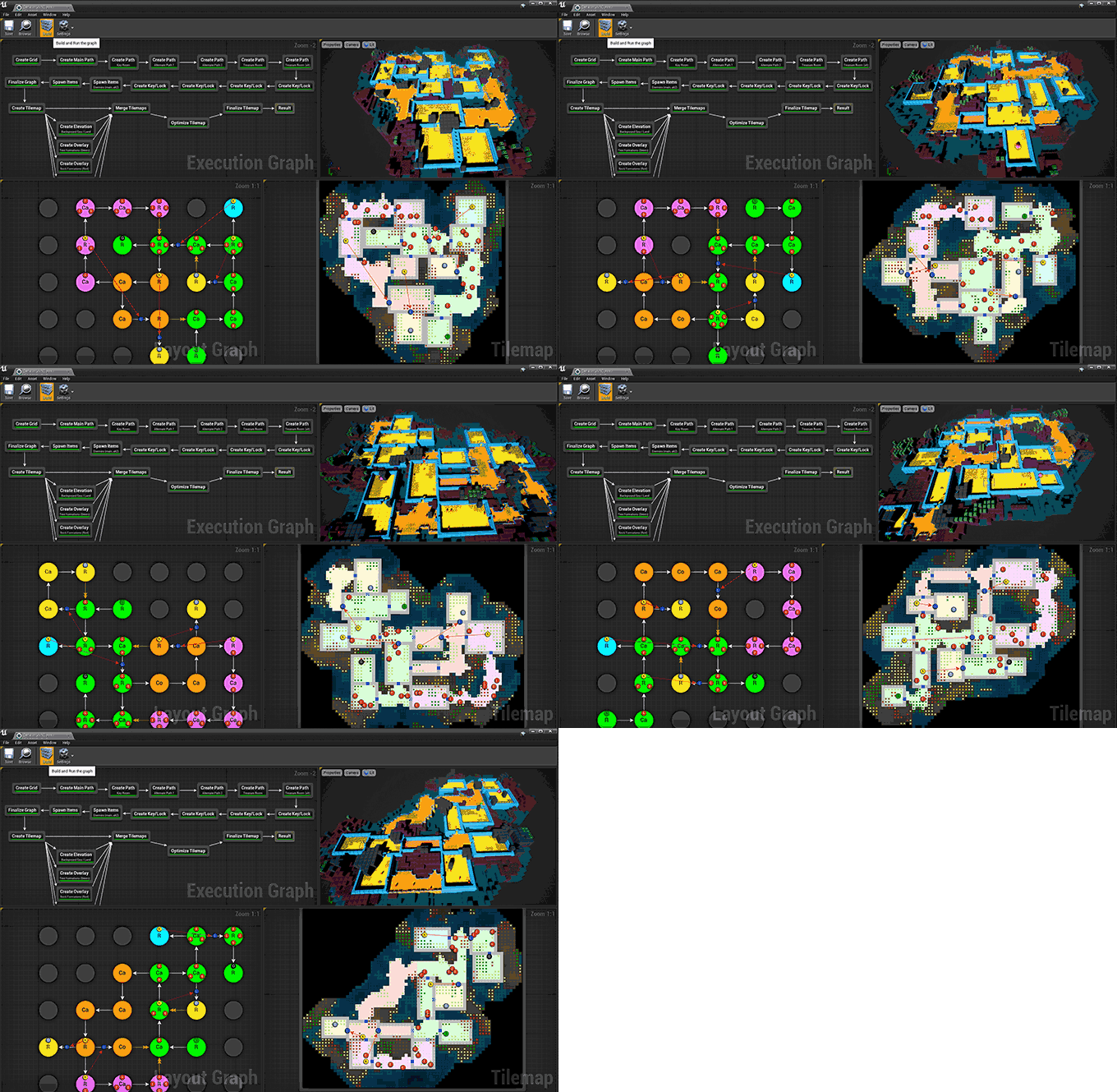
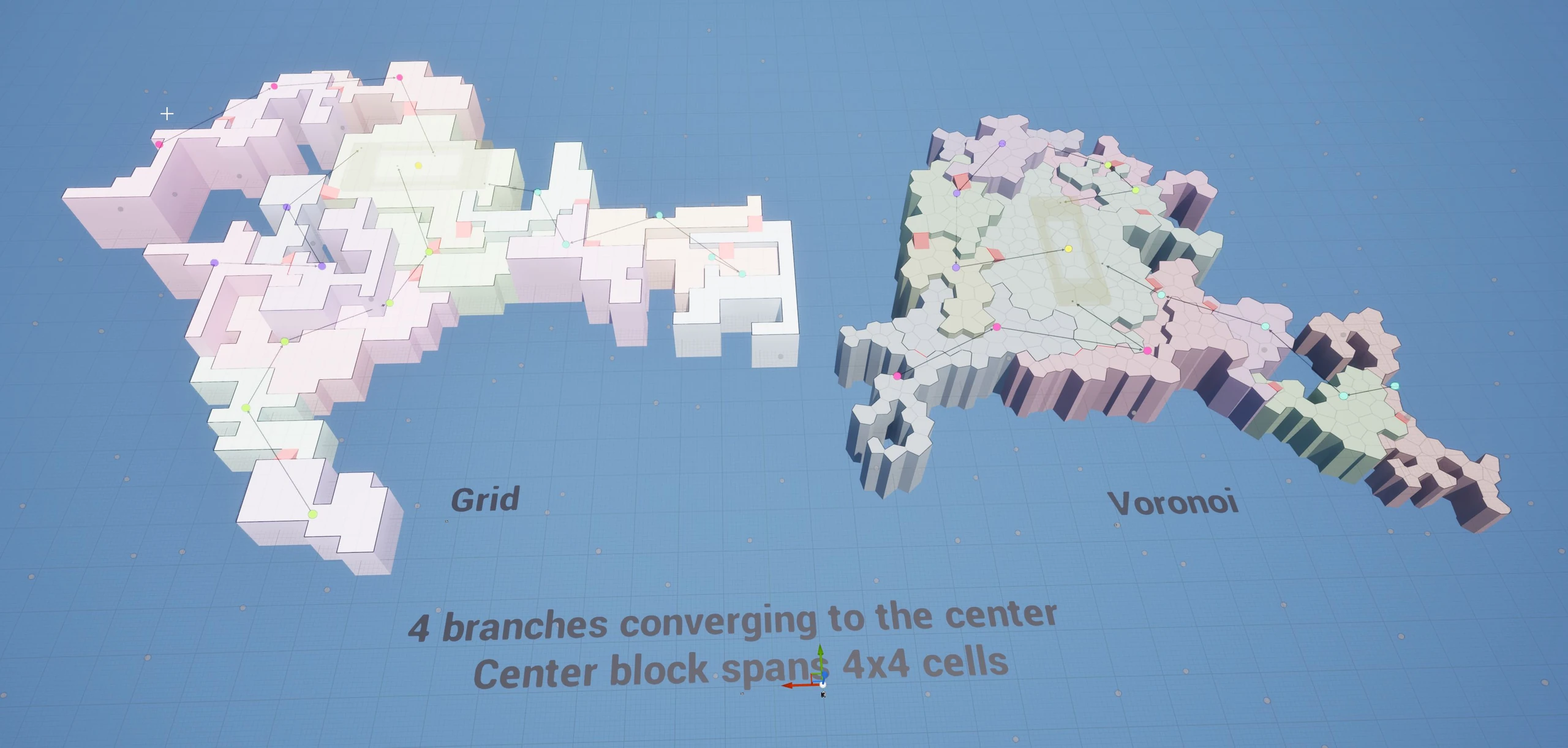
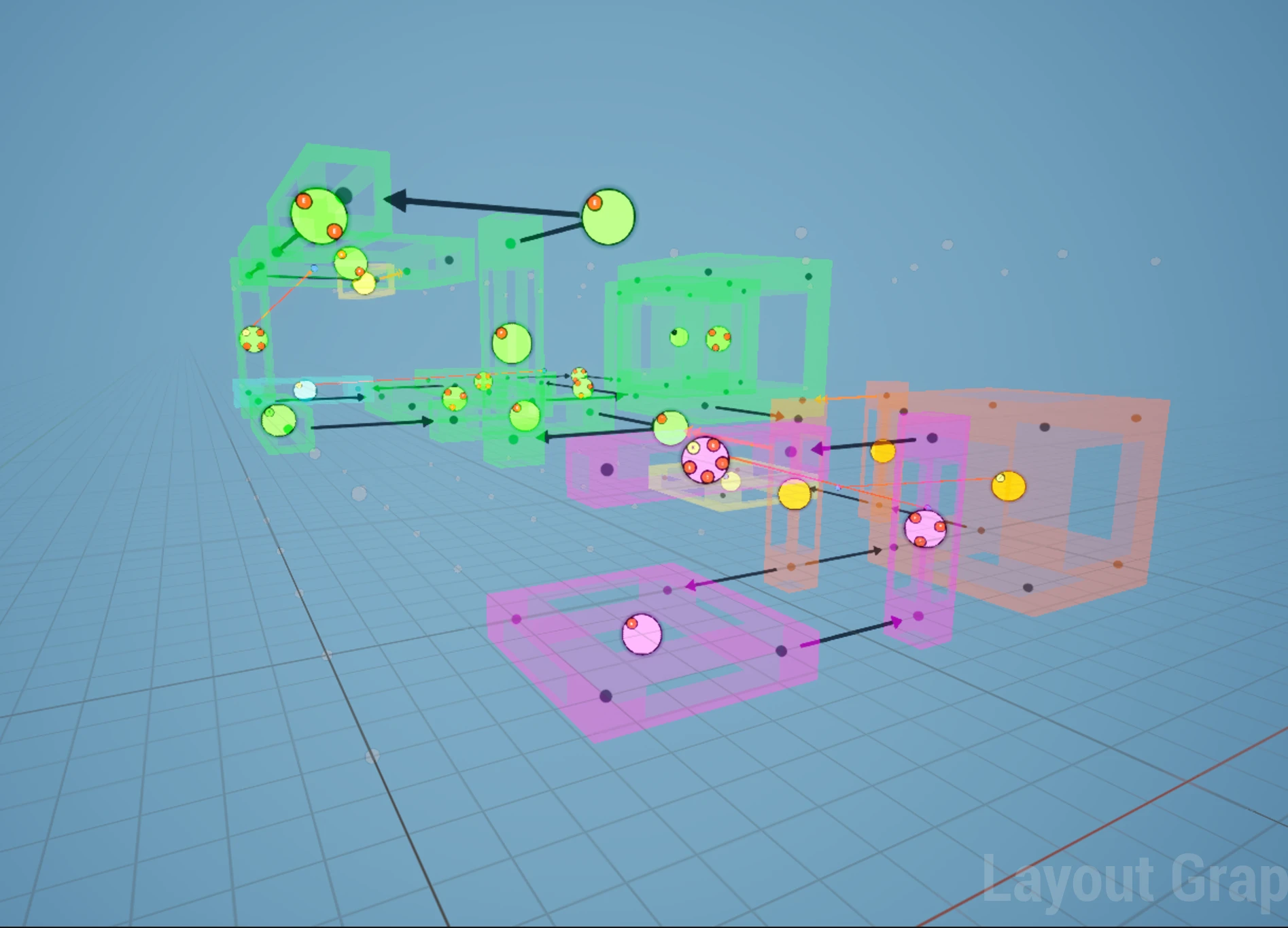
- Cell Flow spreads cells over a grid or a Voronoi diagram, clusters them into rooms and grows paths through them. Rooms can sit at different heights, joined by stairs.
- Grid Flow lays out rooms and corridors on a tile grid.
- Grid is the simplest: assign a theme, click Build.
The flow builders also follow a flow graph: rules like “a path from the entrance to the boss, a side path that branches off and merges back in, a key on one path and its lock on another”. There doesn’t have to be a single main path: several paths can lead into one central area, like team spawns meeting in the middle of a multiplayer map. You design that graph once, and the builder turns it into endless different levels that all keep those rules, with every key reachable before its lock.
Not sure which builder to use? See Choosing a builder.
2. Markers
Section titled “2. Markers”The builder doesn’t place any art. Instead it marks every spot that needs something with a marker: a name, plus where it is and which way it faces. A Cell Flow dungeon, for example, emits:
| Marker | Where |
|---|---|
Ground |
every floor tile |
Ceiling |
above every floor tile |
Wall, WallHalf |
room edges |
WallSeparator |
between wall pieces, for pillars and trims |
Door, DoorOneWay |
connections between rooms |
Stair |
height changes |
That’s only the starting set. Your theme and the Pattern Matcher can add their own markers on top.
Markers are the shared language of Dungeon Architect. Everything that dresses a level reads them:
- Themes place your meshes and props on them. A hand drawn blockout room emits the same markers as a procedurally generated one, so the same theme works on both.
- The Pattern Matcher looks at the markers around each spot and adds new ones where a pattern matches, so you can place things based on what’s next to them.
- PCG graphs can read the markers too, and scatter their own decoration on top.
3. Theme
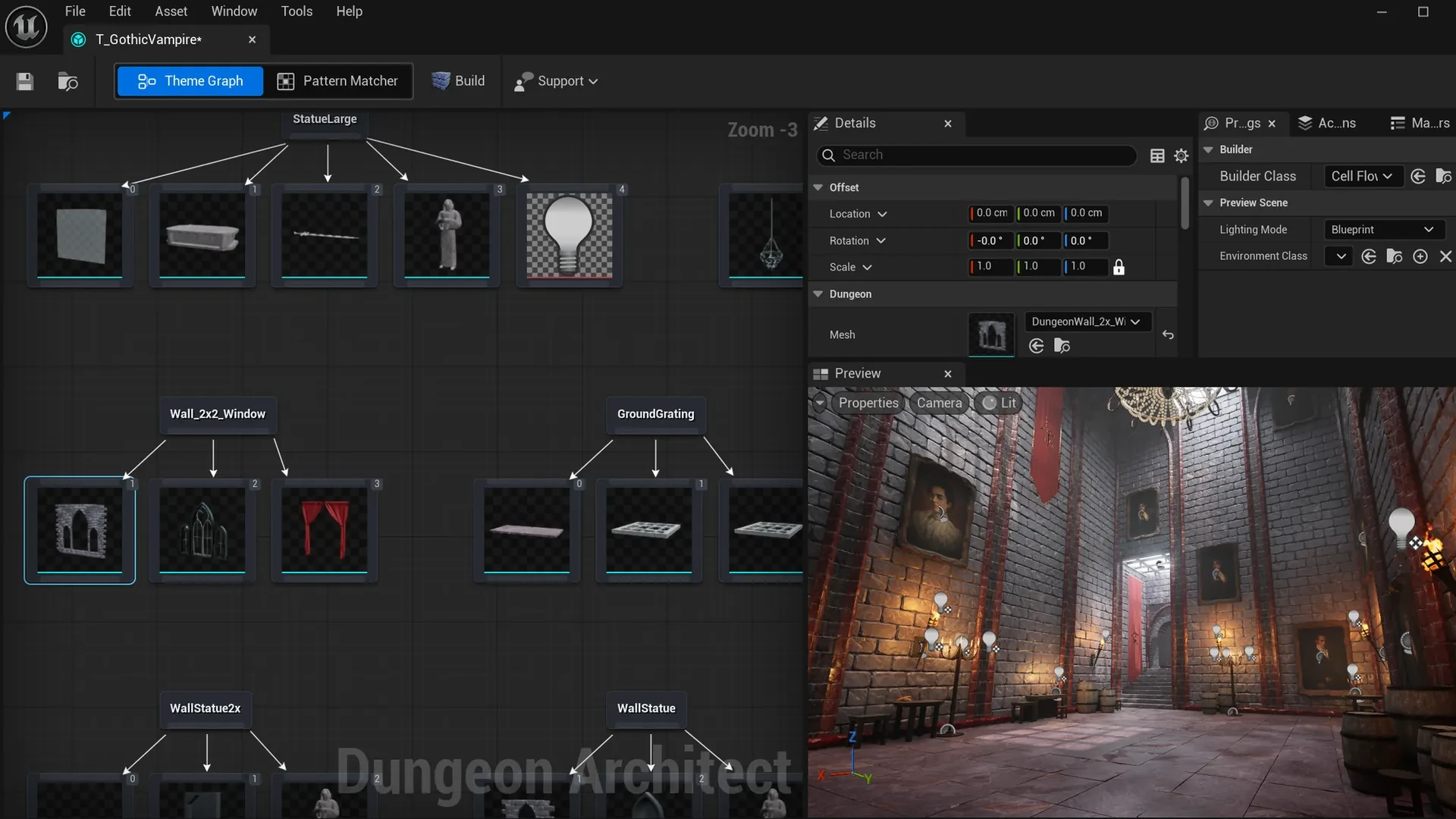
Section titled “3. Theme”A theme is a set of rules that says what to place on each marker. In the theme editor, each marker has a list of nodes under it: a wall mesh, a torch blueprint, a light. Rules on those nodes decide which one is picked, how it’s rotated or offset, and how often it appears.
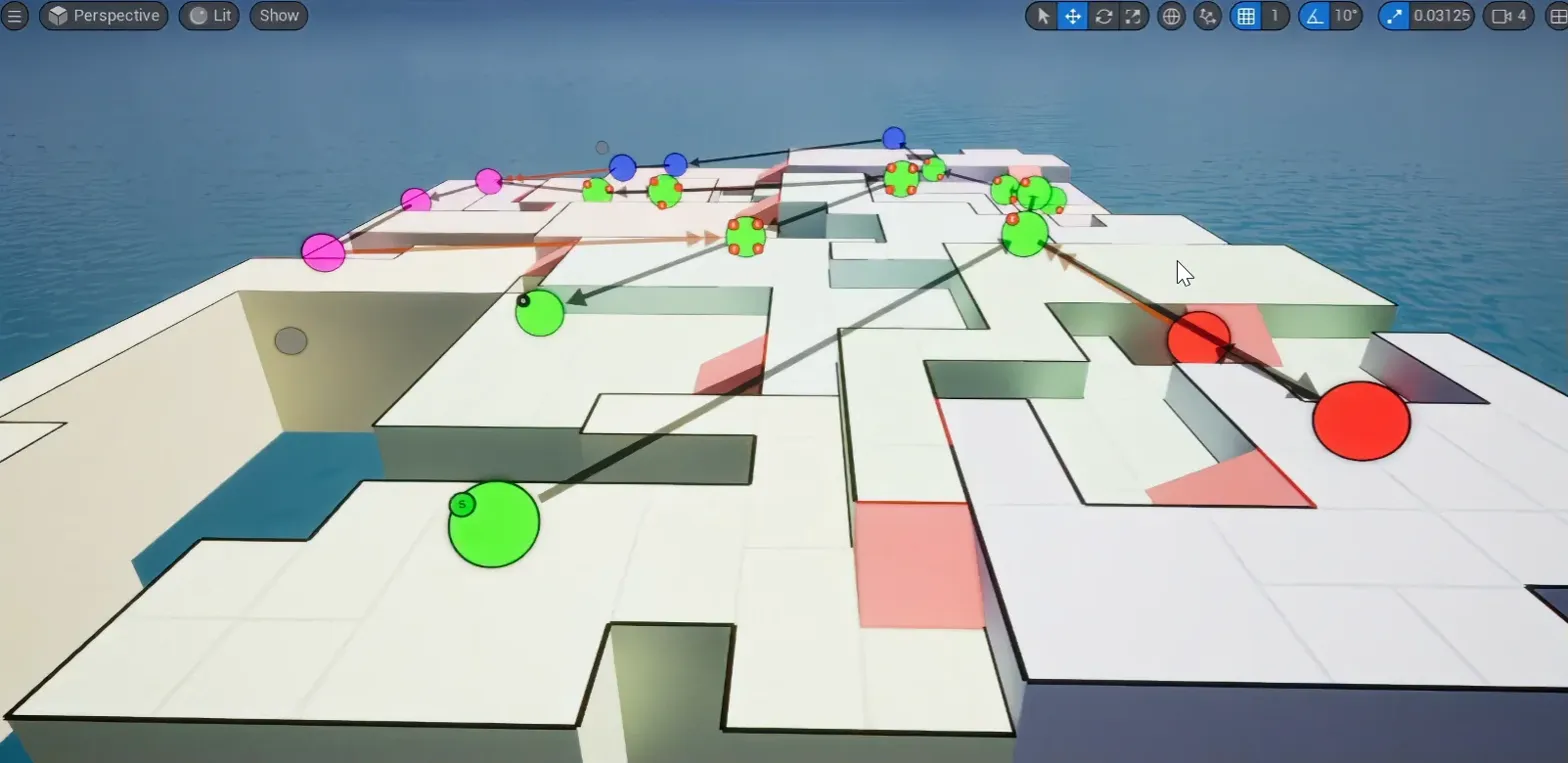
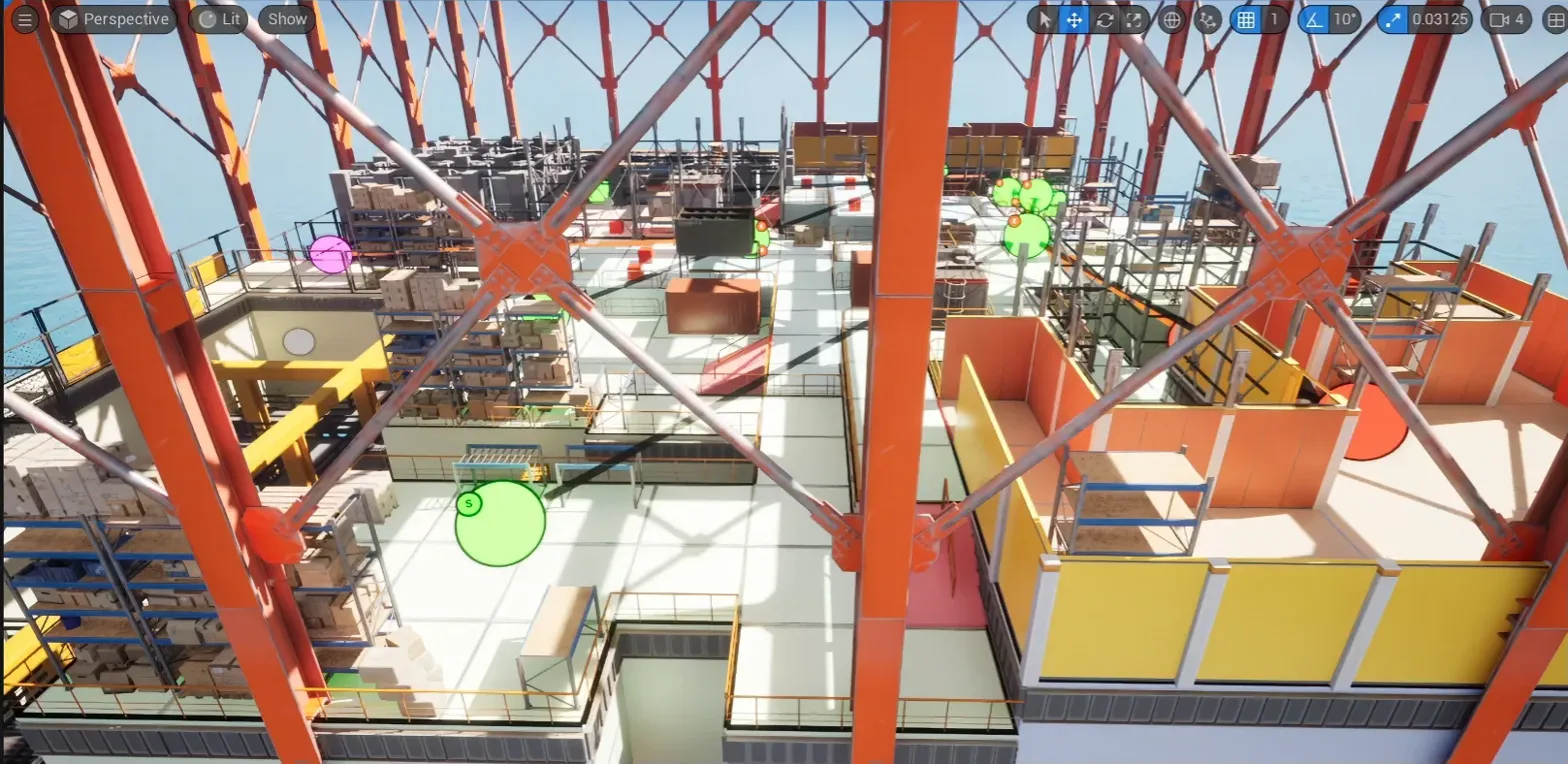
The theme editor, then the Oil Rig sample one step at a time (click an image to see it full size):


Because the layout and the art are separate:
- Swap the theme and the same layout gets a whole new look. Try it in Your first dungeon.
- Change the theme and every matching spot updates. Edit it in the theme editor, or right in the level viewport with theme editor mode.
- Theme anything. The Theme Engine Component can theme any actor, not just a dungeon.
Stitched levels: rooms you design
Section titled “Stitched levels: rooms you design”Want complete control over how every room looks? Design the rooms yourself, quickly with the Blockout Designer or by hand, and Dungeon Architect stitches them together at their doors into a new layout every time you build.
A room of the Gothic Vampire Castle sample, in the middle of being designed in the Blockout Designer. The theme applies over the greybox as you work, so you see the finished look instantly while you iterate on the layout:
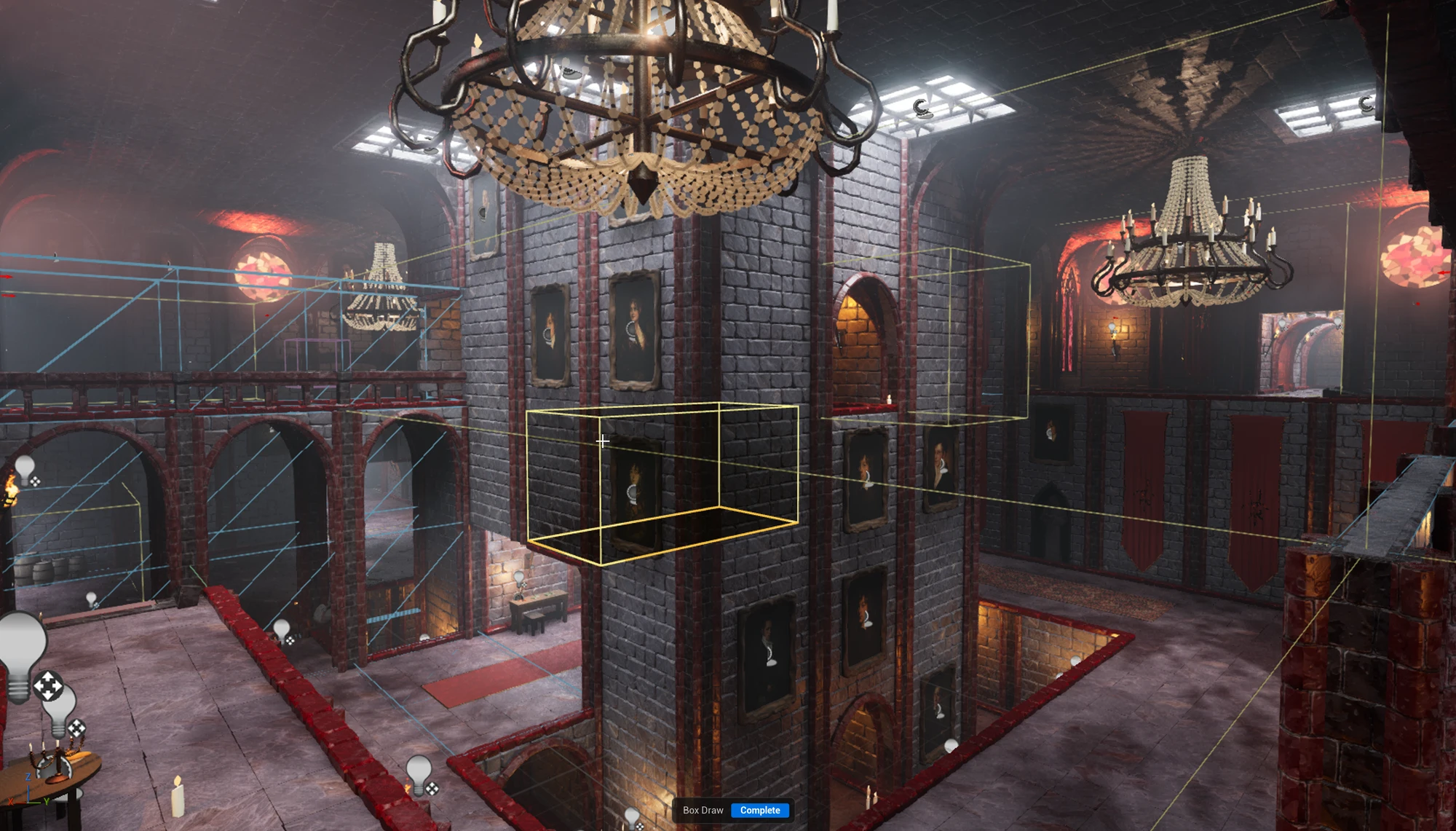
- Snap Grid Flow places your rooms on a 3D grid and follows a flow graph, the same kind of rules as above: main and side paths, key-locks, loops.
- Snap Map attaches rooms freely at their doors, with no grid, and lays them out from a designer-friendly graph of rules.
Here is the whole castle, stitched together by Snap Grid Flow from rooms like the one above. Build again and you get a different castle:
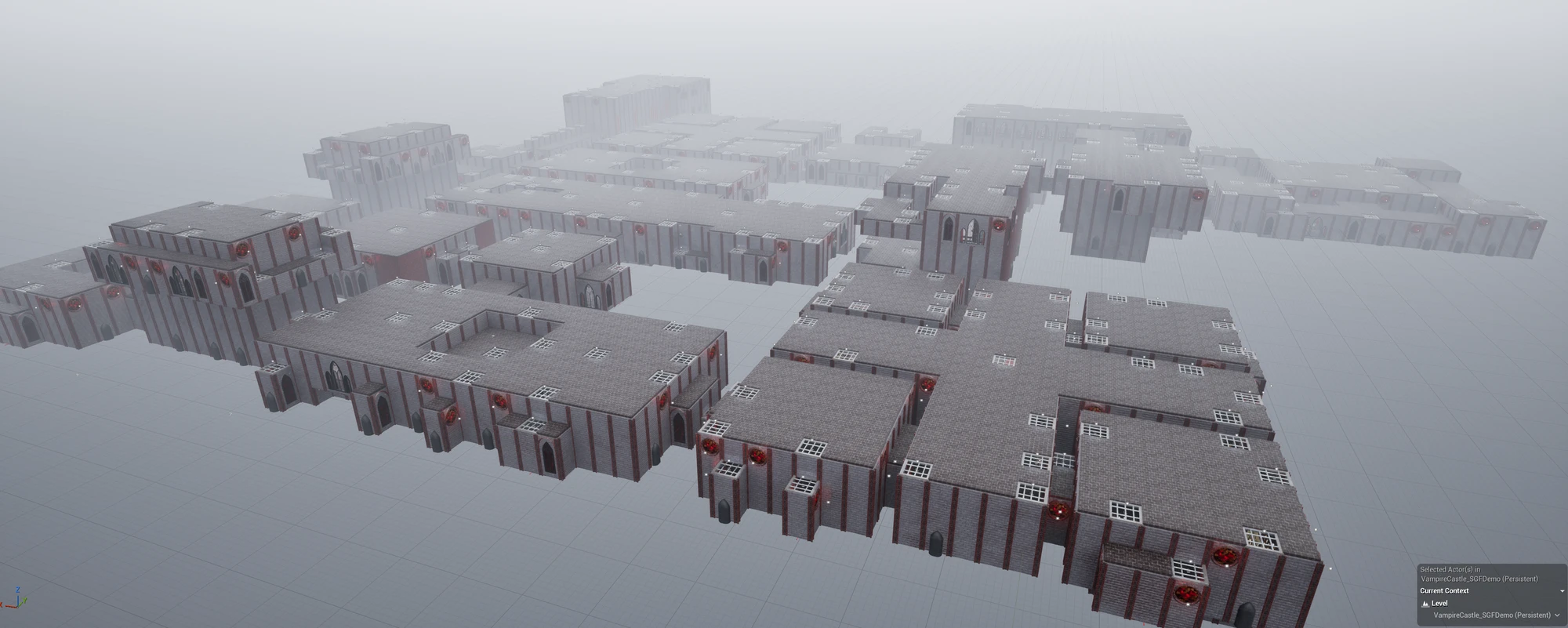
Rooms you block out are themed just like a generated level. Block a room out once, then make it a stone castle, a sci-fi laboratory or a wooden cabin by swapping the theme. Reshape the room and the theme follows.
The Gothic Vampire Castle sample is built this way: its rooms were blocked out in the Blockout Designer, dressed with the gothic theme, and stitched together by Snap Grid Flow.
Layers on top
Section titled “Layers on top”The finished level can carry more layers, each built from what’s already there:
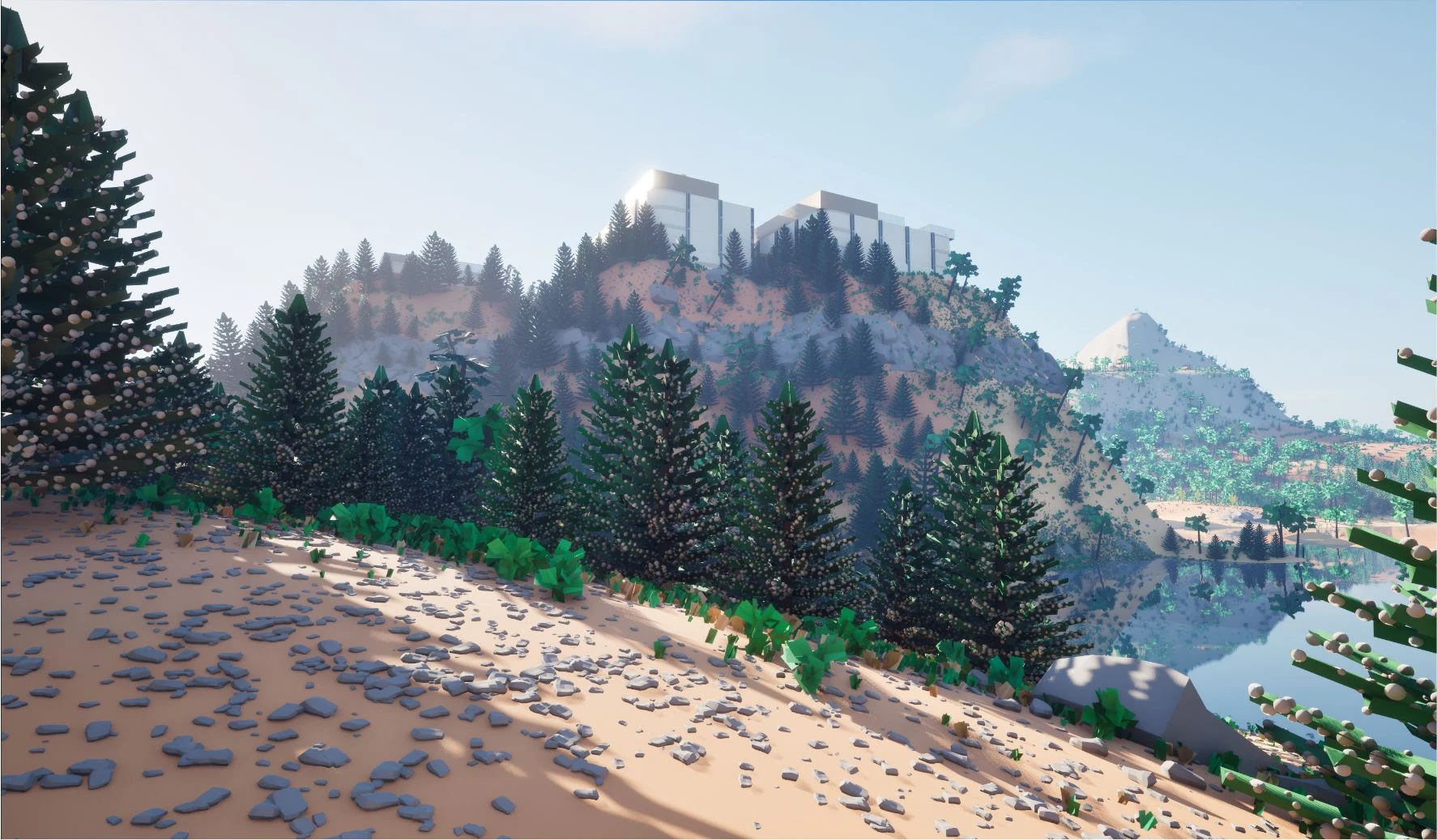
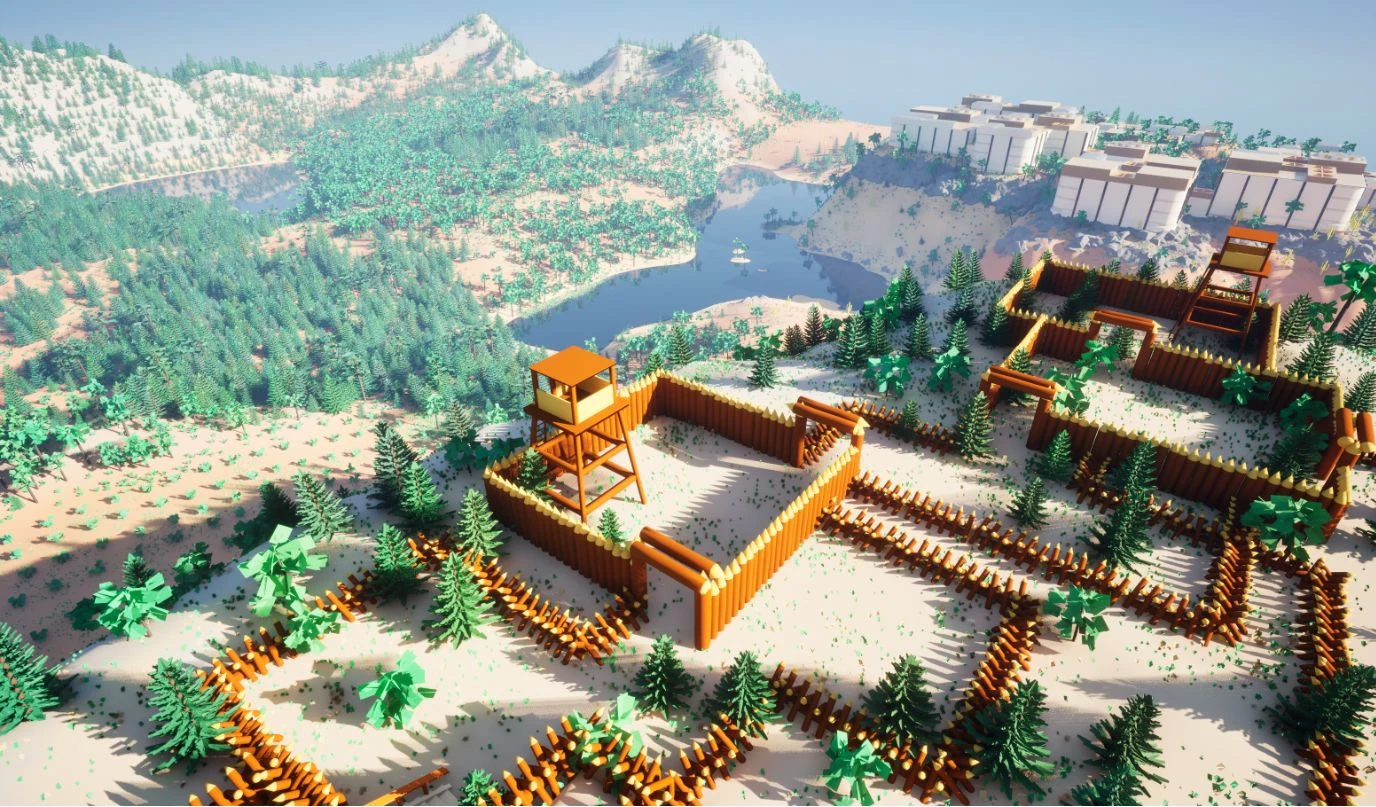
- Landscape Transformer shapes your landscape around the dungeon: it raises or lowers the ground to meet it, paints it, and blends it into the terrain with noise. It works in its own edit layers, so your landscape is never overwritten: move the dungeon, rebuild or revert at any time.
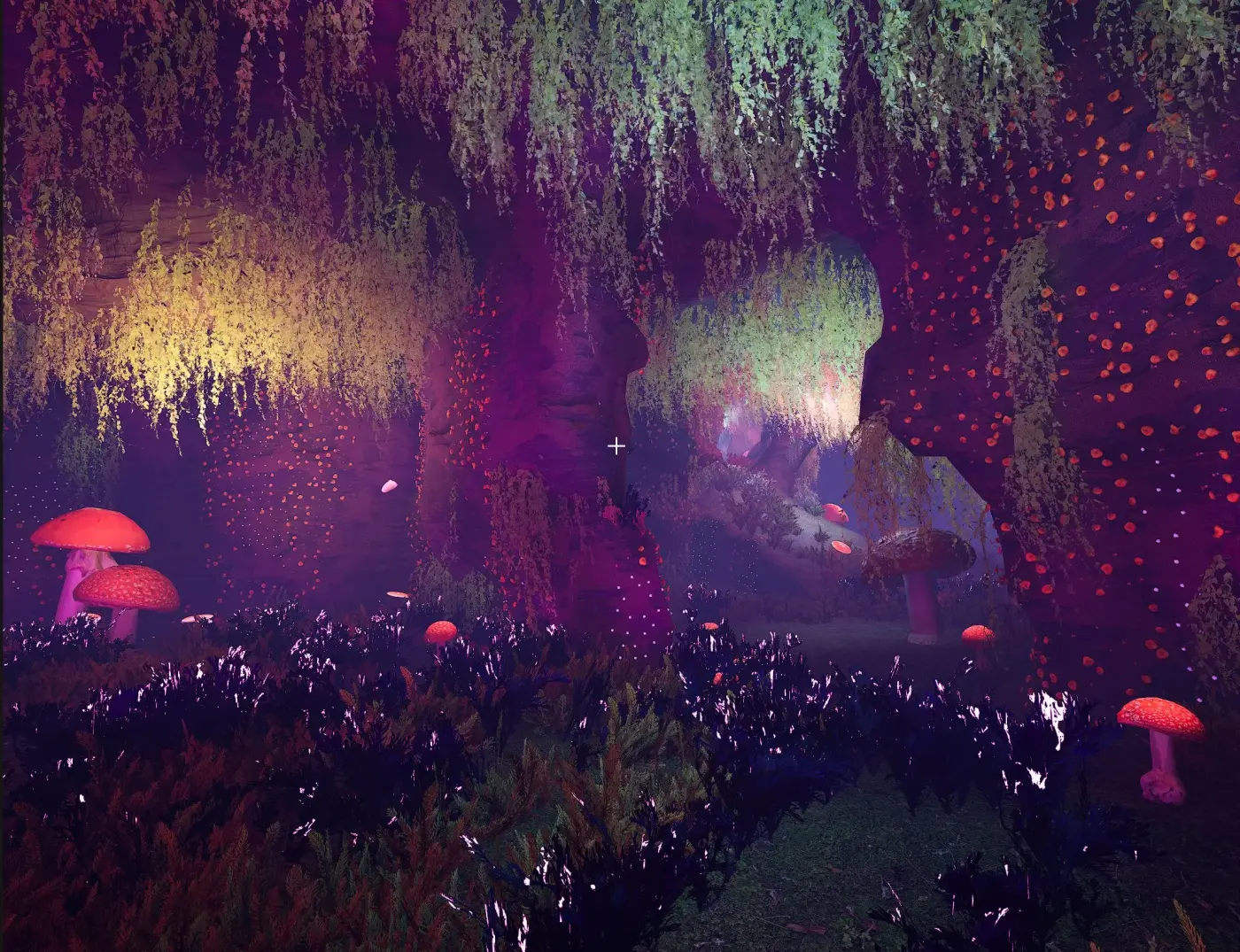
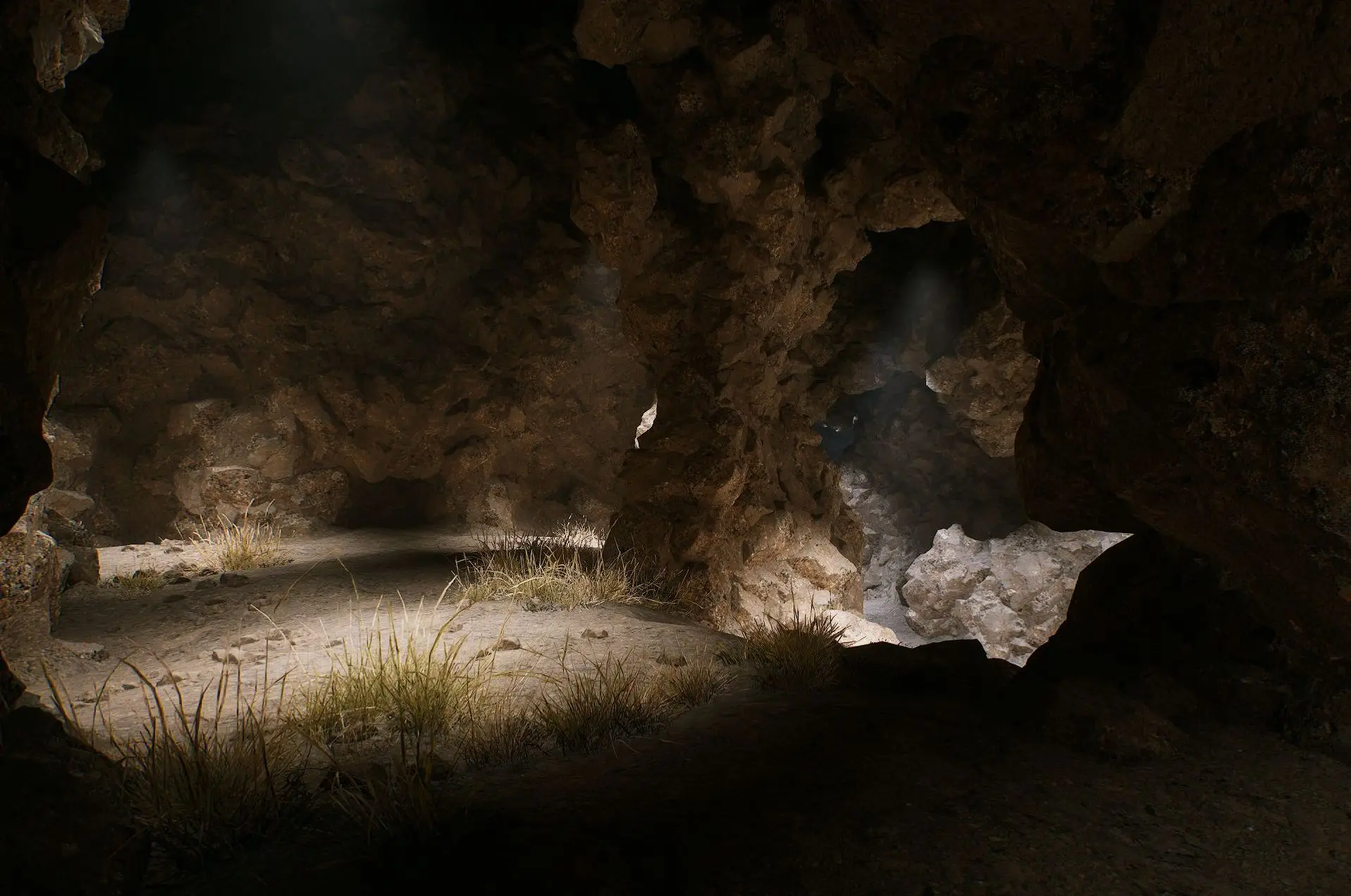
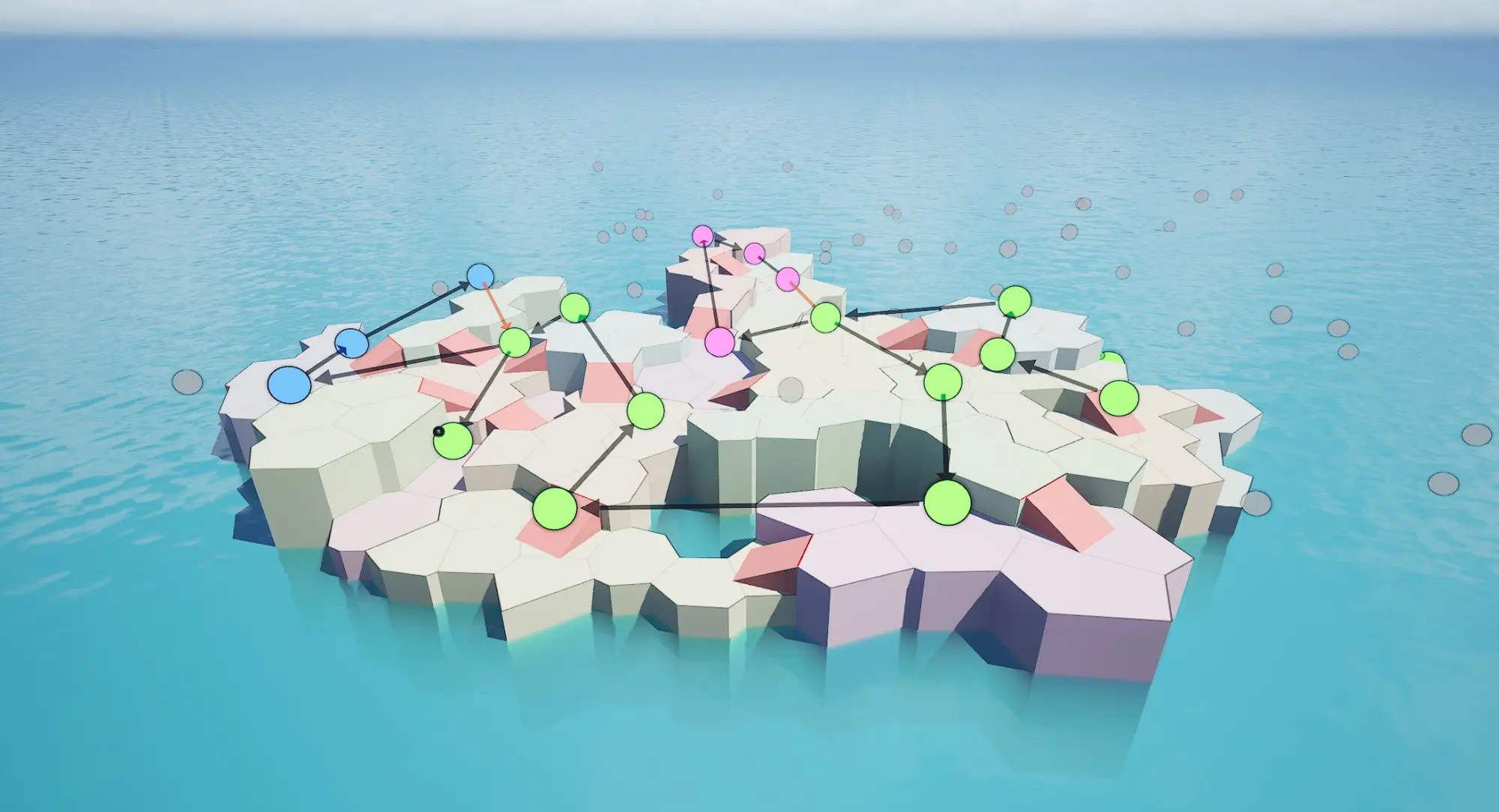
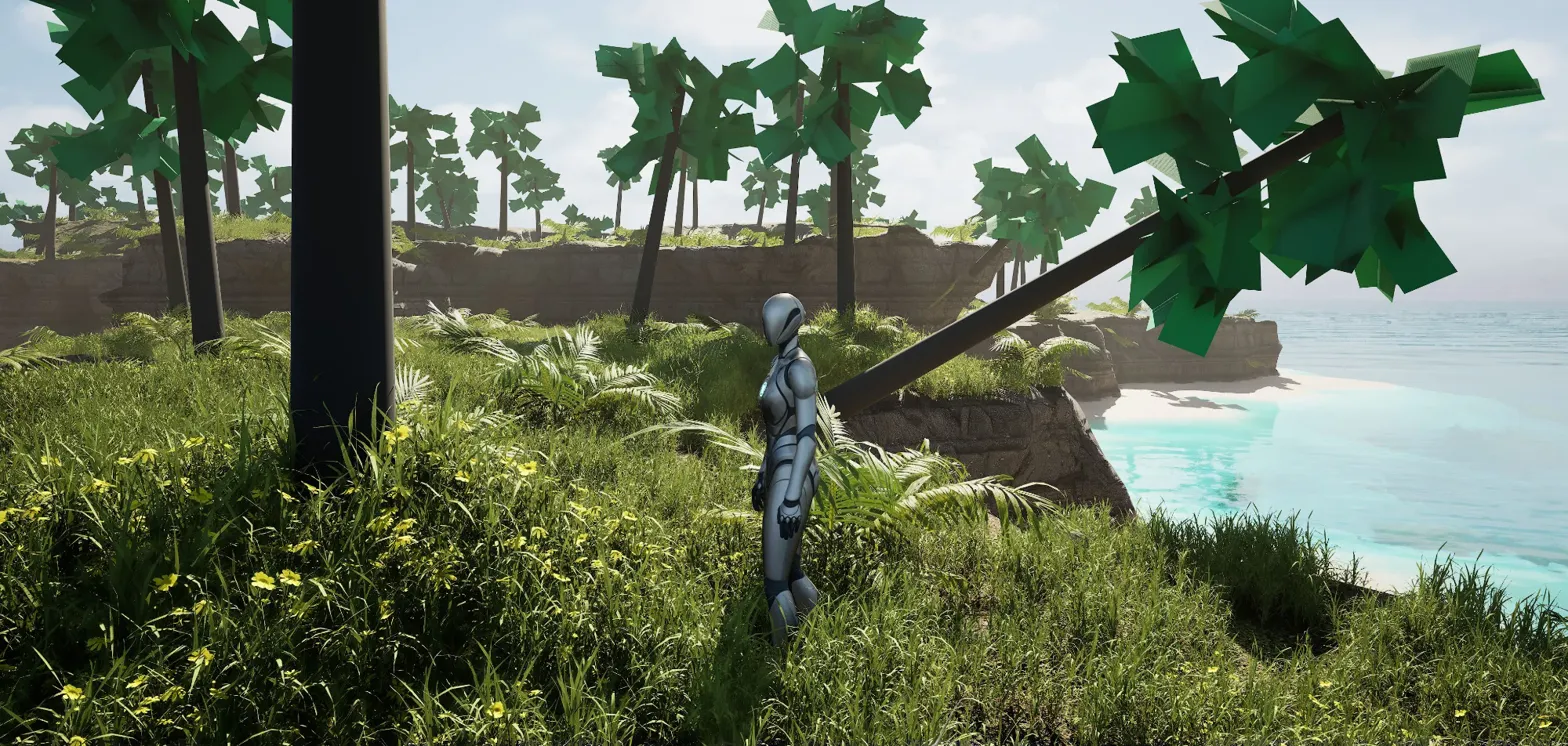
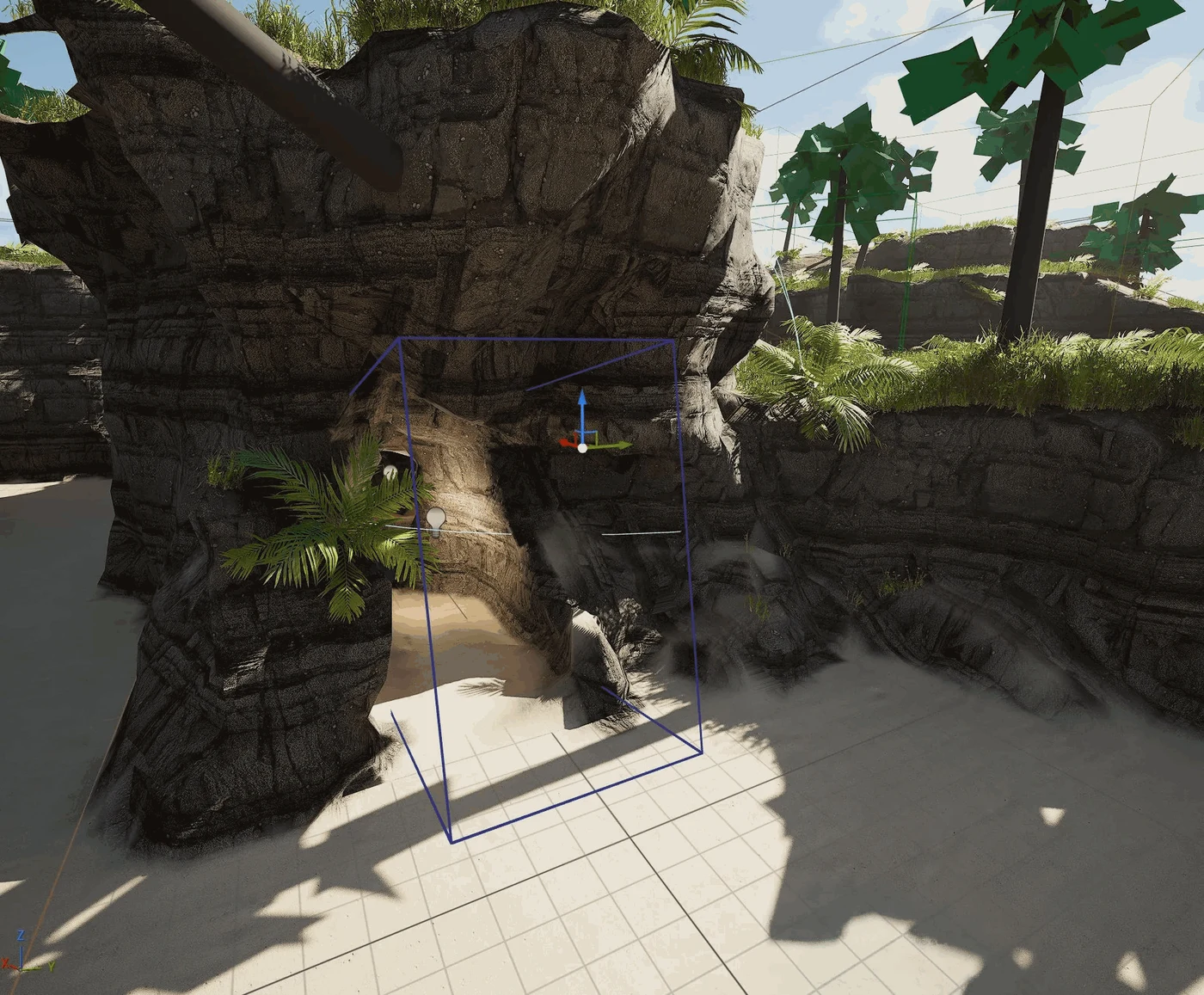
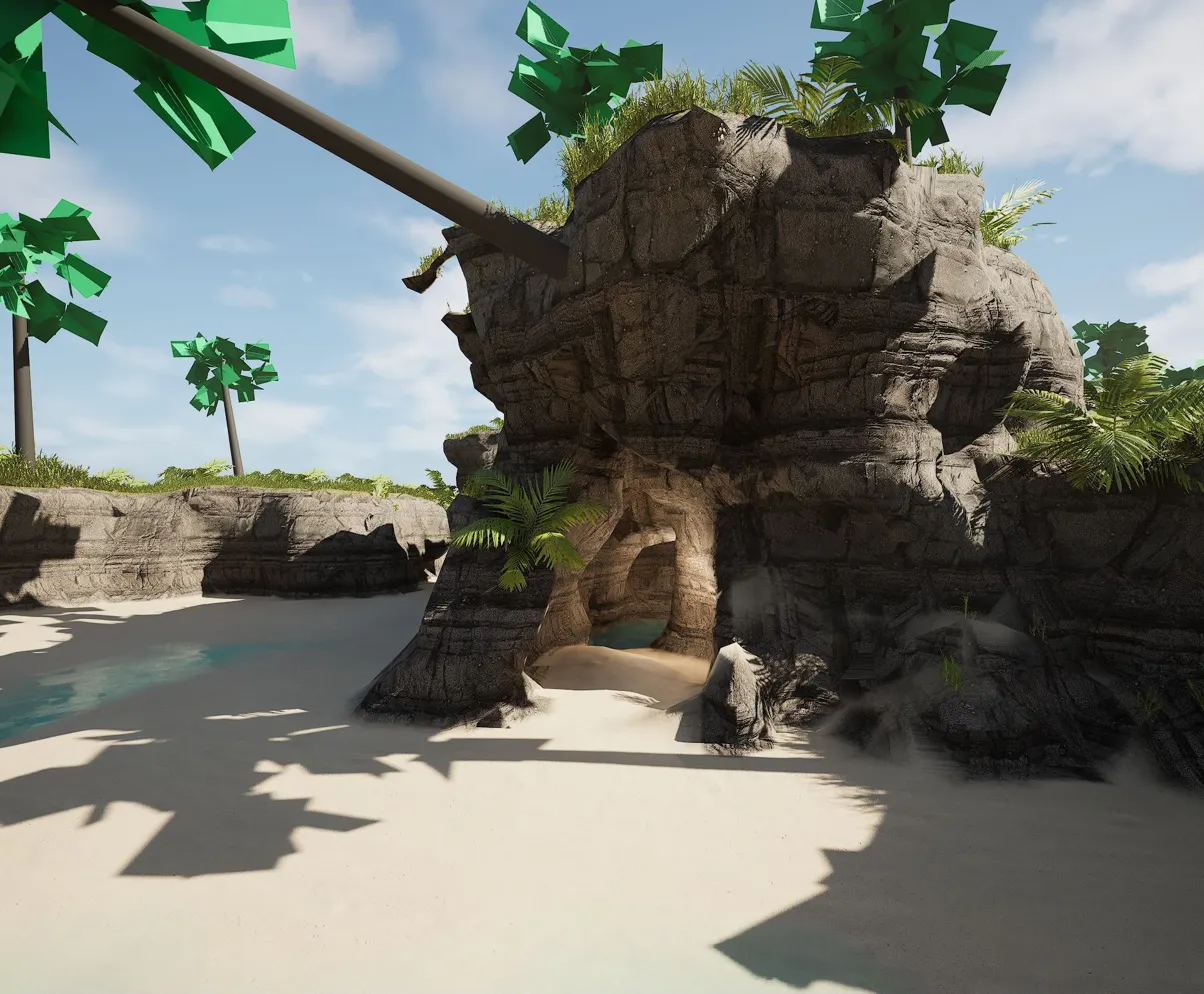
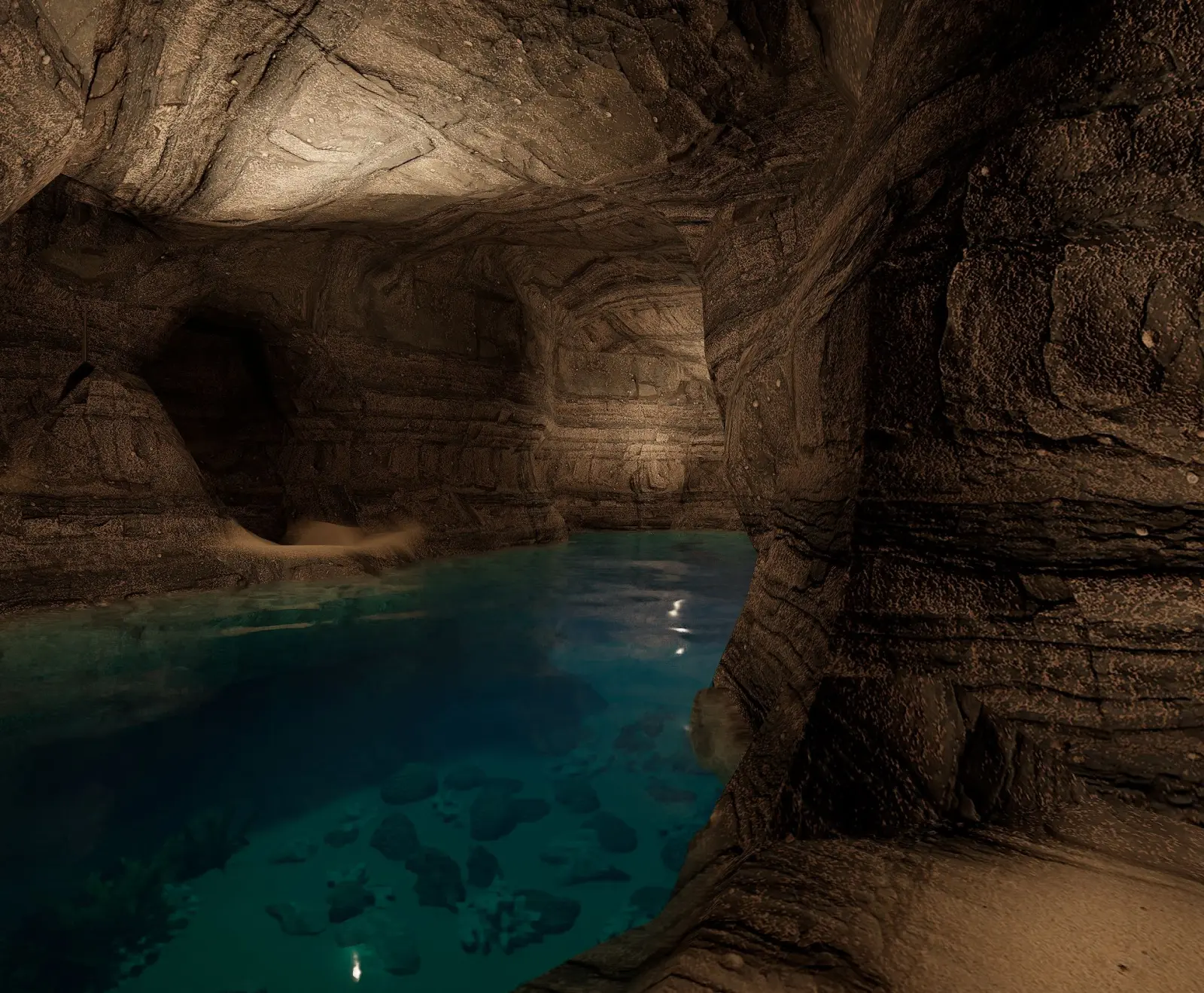
- Voxels turn the layout into an organic world, from any builder. The voxels can be the dungeon itself, or grow around your dungeon. Pick the world shape on the Dungeon actor: a cave, an island in the ocean, or a floating island (work in progress). More shapes can be added over time, based on what the community asks for. Then carve or add to the shape by hand with voxel volumes.
- PCG reads the same markers and decorates on top: candles along a table, mushrooms on a cave floor.
The Landscape Transformer, on two dungeons built into an existing landscape (click an image to zoom):
Voxel caves from the samples:


And a Cell Flow layout turned into a voxel island:

Each layer can be changed or removed without touching the others.
Same seed, same level
Section titled “Same seed, same level”A layout is built from a seed. The same seed always gives the same level, on every machine. That’s what lets a multiplayer game send just the seed: every client builds the identical dungeon locally. It also makes a level easy to reproduce while you debug it. Change the seed for a new layout; keep it to keep the one you like.
Where next
Section titled “Where next”- See it in action: start with Your first dungeon.
- Go deeper: the sidebar follows the same steps: Layout, Theming, then Authoring (the Blockout Designer), Worlds (voxels and landscapes) and Gameplay.