Build System
Applies to Dungeon Architect 3.7 · Unreal Engine
The Build System makes your dungeon playable. When the game starts, it builds the dungeon and spawns the player inside it, with a new dungeon every time if you like.
It handles multiplayer too. The server builds the dungeon and sends its seed to every client, so they all build the exact same dungeon. It waits for everyone to finish, catches up players who join late, and then spawns each player.
How it works
Section titled “How it works”The Build System is three components:
| Component | Goes on | You add it? |
|---|---|---|
BuildSystemComponent |
The dungeon actor | No, every dungeon actor already has it |
DungeonBuildSystemGameMode |
Your game mode | Yes |
DungeonBuildSystemPlayerController |
Your player controller | Yes |
They’re components, so they work with the game mode and player controller you already have. Nothing in your class hierarchy changes.
The video uses the Foundry sample, cloned from the Launch Pad, with the Third Person feature pack added for a character to walk around with.
You’ll need: a level with a dungeon. If you don’t have one, set one up in a few minutes with
Your first dungeon. Its Foundry and Gothic themes already place a
PlayerStart in the spawn room.
1. Check the dungeon actor
Section titled “1. Check the dungeon actor”Select the dungeon actor, then its BuildSystemComponent in the Details panel. Participate In Build System is
checked by default, so there’s usually nothing to change here.

| Property | Default | Description |
|---|---|---|
| Participate In Build System | true |
Lets the Build System build this dungeon. Uncheck it to build this dungeon yourself from Blueprints |
| Randomize Seed On Build | false |
Picks a new seed on every build, so you get a different dungeon each time you play. Leave it off to keep the seed you set, which is what the multiplayer sample does |
| Restart Player On Ready | true |
Under Advanced. Respawns the player once the dungeon is ready. Turn it off to handle the spawn yourself |
2. Pick your game mode
Section titled “2. Pick your game mode”This guide uses the game mode from Unreal’s Third Person template. If your project already has a game mode, use yours and skip to step 3.
-
In the Content Browser, click Add > Add Feature or Content Pack, pick Third Person and add it to your project.

-
The template’s Blueprints are in
Content > ThirdPerson > Blueprints.
-
Open Window > World Settings.

-
Drag
BP_ThirdPersonGameModefrom the Content Browser onto GameMode Override.
3. Add the player controller component
Section titled “3. Add the player controller component”Open your player controller Blueprint, here BP_ThirdPersonPlayerController in the same folder.
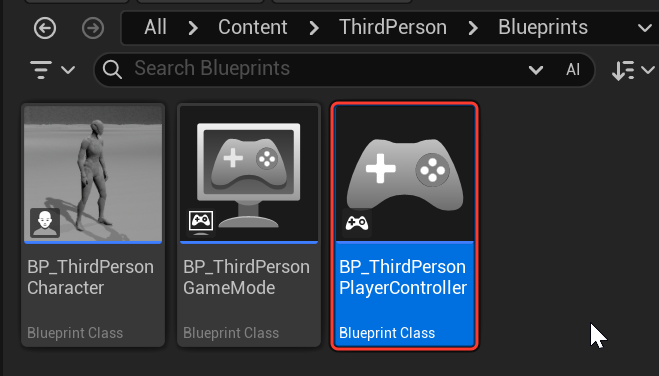
In the Components panel, click Add, search for Dungeon Build System and pick the player controller version.

The component shows up in the list. Compile and save the Blueprint. That’s all the player controller needs.

4. Set up the game mode
Section titled “4. Set up the game mode”Open your game mode Blueprint, here BP_ThirdPersonGameMode. This part has a few steps.

Add the component
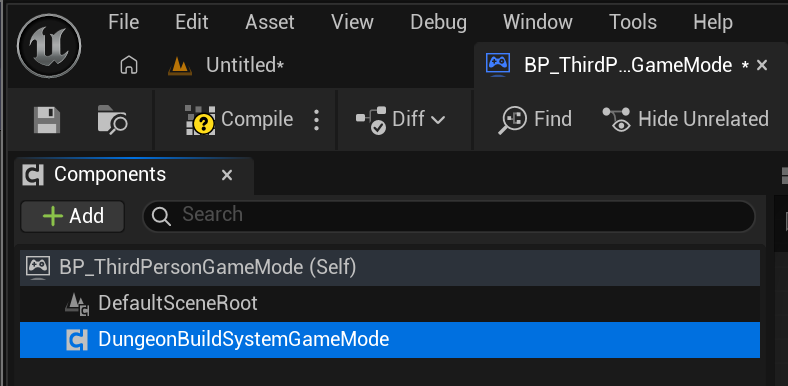
Section titled “Add the component”Click Add in the Components panel, search for Dungeon Build System and pick the game mode version.

It shows up as DungeonBuildSystemGameMode.
Override Find Player Start
Section titled “Override Find Player Start”In the My Blueprint panel, click Override next to Functions and pick Find Player Start.
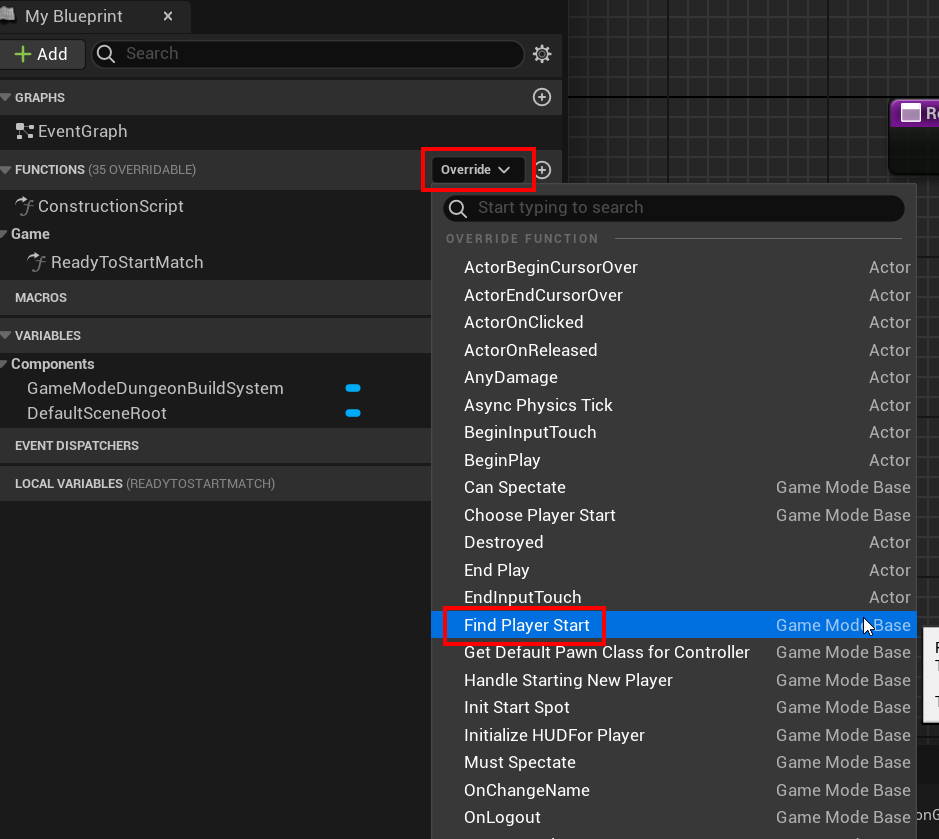
Drag the component into the graph and call its Find Player Start. Pass in the inputs and return its result.
The component now picks the PlayerStart in the dungeon’s spawn room, so the player starts inside the dungeon.

Override Get Default Pawn Class For Controller
Section titled “Override Get Default Pawn Class For Controller”Click Override next to Functions again, search for get and pick GetDefaultPawnClassForController.

The new function calls the parent version by default. Delete that orange Parent: GetDefaultPawnClassForController
node.

In its place, drag the DungeonBuildSystemGameMode component into the graph and call its
Get Default Pawn Class for Controller. Wire In Controller in and its Return Value to the Return Node.
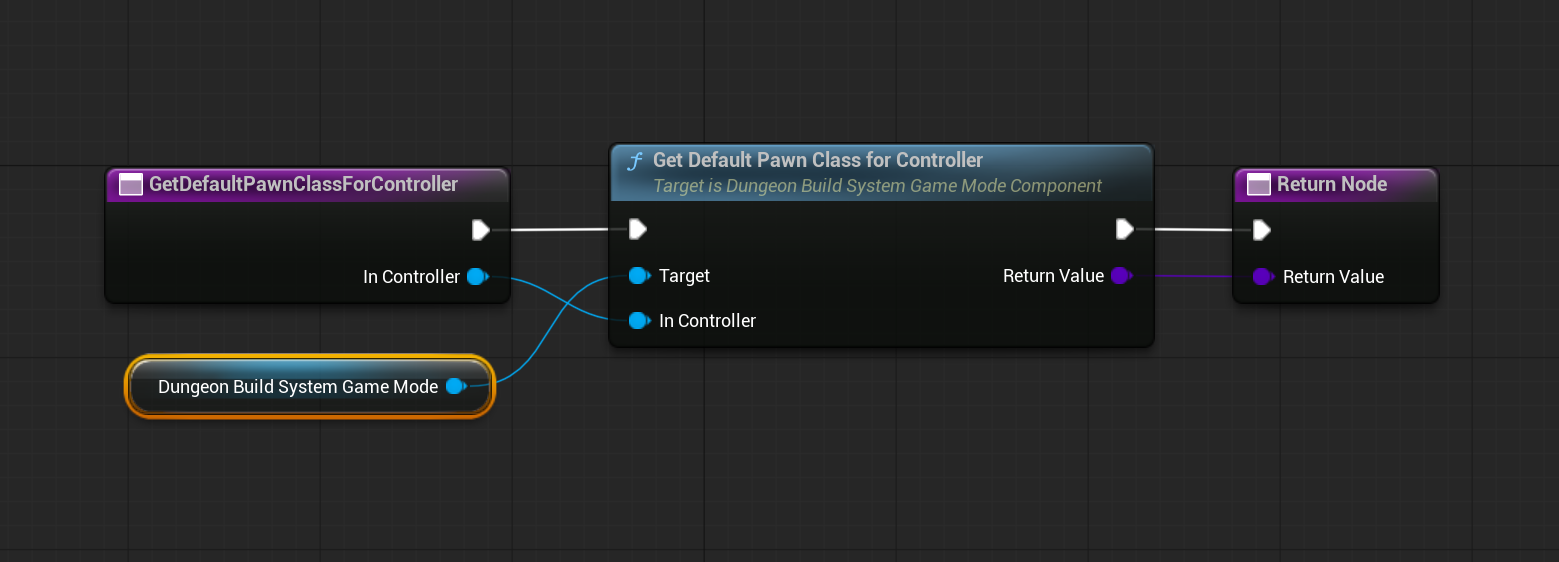
The dungeon is built over several frames. This keeps the player in spectator mode until it’s ready, so your character doesn’t fall through the empty level, then switches to your pawn. To give players somewhere to wait instead, see Lobby.
Start the build
Section titled “Start the build”In the same game mode Blueprint, open the Event Graph. If there’s no Event BeginPlay node yet, right-click
the graph, search for begin play and add it.
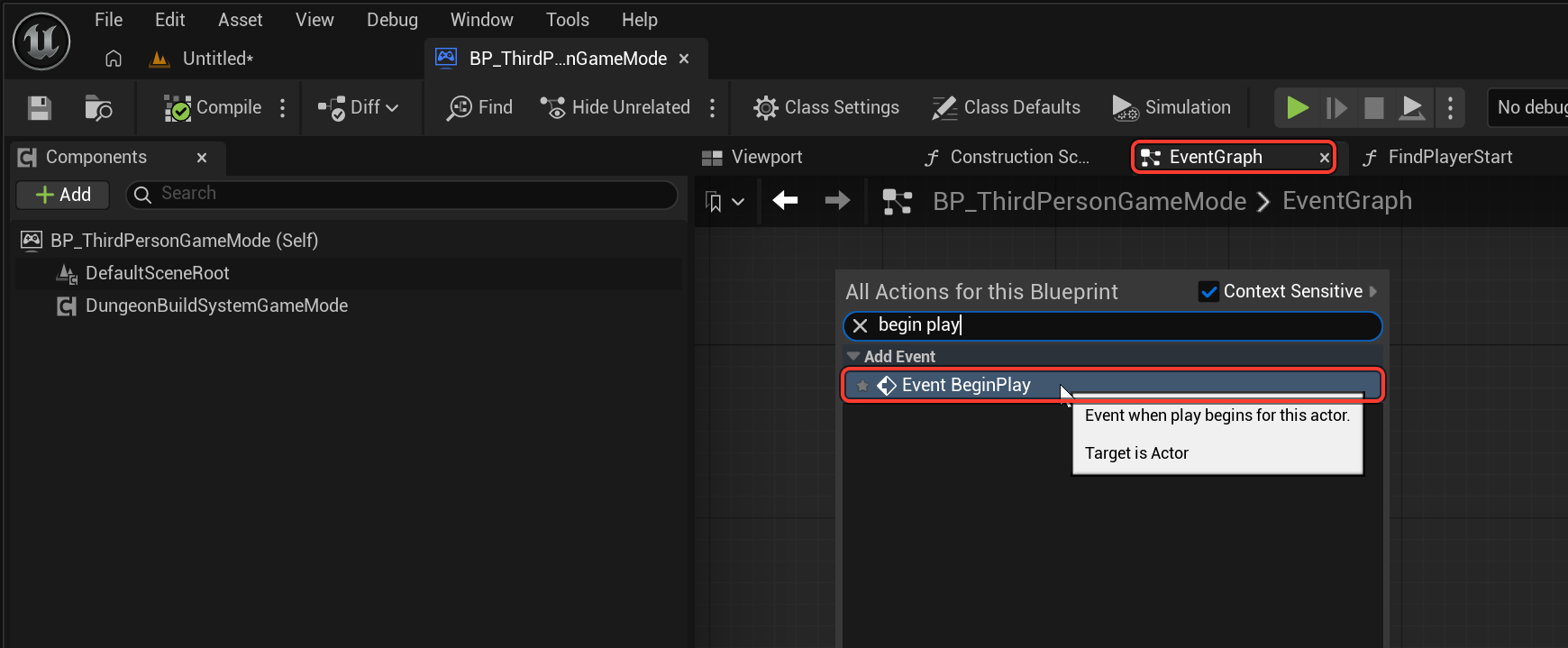
Drag the DungeonBuildSystemGameMode component into the graph and call its Initiate Dungeon Build from
Event BeginPlay.

Compile and save.
5. Play
Section titled “5. Play”Hit Play, and you start inside the dungeon.
Play again and you get the same dungeon, because the seed doesn’t change. Check Randomize Seed On Build on the
dungeon actor to get a different dungeon every time.
It works in multiplayer with no extra setup. Set the play mode to Play As Listen Server with a few players: every
window builds the same dungeon, and players who are still loading join once they’re done.
Lobby (optional)
Section titled “Lobby (optional)”Each player waits until their own copy of the dungeon is built. By default they wait as a spectator, which is fine for most games. A lobby gives them a place to wait instead, e.g. a small room outside the dungeon. This matters most in multiplayer, where a player who joins mid-game waits while their dungeon builds.
-
Place a
PlayerStartin the level, away from where the dungeon builds. You can reuse the level’s own Player Start from step 1 instead of deleting it. -
In its Details panel, set Player Start Tag to
Lobby. -
Optional: open your game mode Blueprint, select the
DungeonBuildSystemGameModecomponent and set Lobby Pawn Class to the pawn players use while they wait, e.g. your character so they can walk around the lobby. Give the lobby a floor if you do. Leave it empty to wait as the game mode’s spectator.
Hit Play. Each player starts in the lobby and moves into the dungeon on their own as soon as their dungeon is built. Lobby starts are never used once a player is in the dungeon. With several lobby starts, players are spread across the free ones.
With the Game Animation Sample
Section titled “With the Game Animation Sample”The same setup with Epic’s Game Animation Sample, for a fully animated character in a generated dungeon:
Component reference
Section titled “Component reference”DungeonBuildSystemGameMode
Section titled “DungeonBuildSystemGameMode”| Property | Description |
|---|---|
| Main Dungeon Tag | Uses the dungeon with this actor tag. Leave it empty to use the first dungeon in the level |
| Lobby Player Start Tag | Player Starts with this Player Start Tag are lobby starts, where players wait while their dungeon builds. Default Lobby. See Lobby |
| Lobby Pawn Class | Pawn used while a player waits in the lobby. Empty uses the game mode’s Spectator Class |
| On Dungeon Ready | Fires when the dungeon is built and ready for players |
| Function | Description |
|---|---|
| Find Player Start | Forward your game mode’s Find Player Start here |
| Get Default Pawn Class For Controller | Forward your game mode’s Get Default Pawn Class For Controller here |
| Initiate Dungeon Build | Starts the build. The server starts as soon as it’s ready, and clients build in the background |
| Initiate Dungeon Build And Wait For Players | Starts the build and waits until Expected Player Count players have finished building before the match starts. Use it for synchronized starts in competitive games |
DungeonBuildSystemPlayerController
Section titled “DungeonBuildSystemPlayerController”Carries the build request to each client and reports back to the server when that client’s dungeon is done. This is how clients build the same dungeon as the server, and how late joiners catch up.