Your first dungeon
Set up a complete, themed dungeon in about five minutes. Everything you need ships with Dungeon Architect: you pick a builder, a flow graph and a theme, and click Build.
You’ll need: Dungeon Architect enabled in your project (Installation).
1. Add a dungeon
Section titled “1. Add a dungeon”-
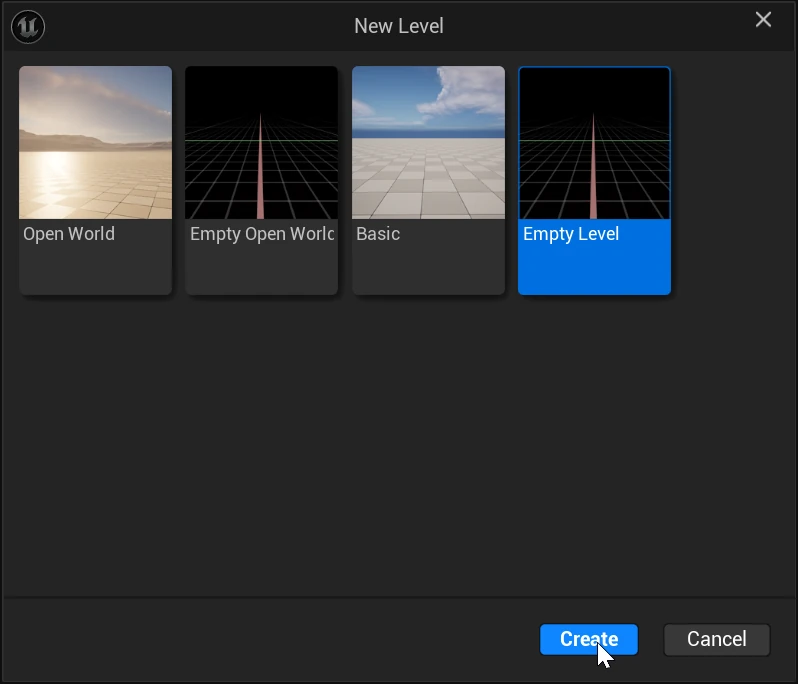
Create a new level: File > New Level, pick Empty Level and click Create.
-
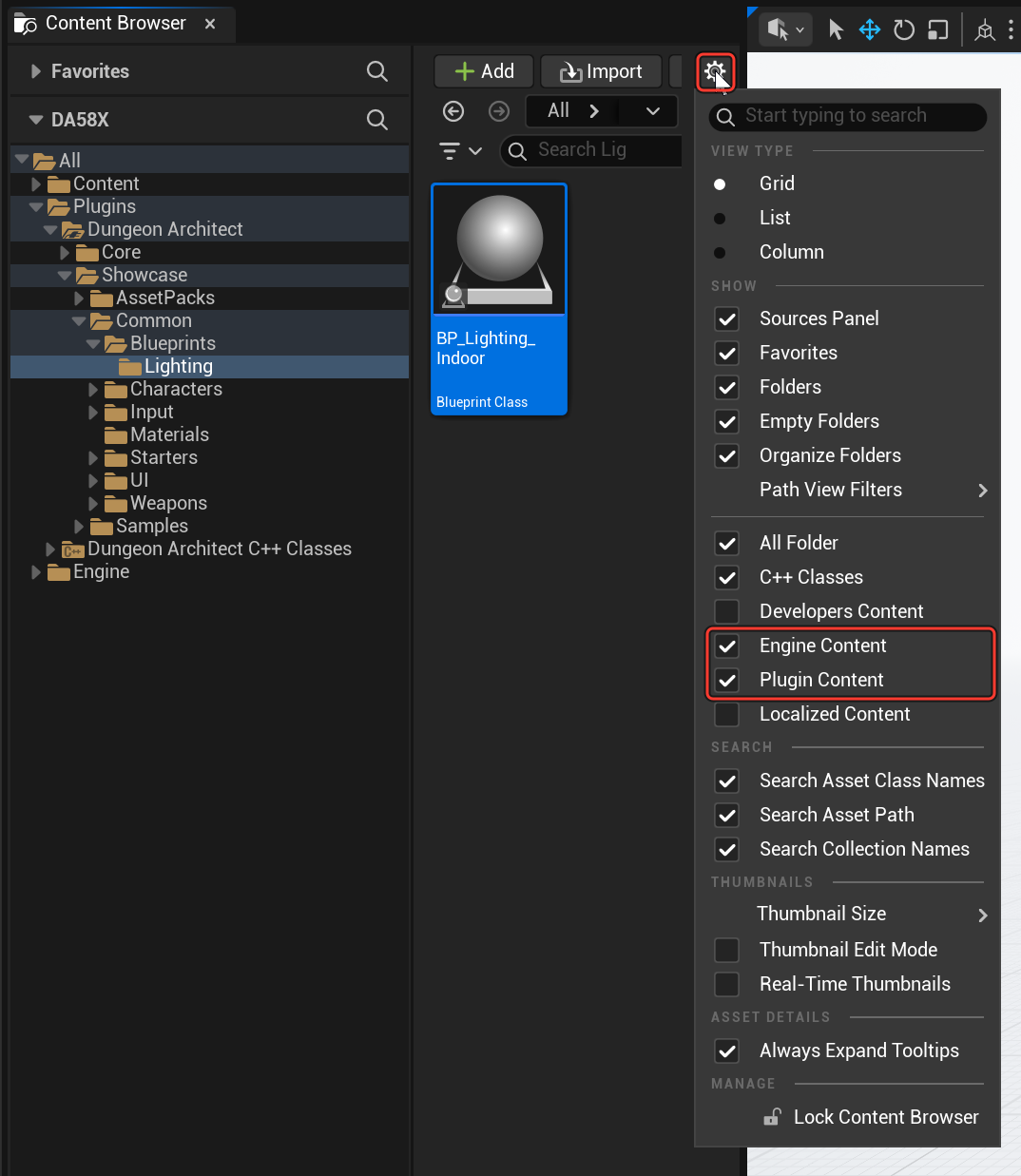
Dungeon Architect’s samples live in the plugin’s content, which the Content Browser hides at first. Click the settings icon at the top right of the Content Browser and, under Show, tick Engine Content and Plugin Content.
-
Go to
Plugins > Dungeon Architect > Showcase > Common > Blueprints > Lighting.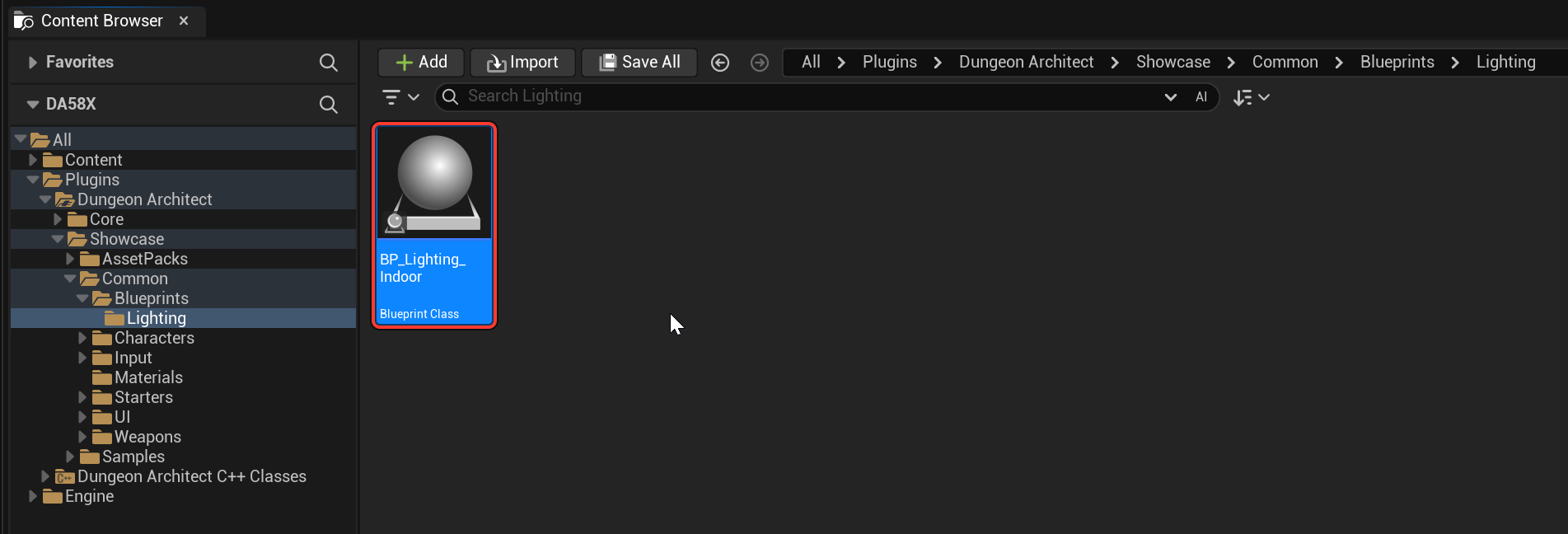
Drag
BP_Lighting_Indoorinto the level. The empty level lights up.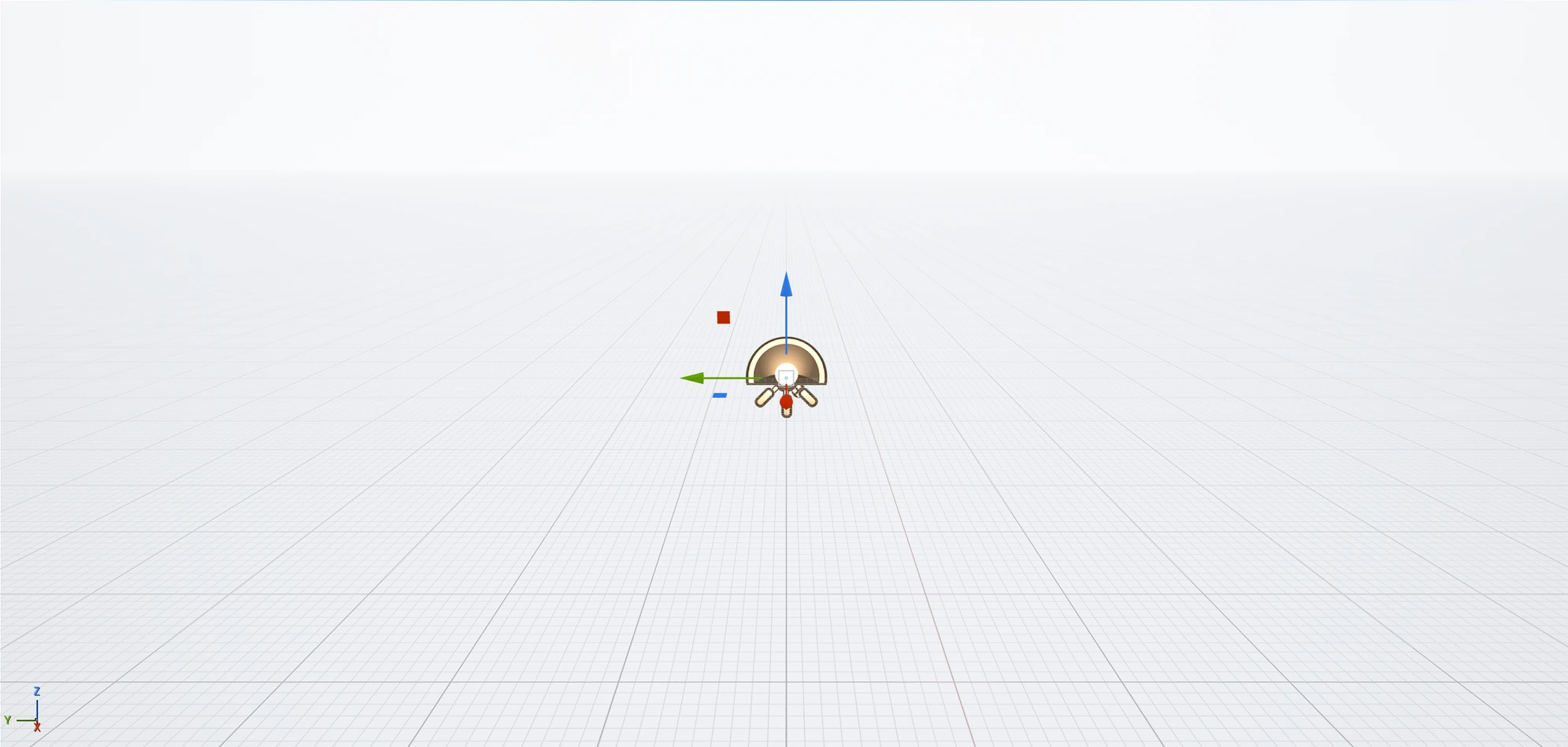
-
Add the dungeon: click the Add button on the main toolbar (the cube with a plus), then Dungeon Architect > Dungeon.
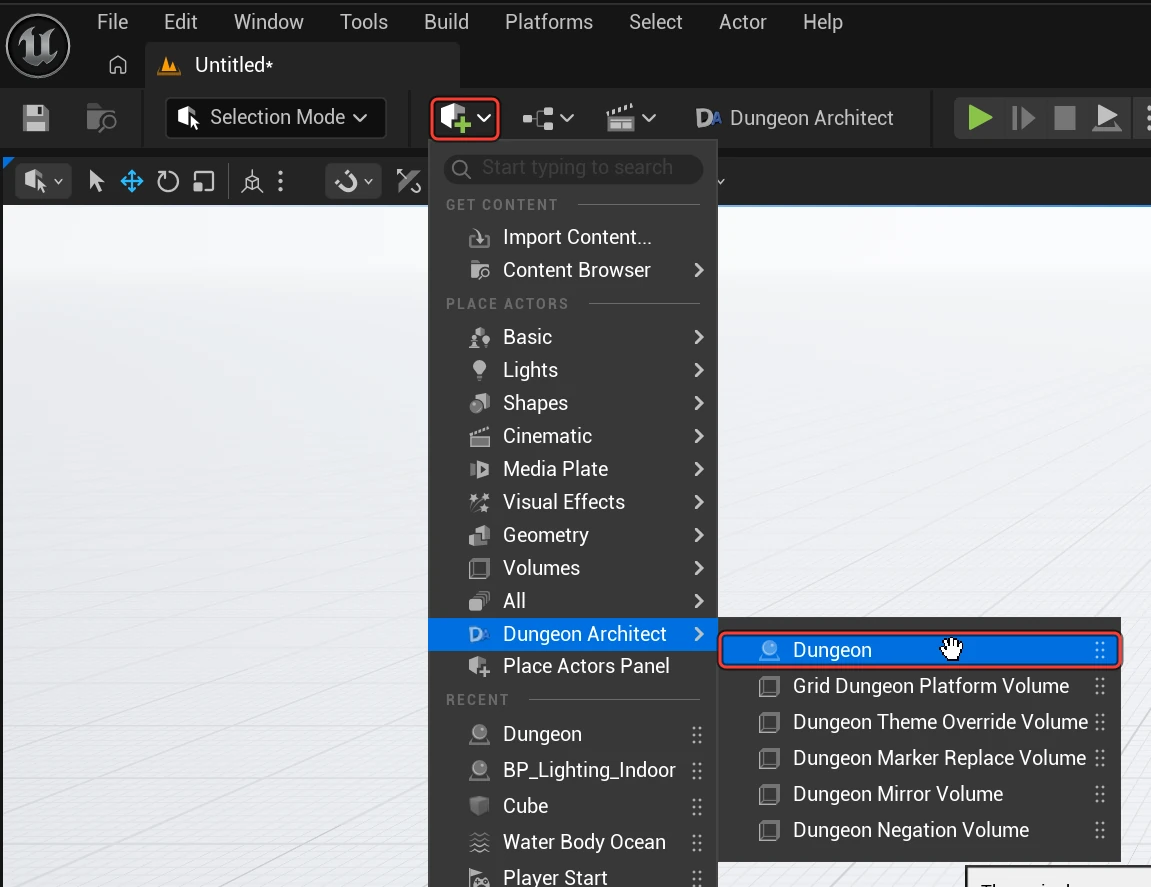
2. Pick the builder, theme and flow graph
Section titled “2. Pick the builder, theme and flow graph”-
Select the Dungeon actor in the Outliner.
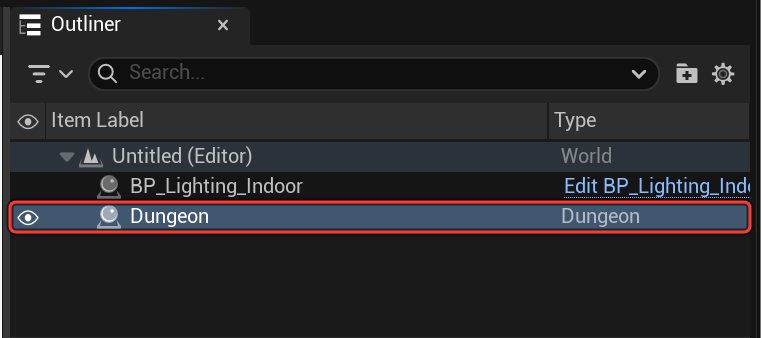
-
In the Details panel, under Dungeon, set Builder Class to Cell Flow.
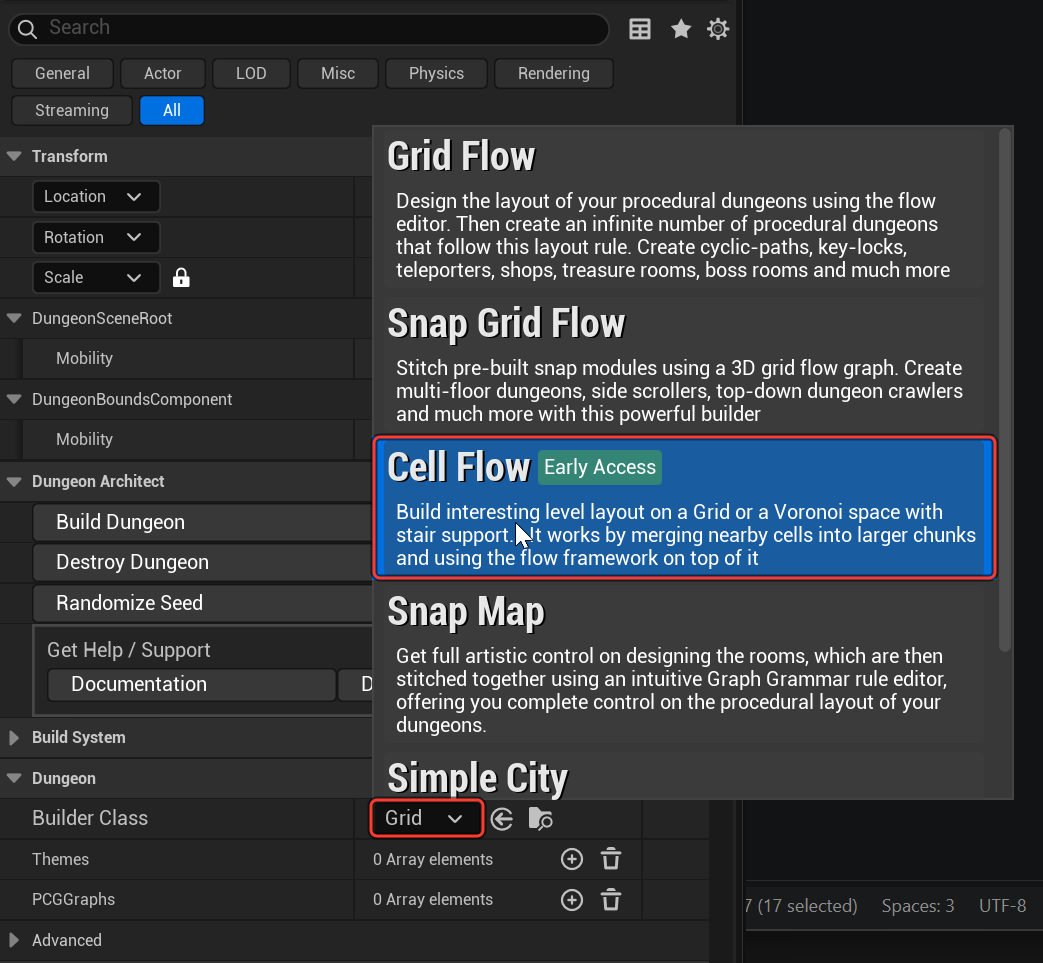
-
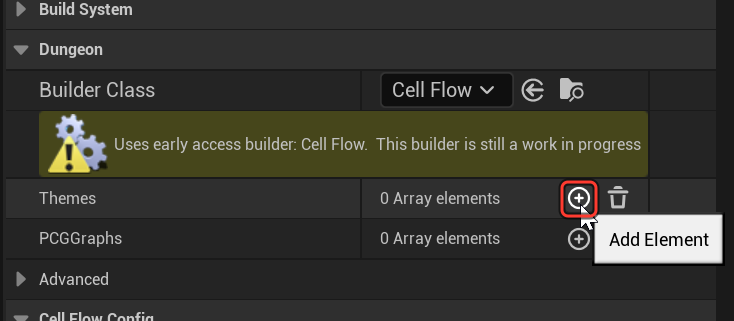
Next to Themes, click + to add an entry.
-
Open the new entry’s dropdown, type
foundryand pickT_Foundry_Theme.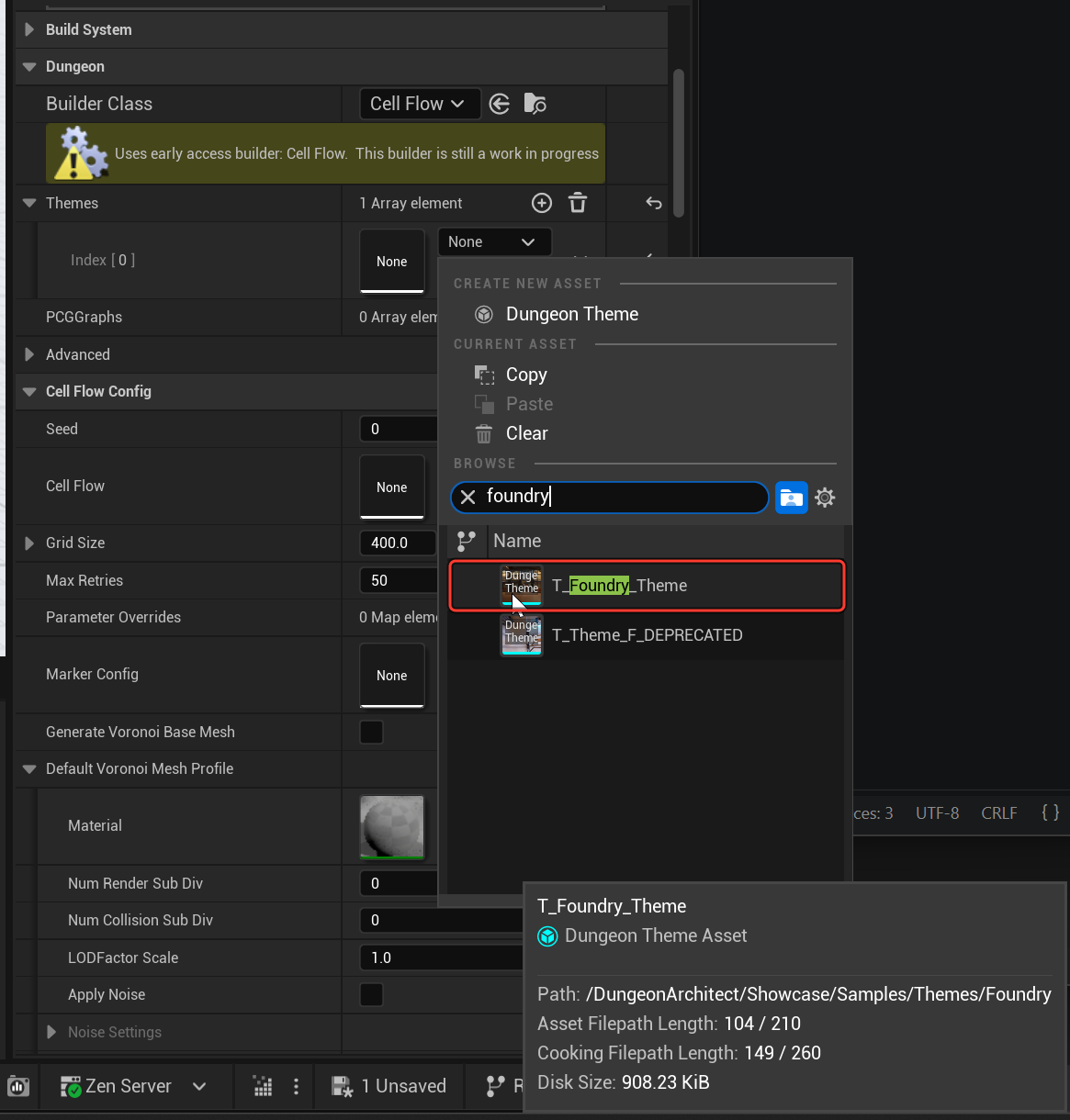
-
Under Cell Flow Config, open the Cell Flow dropdown, type
foundryand pickCellFlow_Graph_Foundry. This is the flow graph: the rules the builder follows to lay out rooms and paths.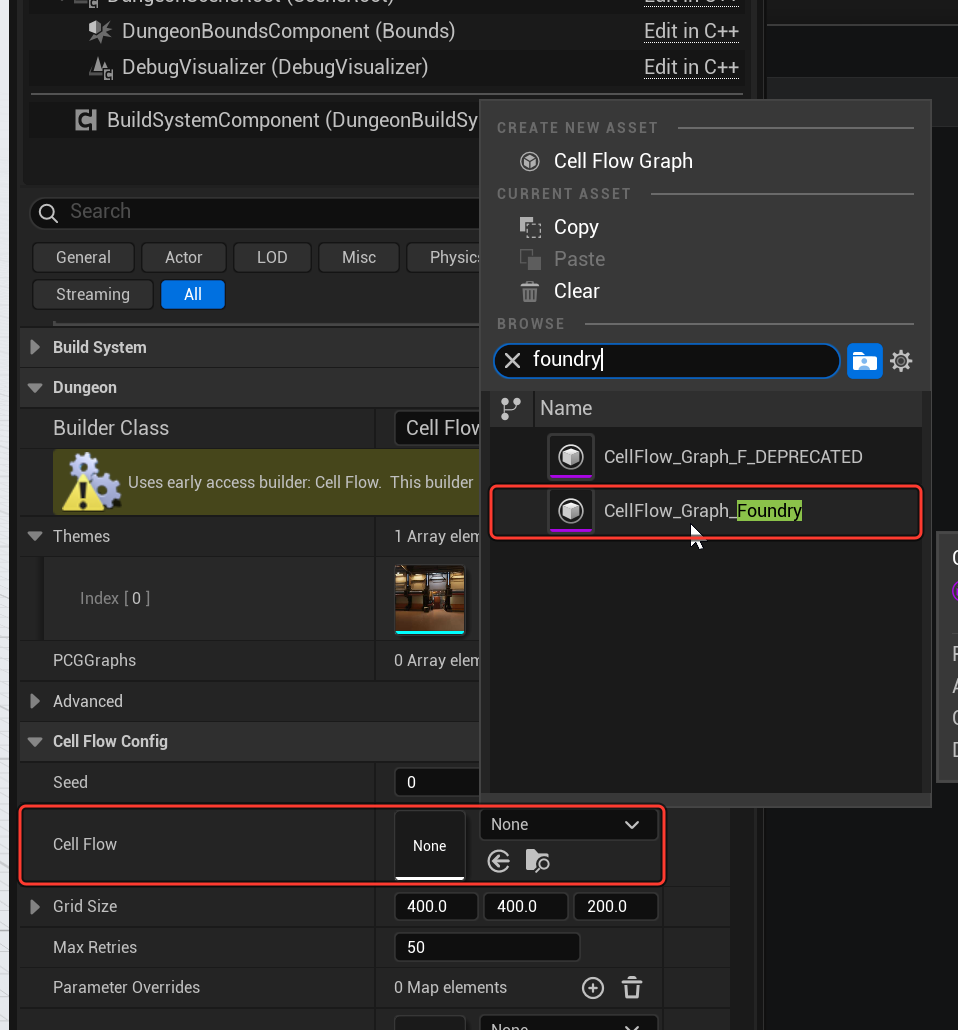
-
Still under Cell Flow Config, tick Instanced. The meshes are batched into instances instead of one actor each, so the dungeon builds much faster and the level runs faster.
Leave Grid Size at its default, 400, 400, 200. It matches both themes in this guide.
3. Build
Section titled “3. Build”Scroll up the Details panel and click Build Dungeon.
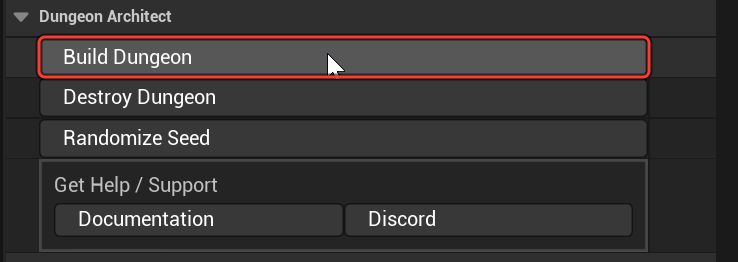
Fly into a room to see it dressed by the Foundry theme.
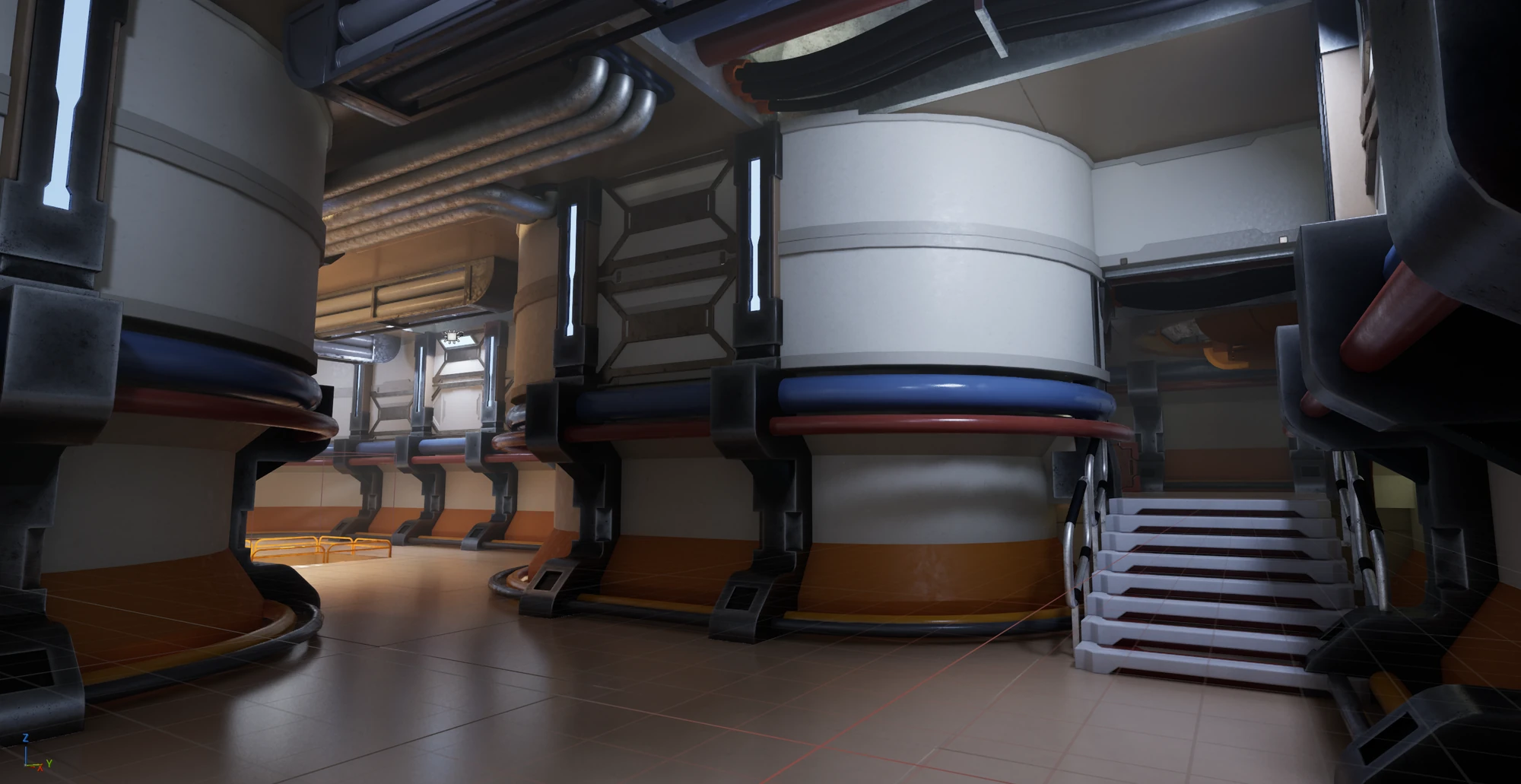
Every room, stair and doorway comes from the same layout.
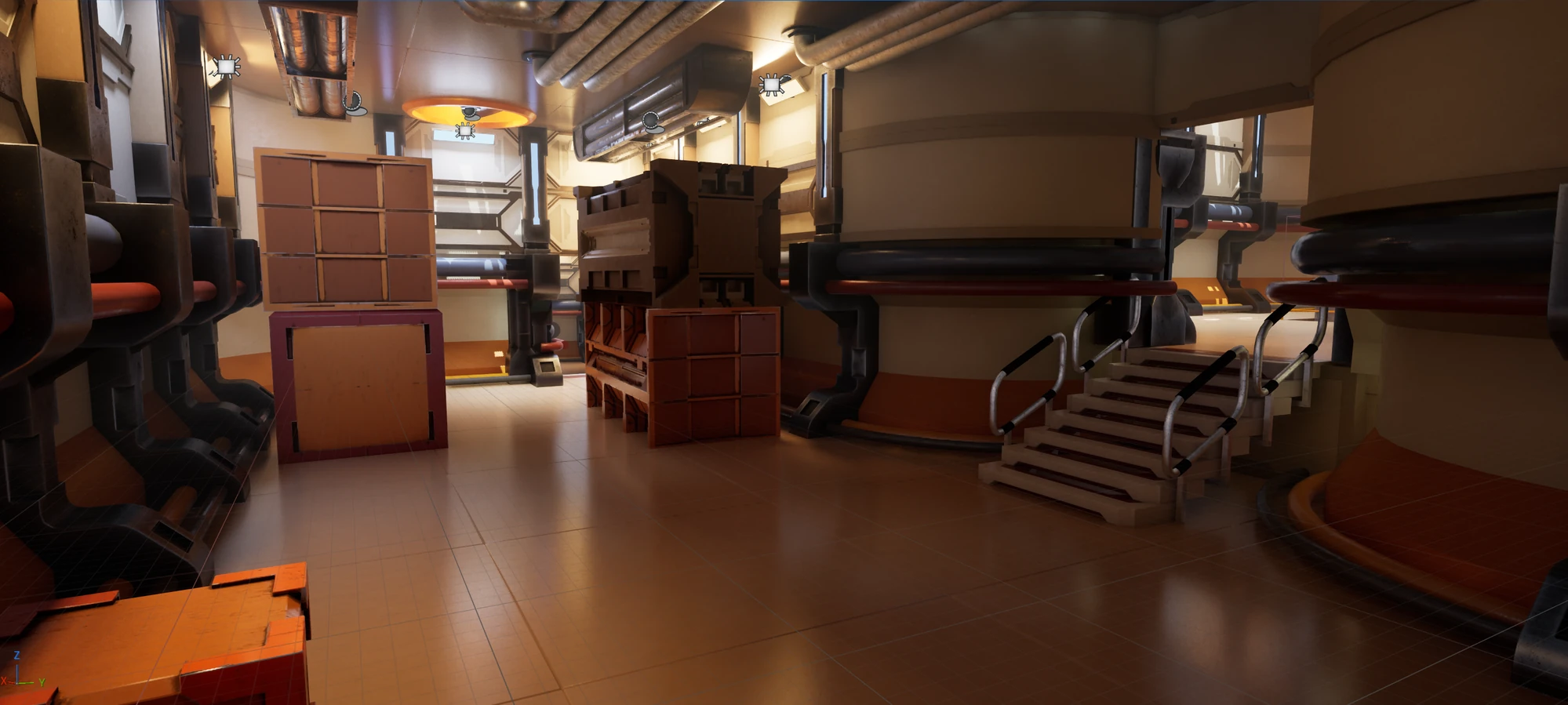
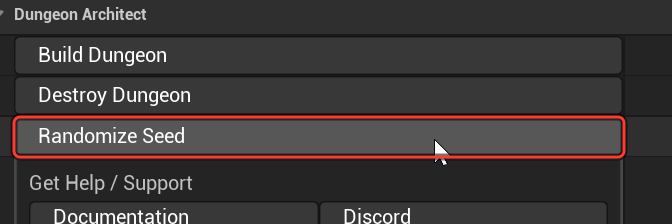
Want a different layout? Click Randomize Seed, then Build Dungeon again. Every seed gives a new layout that still follows the same flow graph.
4. Give it a new look
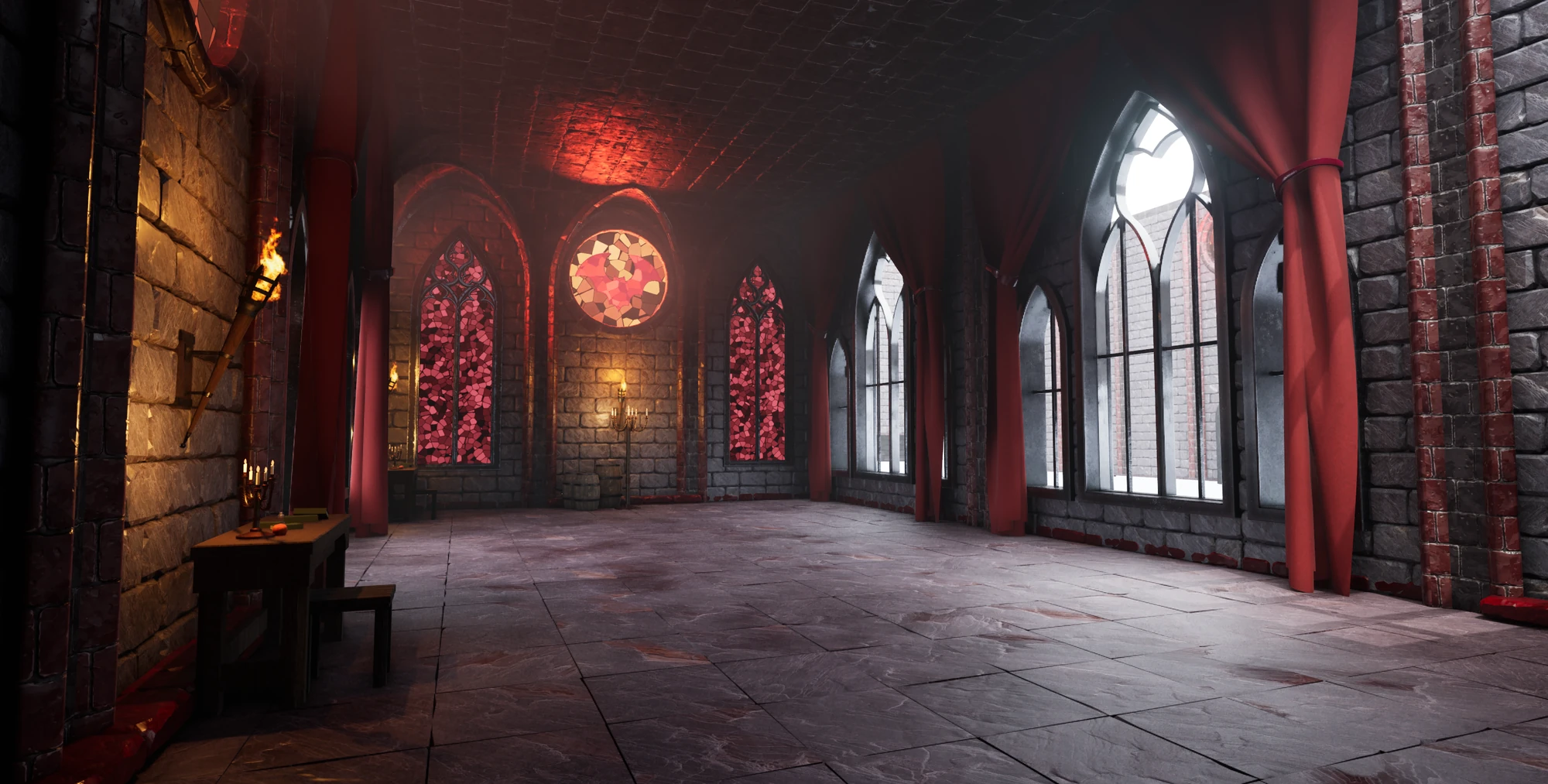
Section titled “4. Give it a new look”Your layout stays exactly the same. Only the art changes.
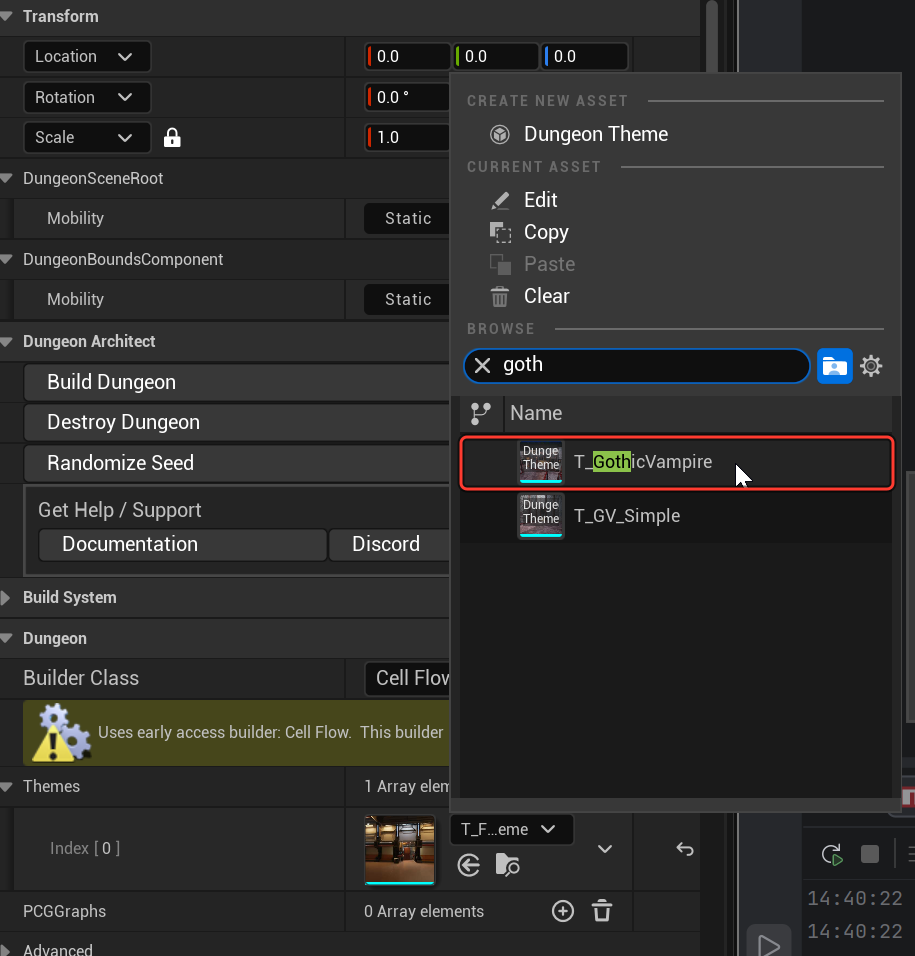
- Open the Themes entry’s dropdown, type
gothand pickT_GothicVampire. - Click Build Dungeon again.
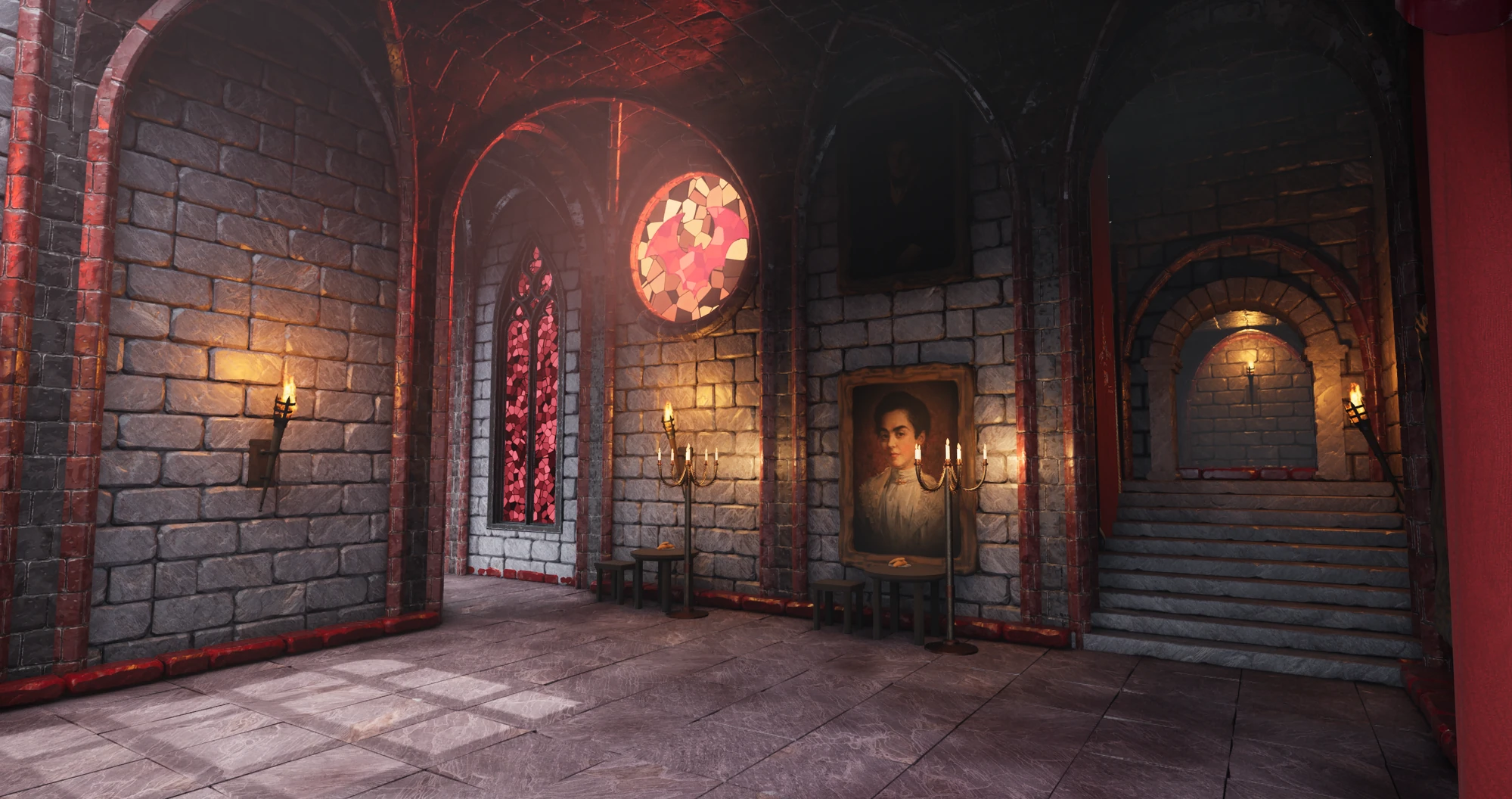
The rooms, stairs and doorways are where they were. Only the art changed.
What you just did
Section titled “What you just did”The Cell Flow builder generated the layout: rooms, paths, stairs and where the doors go. It marked every spot that needs art with a marker (wall, floor, door…). The theme then decided what to place on each marker. Swapping the theme swapped the art and left the layout untouched. See How It Works for the full picture.
- How theming works: see how a theme turns markers into art.
- Change the layout: Cell Flow.