Canvas Theme
Applies to Dungeon Architect 3.7 · Unreal Engine
Use the Canvas Theme Editor to design beautiful themes for your minimaps
You can use an existing theme, or create your own
Stacking SDF driven layers in the Canvas Theme Editor - outlines, borders, fills and fog
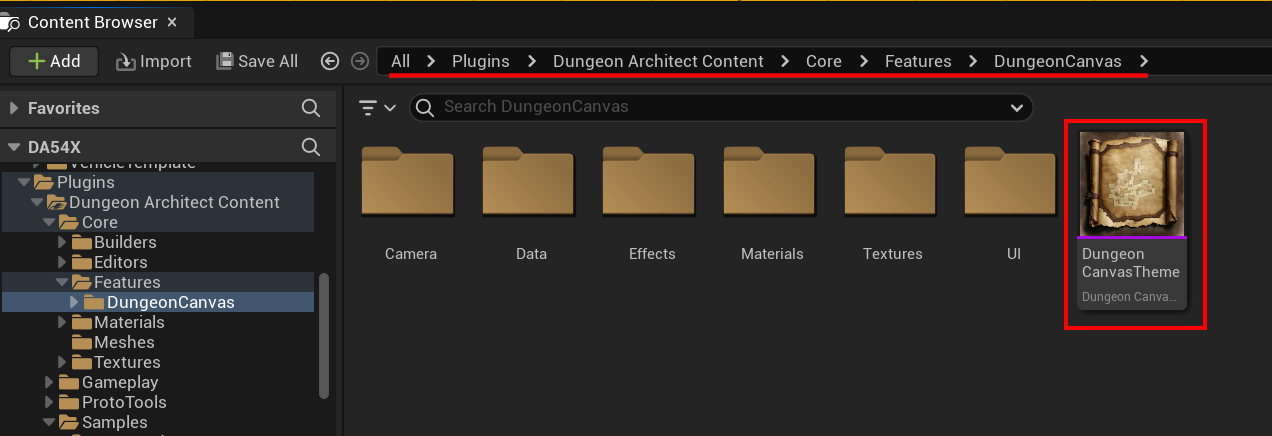
Open Existing Theme
Section titled “Open Existing Theme”Navigate to the following path and open an existing Dungeon Canvas Theme Asset
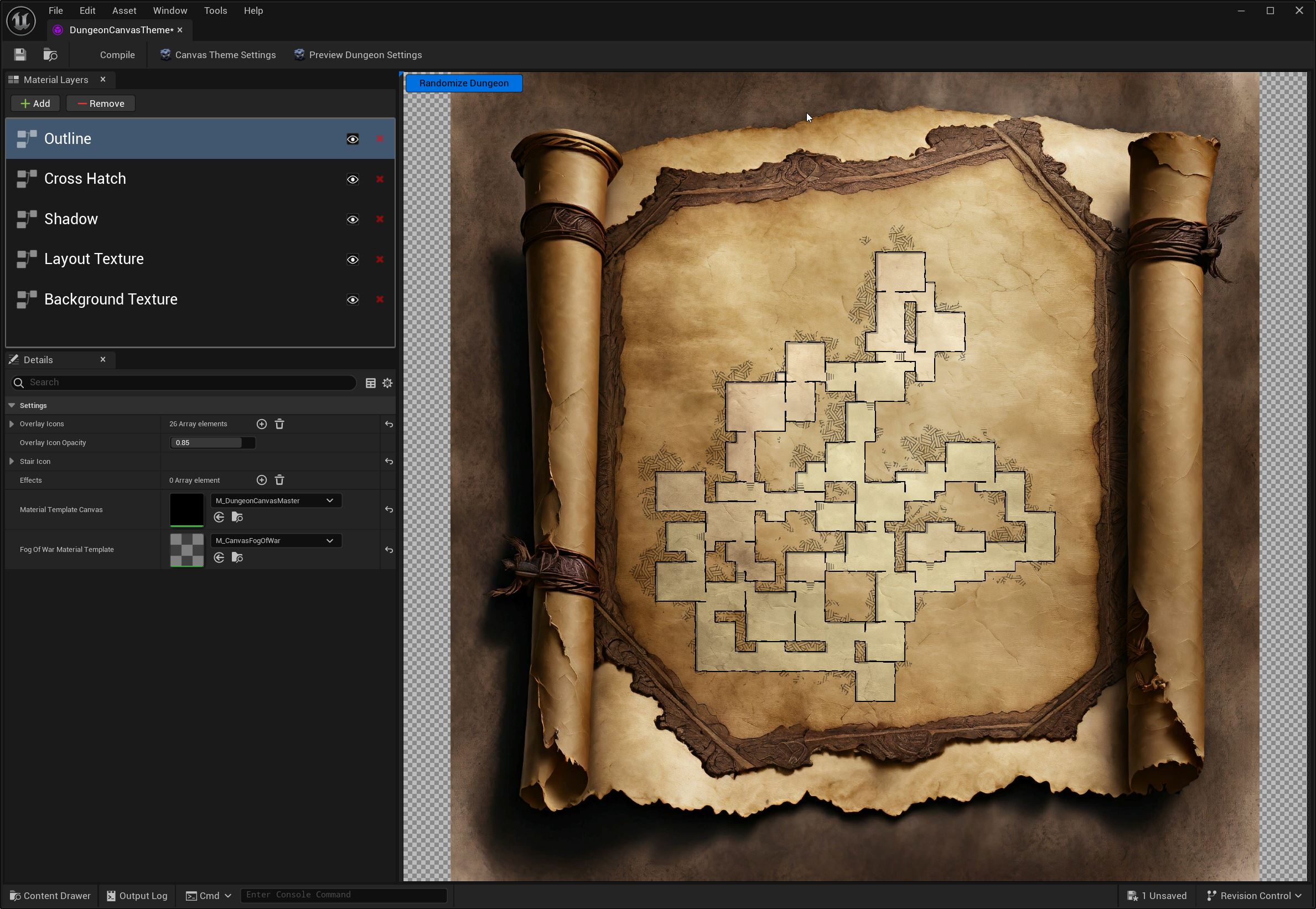
Click on the different material layers to modify their properties, and the preview viewport updates in realtime.
Add new layers with the Add button on the Material Layer panel’s toolbar
Create your own theme
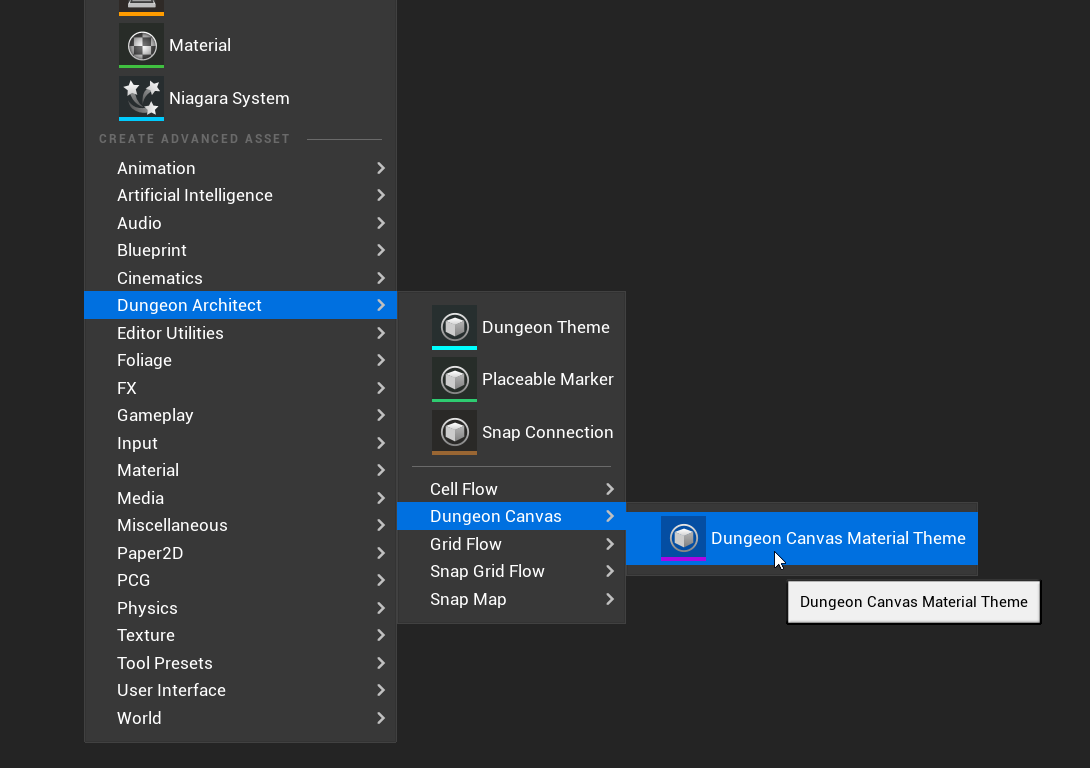
Section titled “Create your own theme”Right-click on the content browser and select Dungeon Architect > Dungeon Canvas > Dungeon Canvas Material Theme
Open the asset to edit it in the Dungeon Canvas Theme Editor
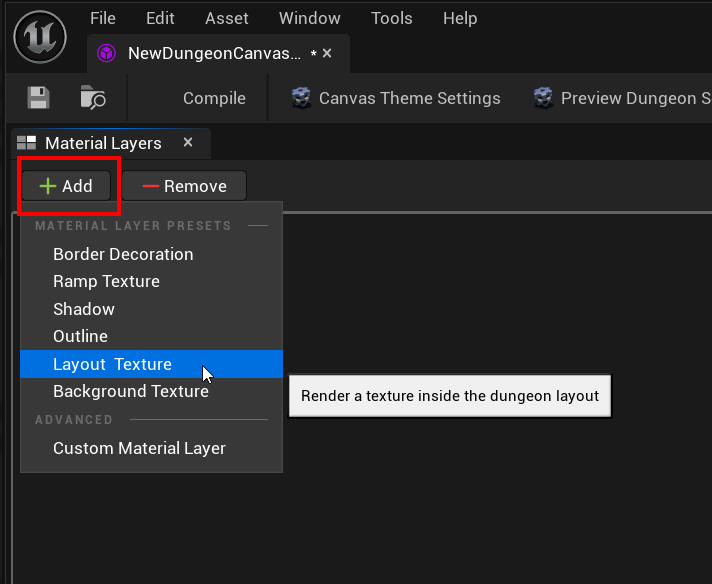
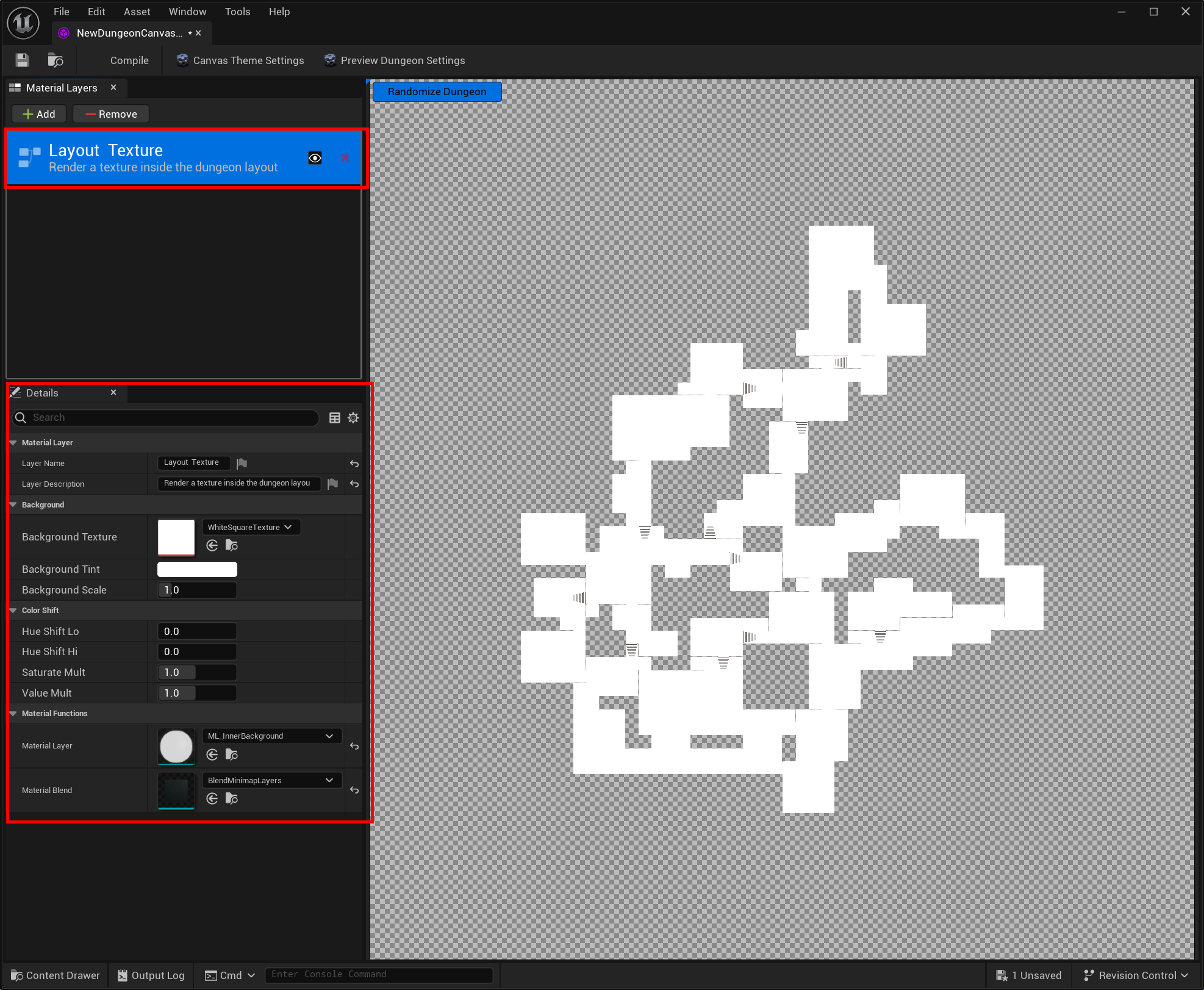
Add a Layout Texture layer. This will draw the layout on to the material
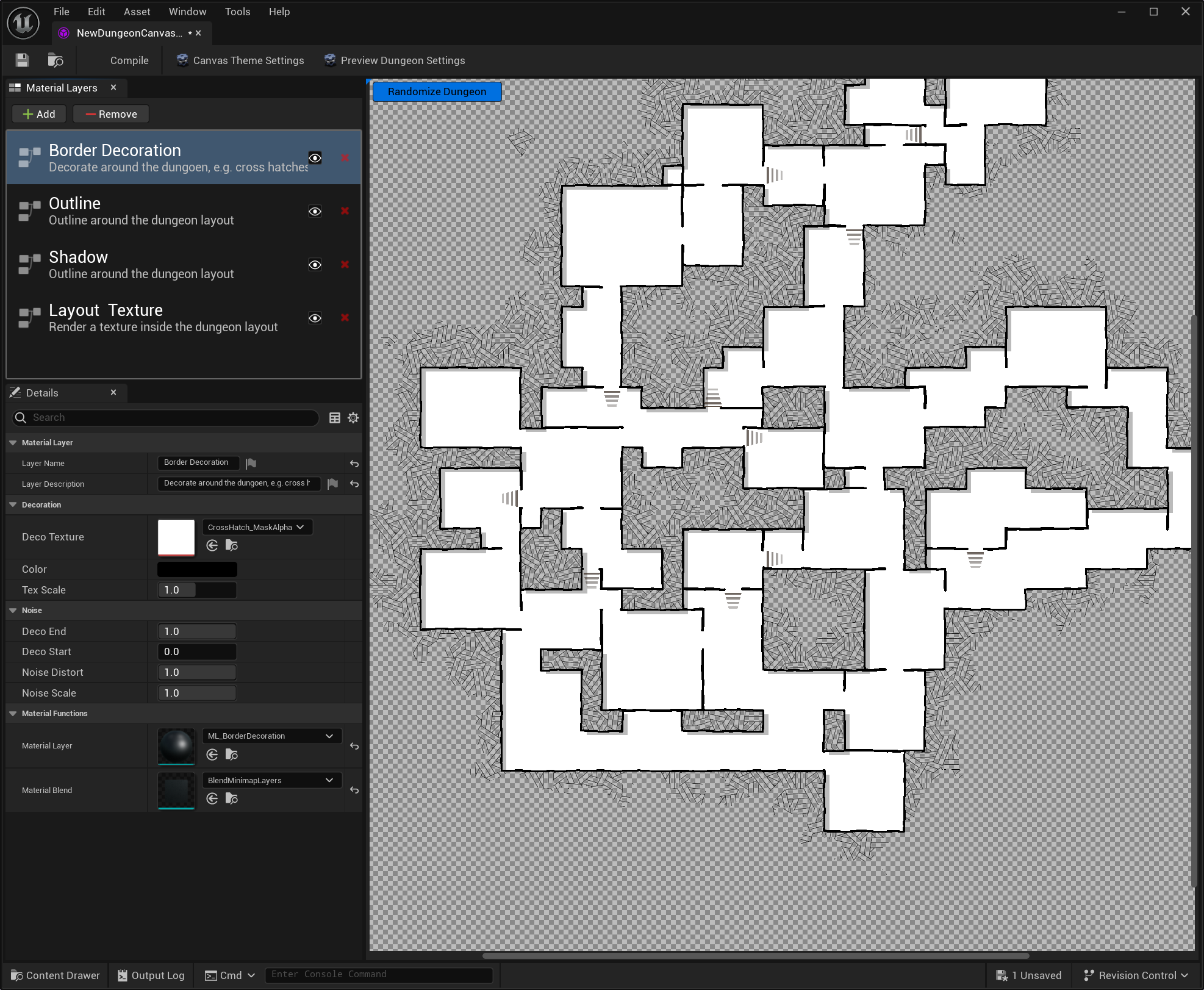
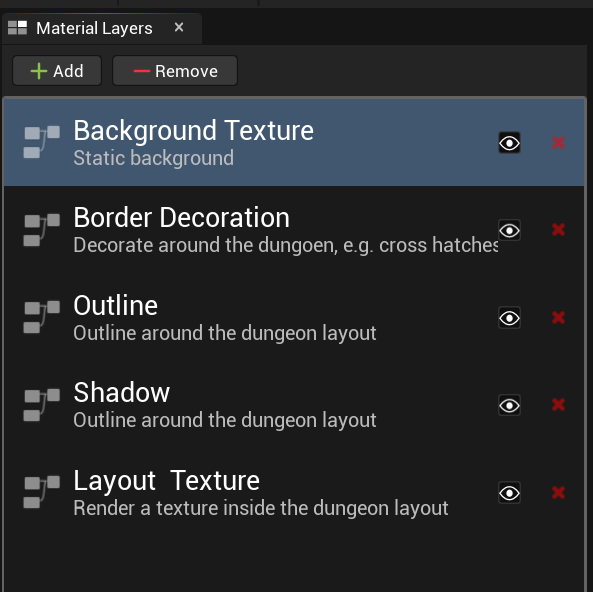
Add a few more layers in the following order
- Shadow
- Outline
- Border Decoration
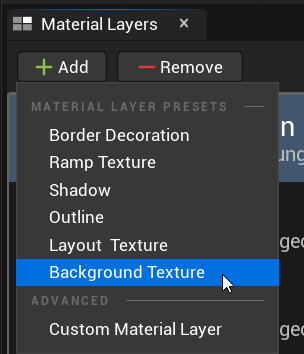
Now add a Background Texture layer
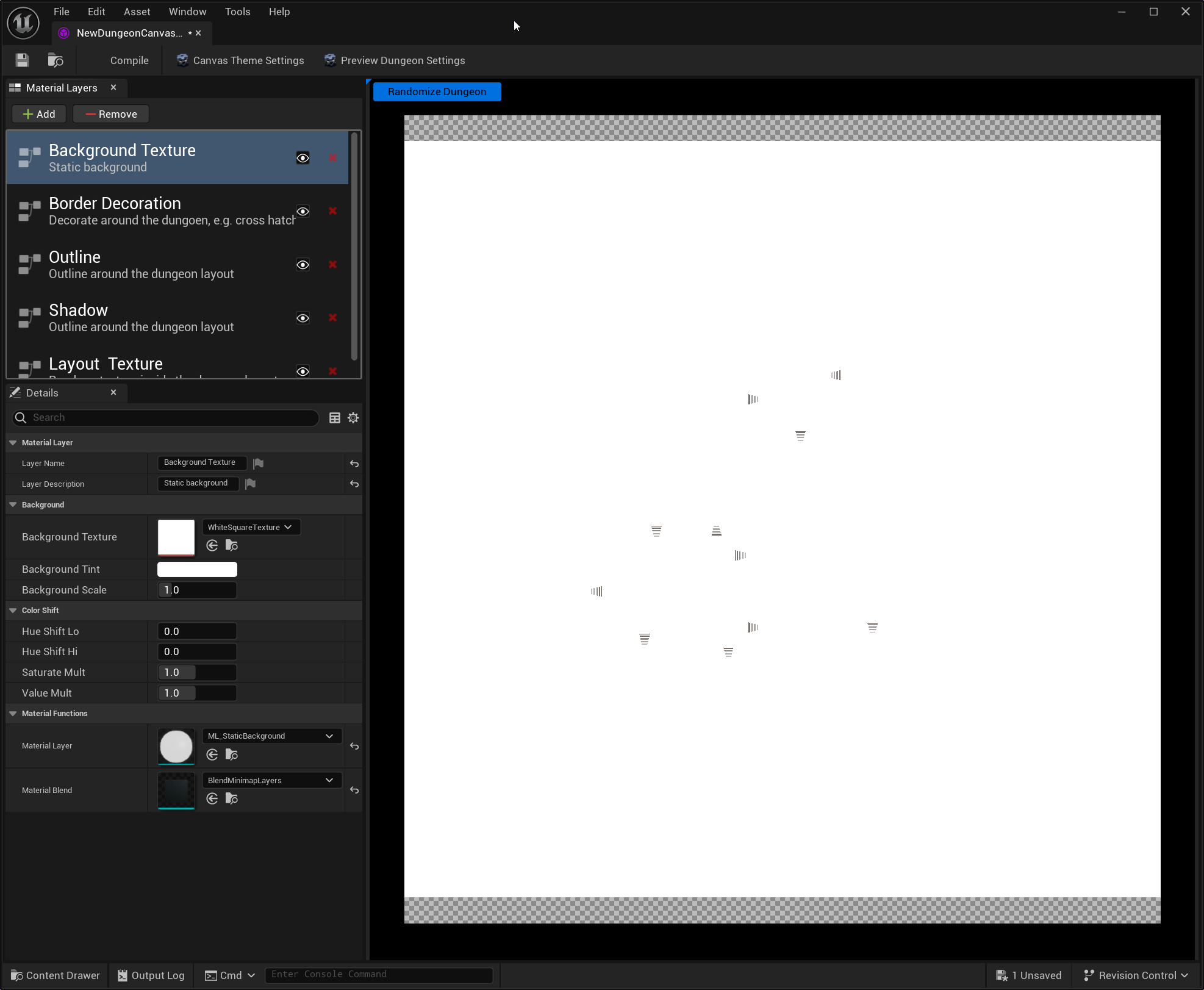
The entire screen has turned white. This is due to the background texture being overlaid on top of everything
Reorder the Background Texture layer to the bottom layer by dragging it to the bottom
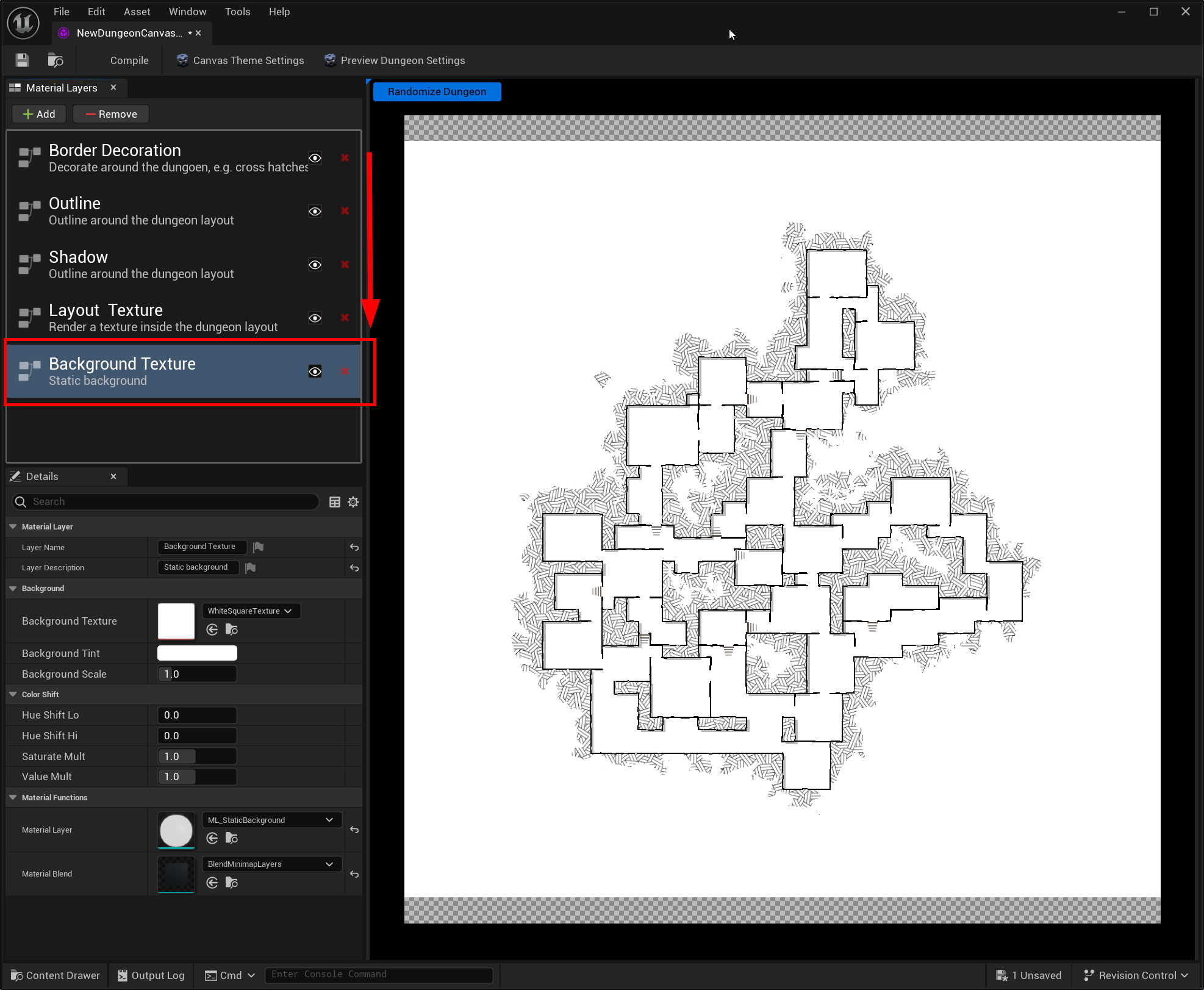
Change the background from the settings panel
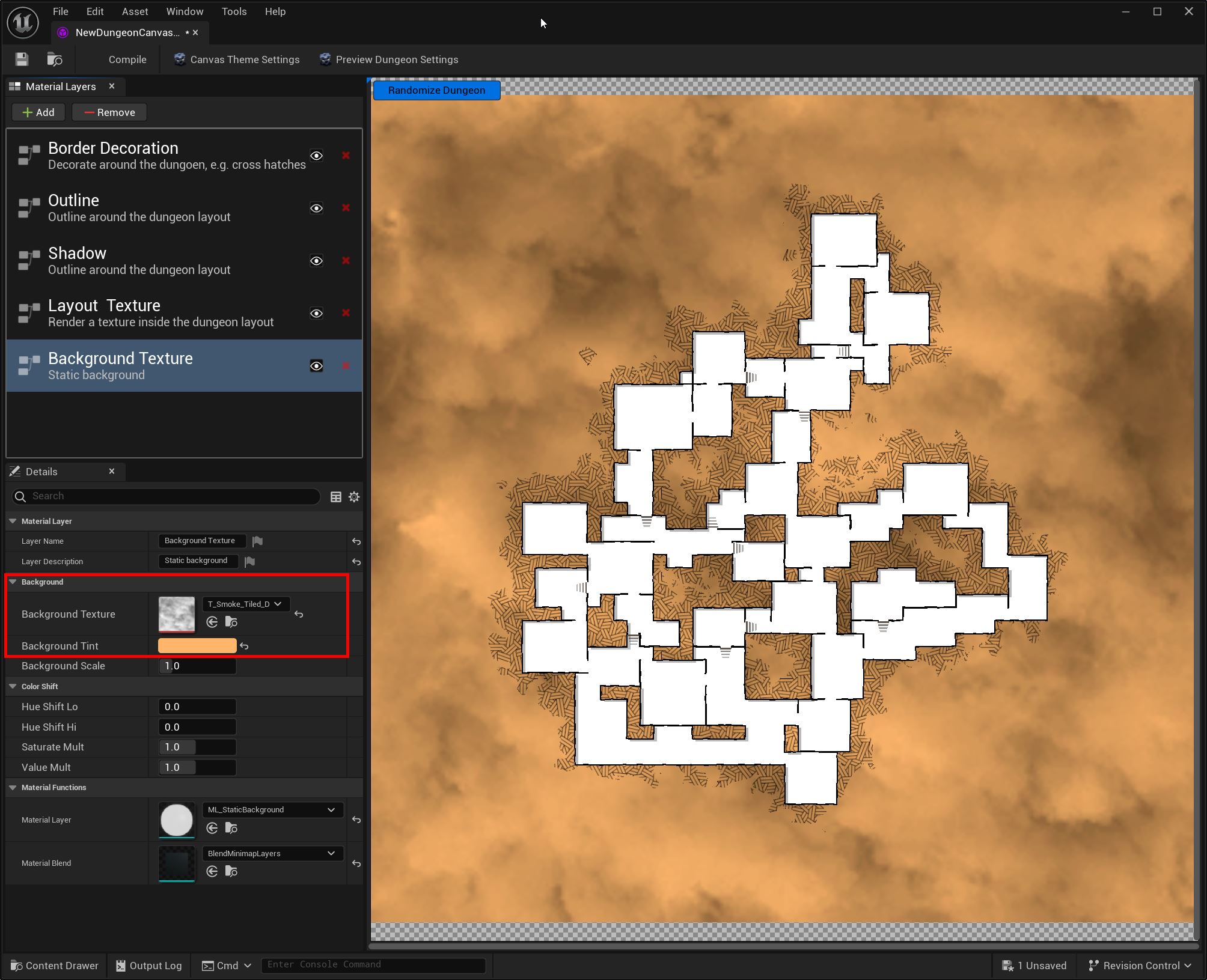
Feel free to modify the properties on the different layers
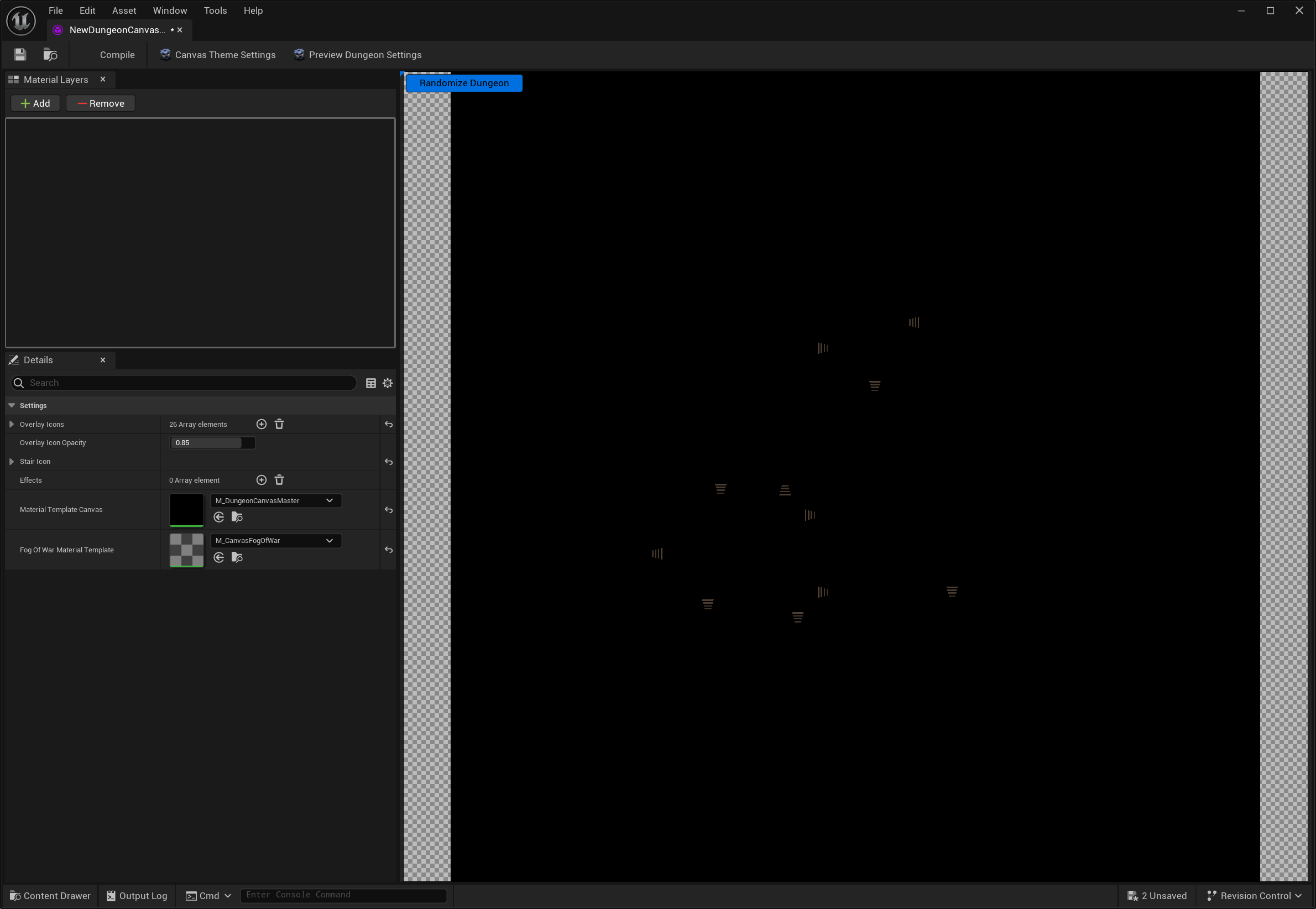
The theme also holds the icons your actors draw with. Every entry in the Overlay Icons list has a name, an
image and a tint, and the Icon Name on a Dungeon Canvas Item component picks one of
them by name
If a group of actors share the same image and differ only in color, give them one entry and set Override Icon Tint on each actor, rather than adding a separate entry per color
Icons the theme doesn’t have
Section titled “Icons the theme doesn’t have”A theme doesn’t have to define every icon. If a name isn’t in the list, the actor’s own Fallback Icon is
drawn instead, so actors show up on a brand new theme without you filling it in first
That makes the theme an override rather than a requirement. Add an entry under the same name whenever you want the theme to own that icon’s look - it takes over automatically, with no change to the actor