Blueprint node rules
You can attach Blueprint (or C++) based logic on the theme nodes for more control. There are two types of rules you can attach to Visual nodes and we’ll explore them in the next sections
Selection rule
Section titled “Selection rule”A selection rule is a blueprint class (or C++ class) that is used to decide if the current node is to be attached to the scene. This rule replaces the default Probability property that is used for randomly deciding if visual node needs spawning based on a probability.
Selection rules gives you more power, when you need it. In the rule’s blueprint logic, you can query the dungeon model and determin if this node should be inserted into the scene
Using Selection Rules
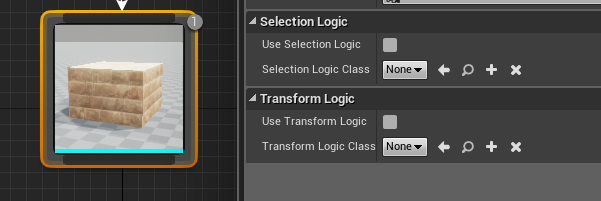
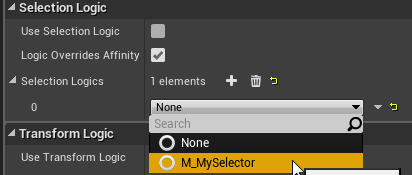
Section titled “Using Selection Rules”To assing an existing rule into the node, Check the Use Selection Logic property and select the rule you would like to attach to the node from the dropdown list
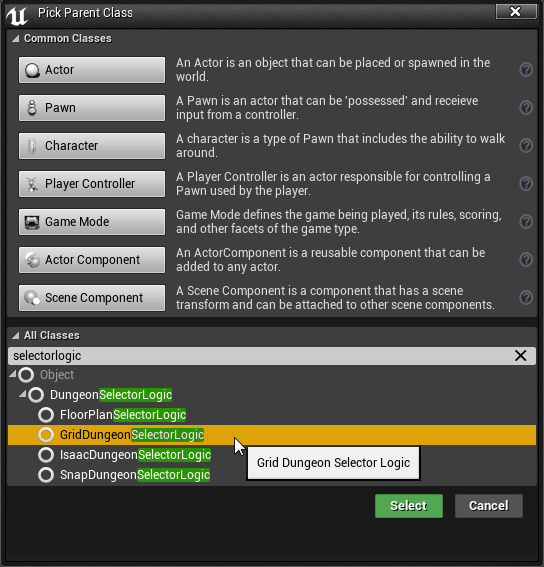
Create a new selection rule by creating a new blueprint class derived from the appropriate DungeonSelectorLogic. It should match the builder you are targeting
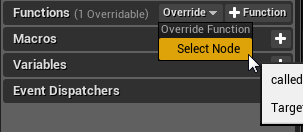
Open up the blueprint and override the Select Node function. This function will be called by the engine and the logic you put here will let you decide if the node should to be selected
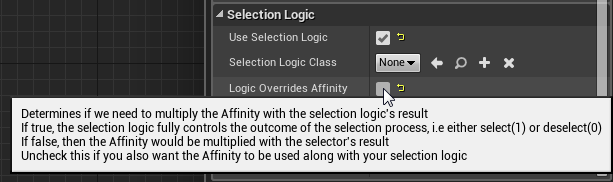
The selection can be combined with the Probability varaible by unchecking Logic Overrides Probability
Example #1
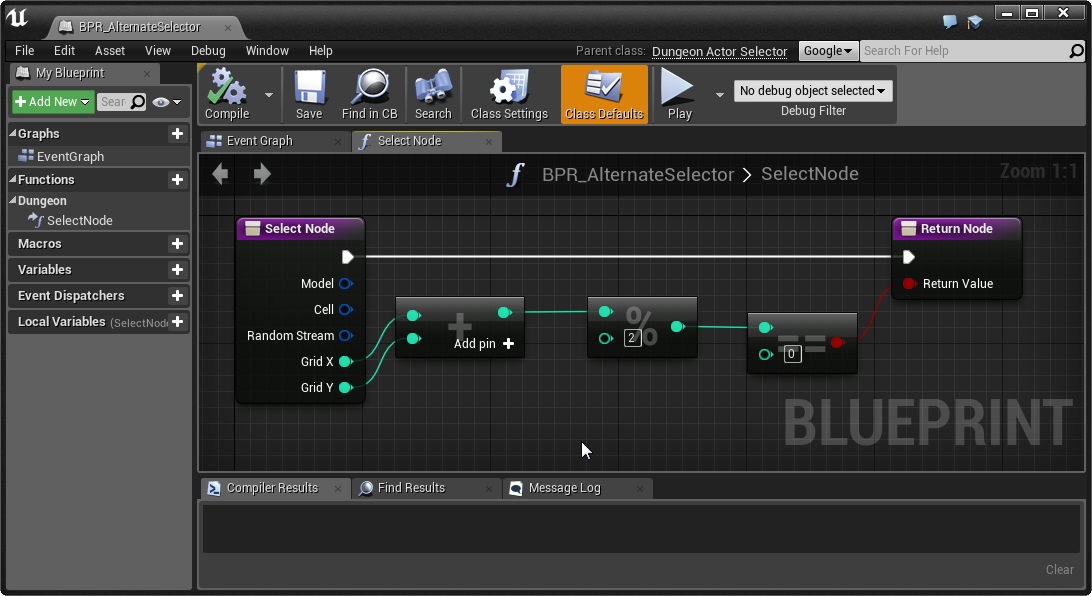
Section titled “Example #1”Here is an example of a selection logic that selects a node only if the sum of their X and Y positions are even numbers (logic for a checkerboard pattern)
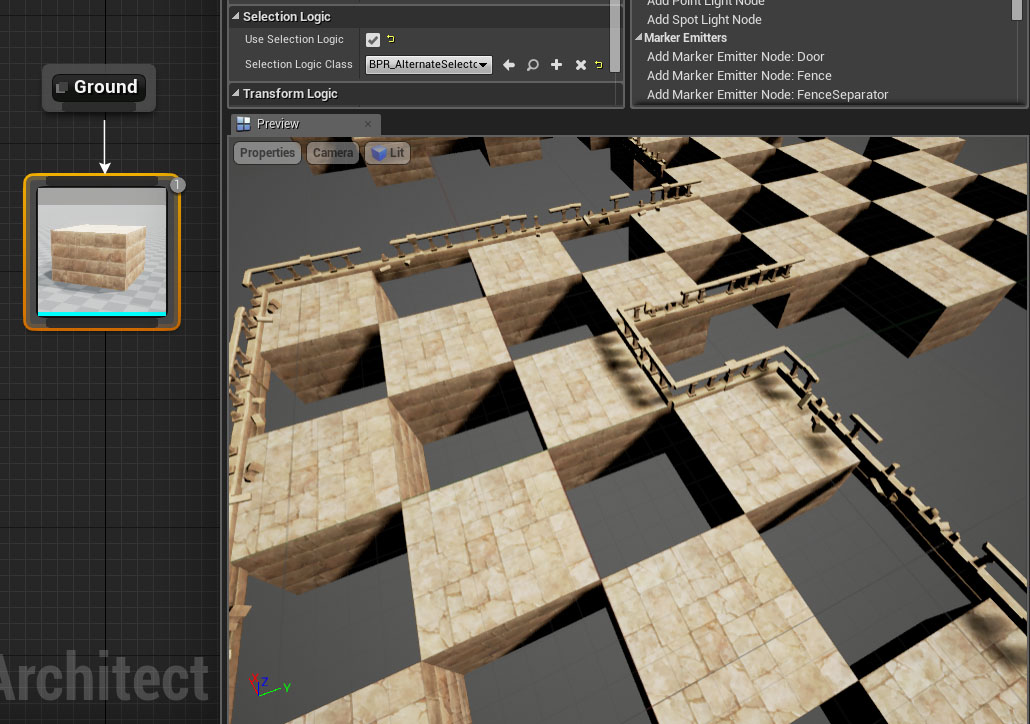
And the result after applying this rule to the ground node:
You can add more visual nodes and experiment with the Consume on Attach parameter to get interesting results
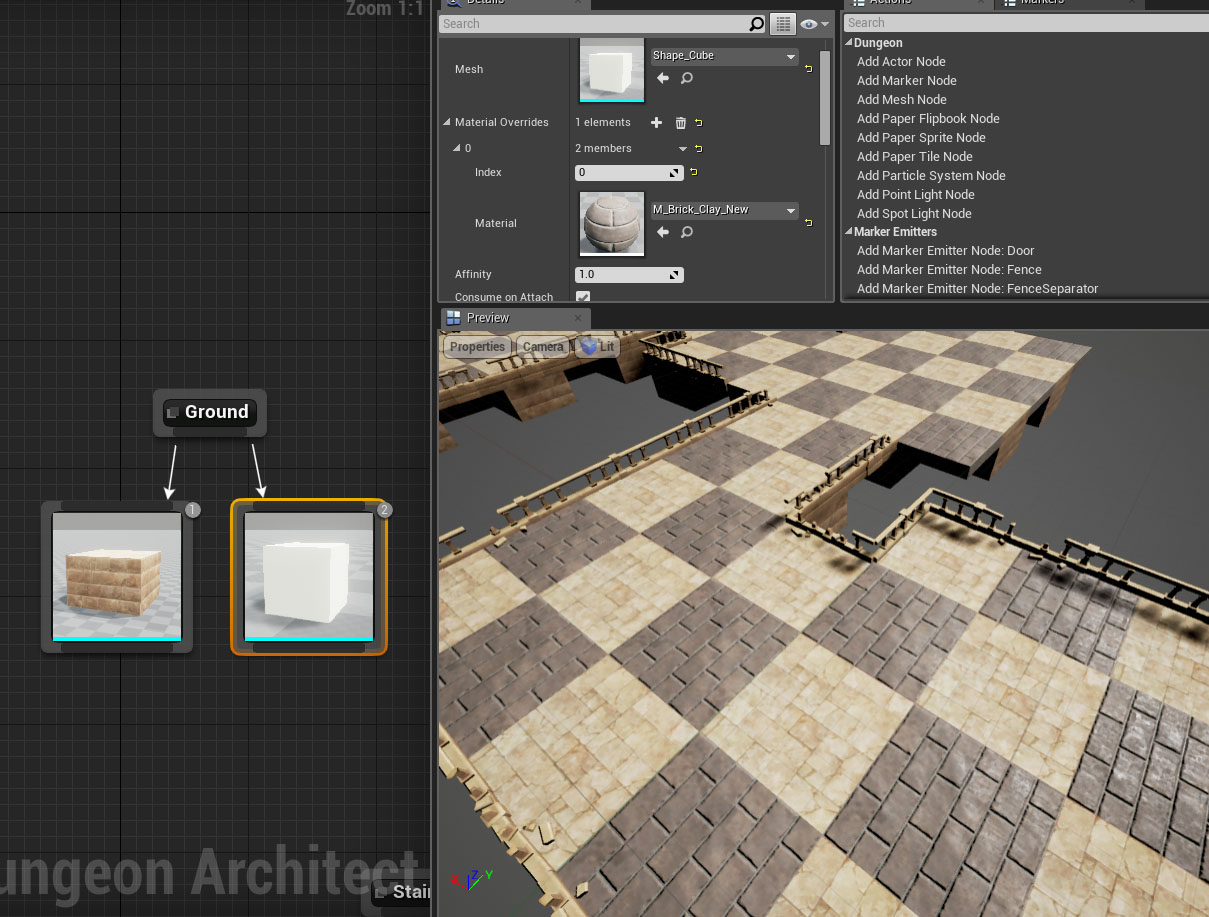
In the above example, the first node has Consume on Attach checked. So if your blueprint logic selects the node, the sandstone mesh will be inserted and the execution stops. However if the selection node doesn’t select the node, the execution will always proceed to the next node and execute the mesh which inserts a clay brick mesh
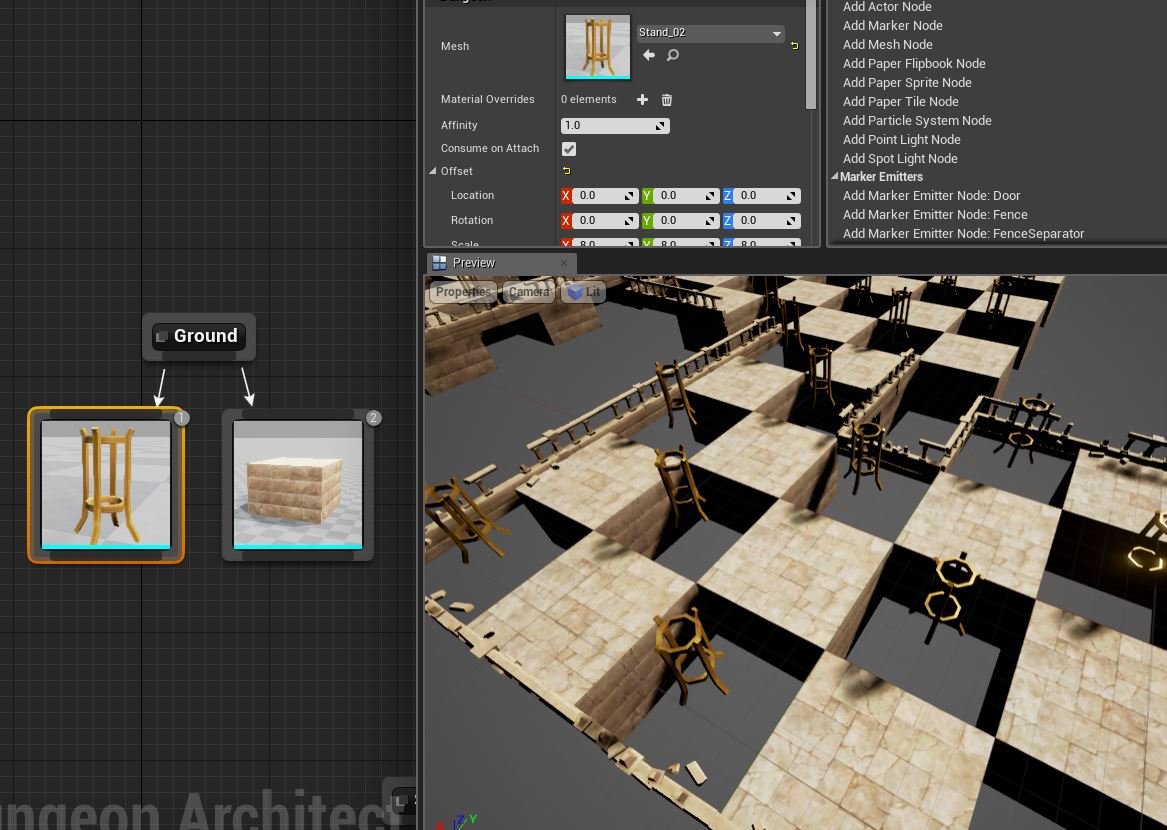
In the above example, the selection rule is applied to the golden pillar. But whenever it is selected, it stops execution because the Consume on Attach variable is set and doesn’t build a ground mesh there. Unchecking Consume on Attach on the first node lets the execution proceed even if it is inserted into the scene
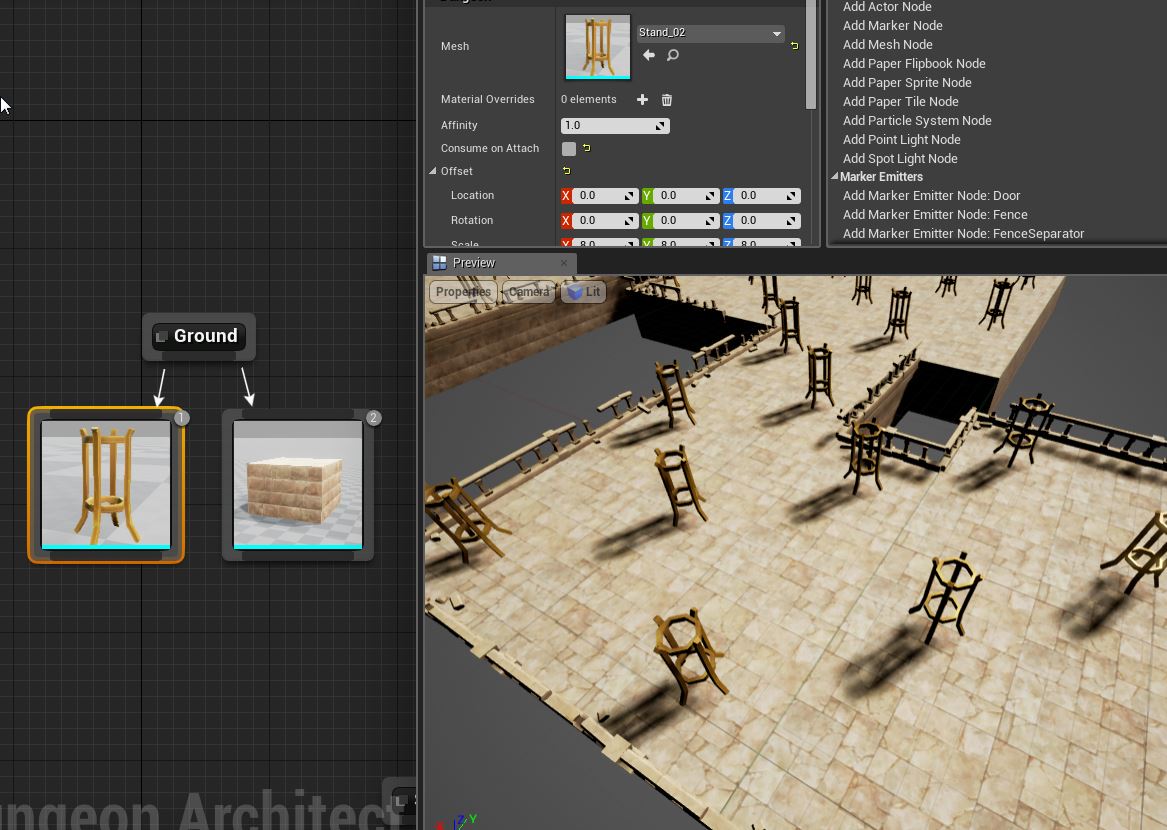
Example #2
Section titled “Example #2”This example places a stone mesh on the ground, but only if the cell is inside a room (and not a corridor)
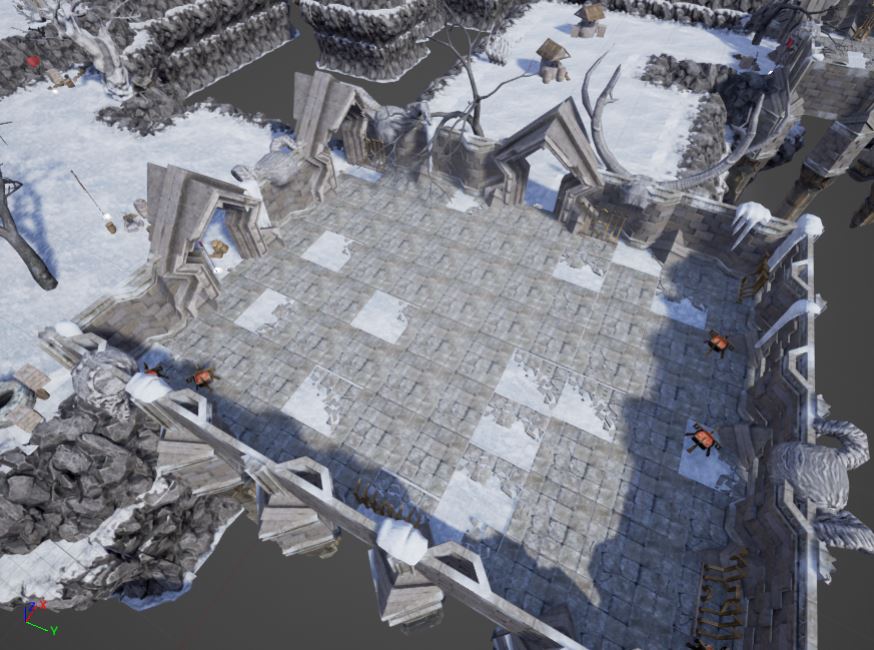
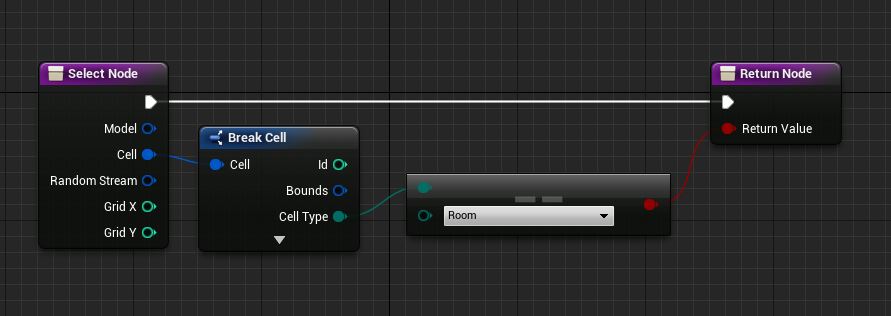
The above Selection logic was attached to the stone mesh ground node so it gets selected only when the ground marker is inside a room
Example #3
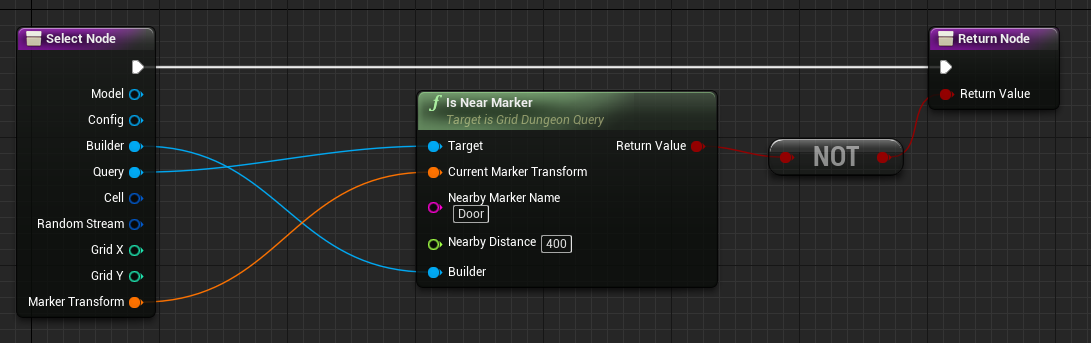
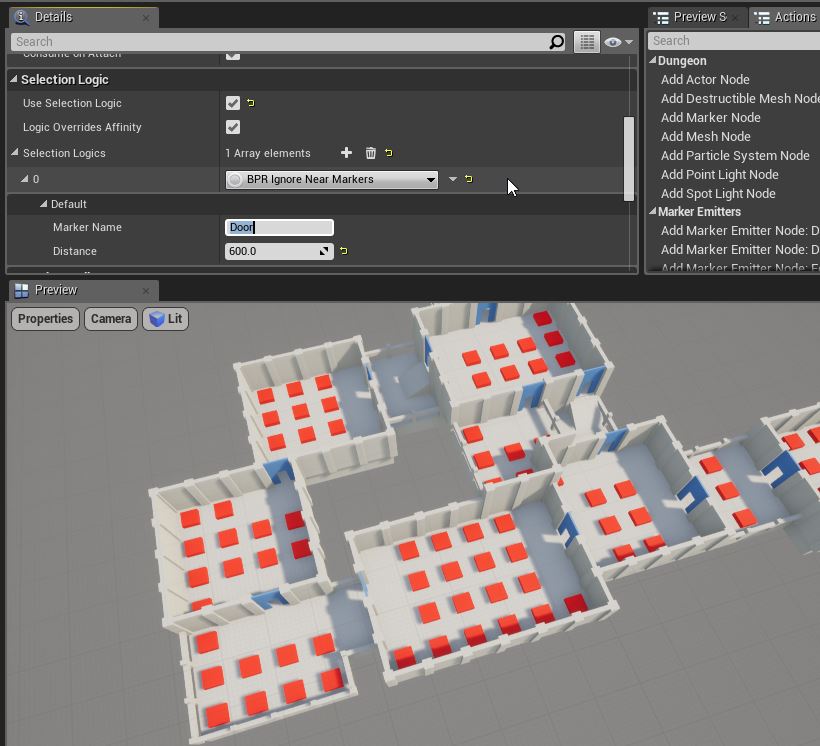
Section titled “Example #3”Ignore nodes that are near other markers. This is very useful if you don’t want to place blocking items near stairs, doors etc
Transform rule
Section titled “Transform rule”Dungeon Architect lets you specify offsets to your visual nodes to move/scale/rotate them from their relative marker locations.
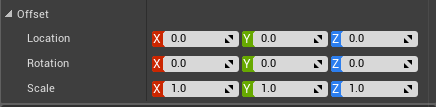
However, if you want a more dynamic way of applying offsets (based on blueprint or C++ logic), you can do so with a Transform Rule. This can be very useful to add variations to your levels for certain props
Using Transform Rules
Section titled “Using Transform Rules”To assing an existing rule into the node, Check the Use Transform Logic property and select the rule you would like to attach to the node from the dropdown list
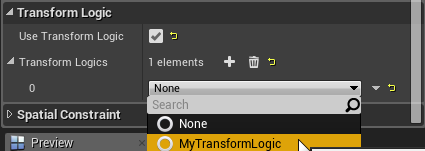
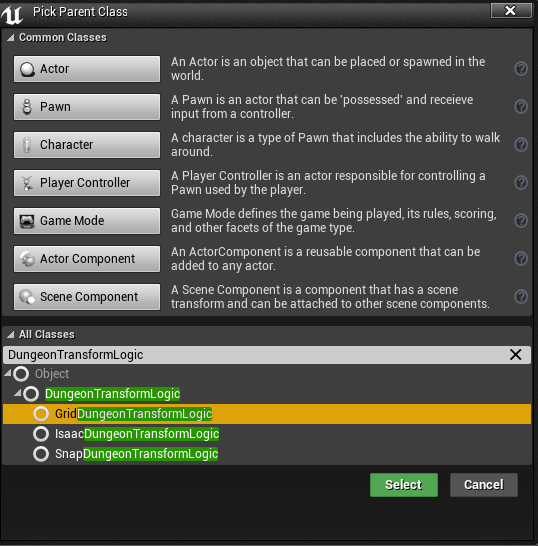
Create a new Transform rule by creating a new blueprint class derived from the appropriate DungeonTransformLogic. It should match the builder you are targeting
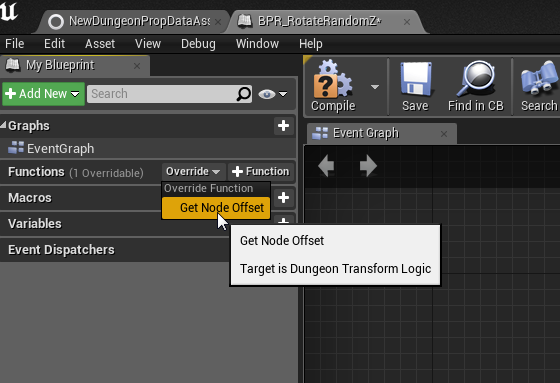
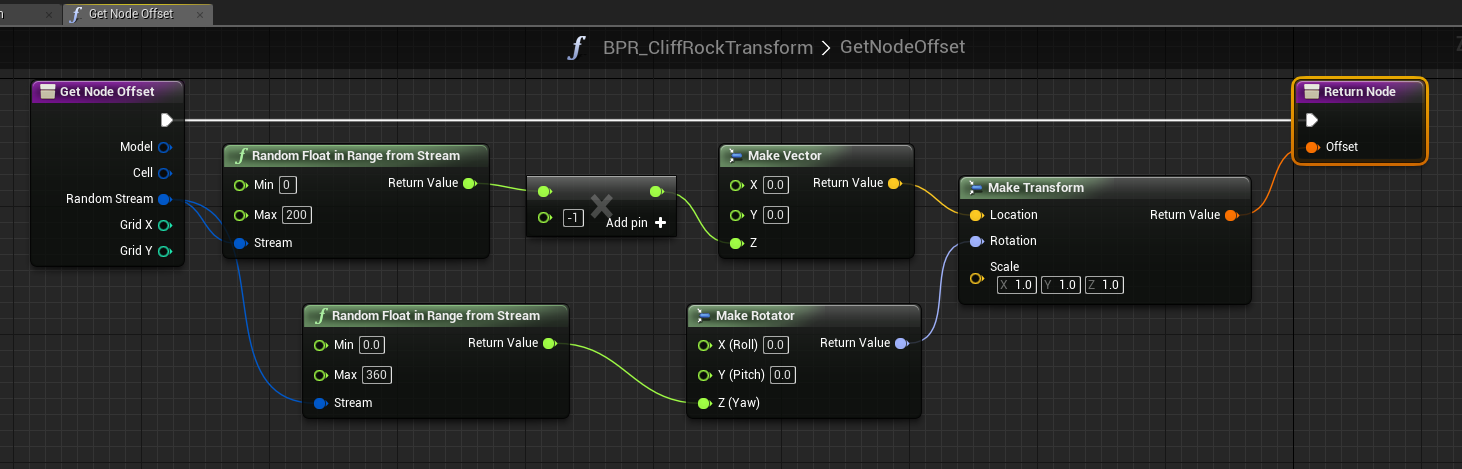
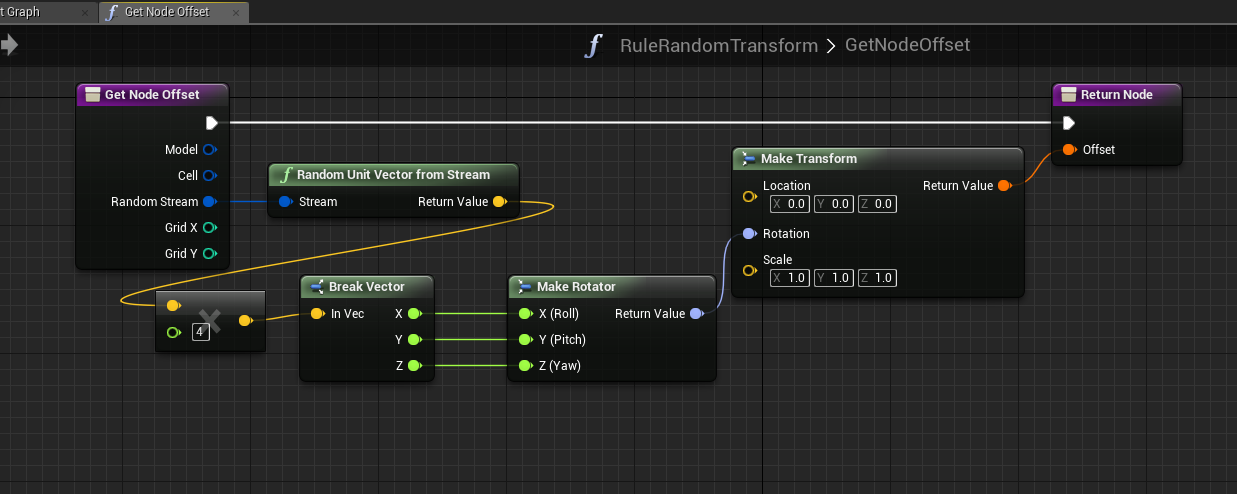
Open up the blueprint and override the Get Node Offset function. This function will be called by the engine and the logic you put here will let you decide on the offset that needs to be applied on this node
Example #1
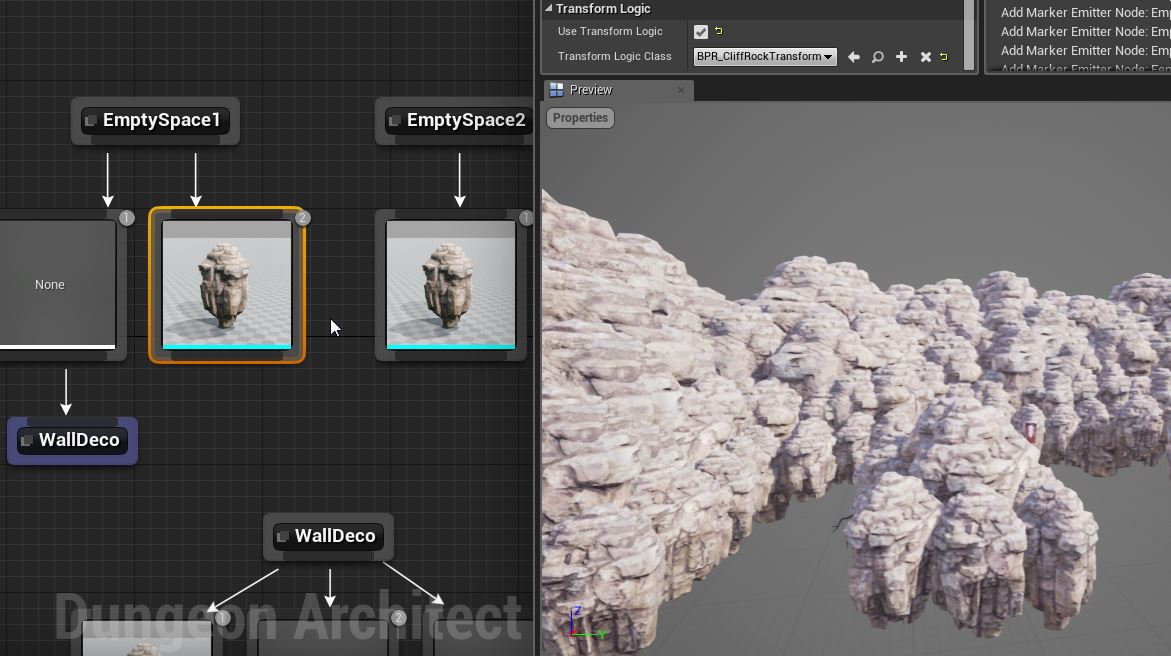
Section titled “Example #1”In this example, a single rock mesh is randomly rotated, and slightly scaled and translated to give a nice cave like look
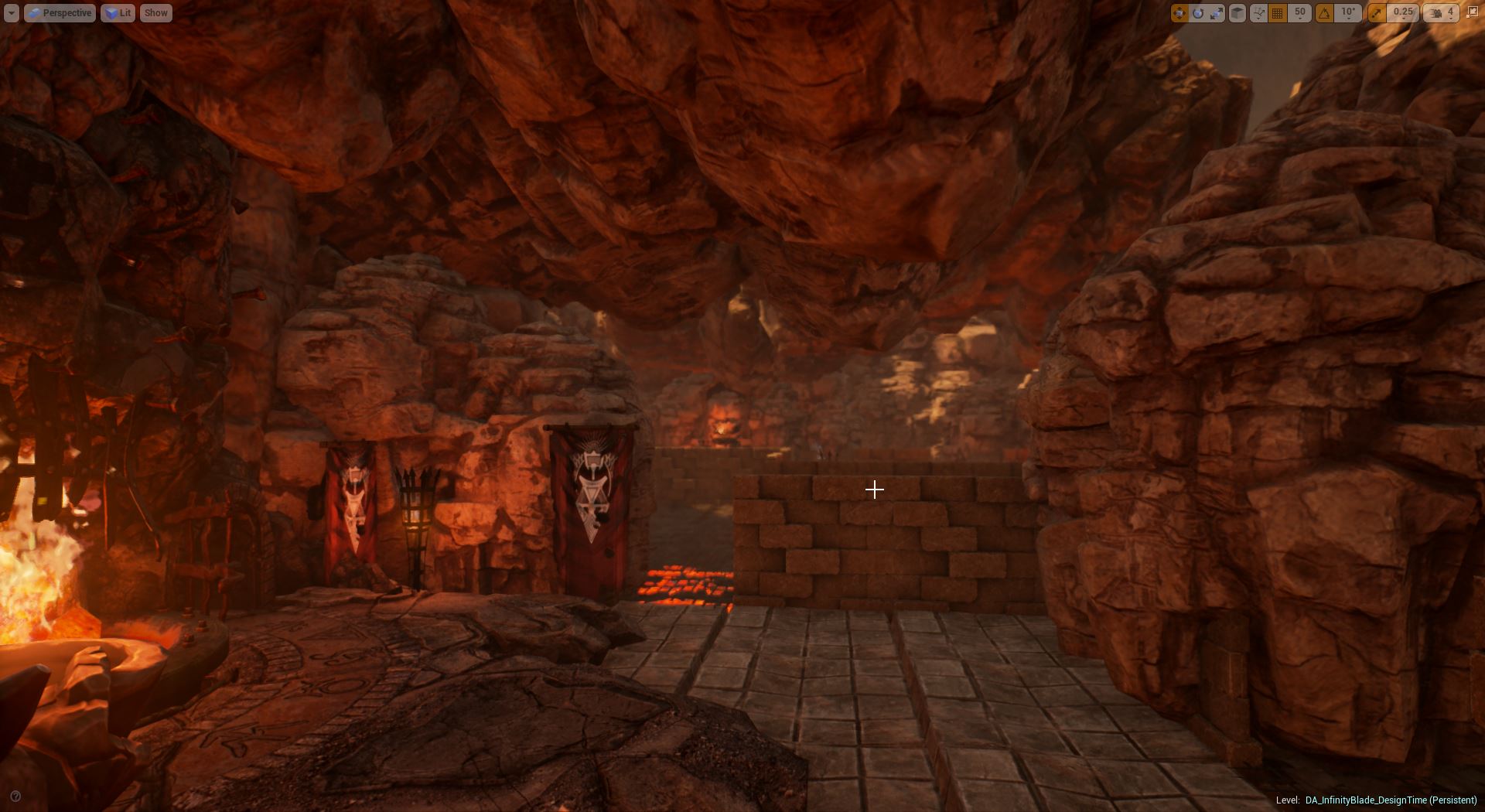
A different transformation rule is applied to ceiling stone meshes for more variations
Example #2
Section titled “Example #2”Here is an example where alternate pipes are rotated by 180 degrees to give a visually appealing look
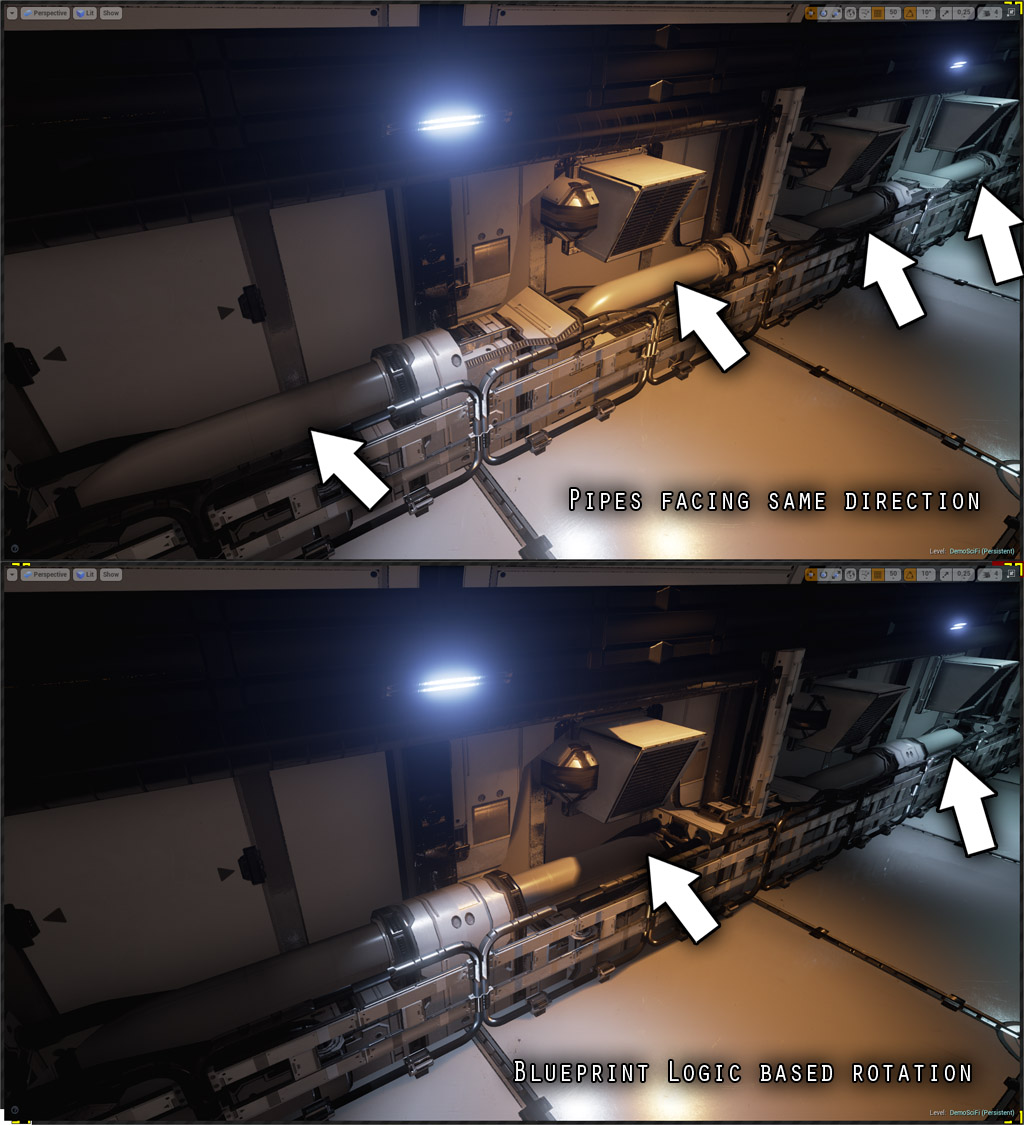
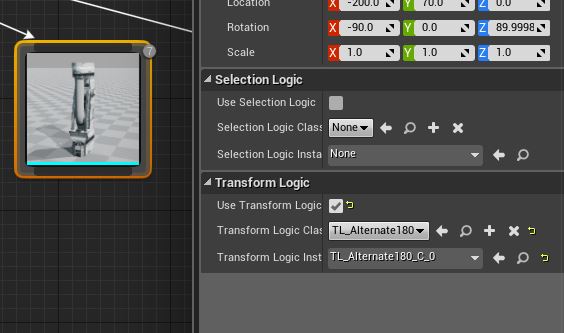
This was done by rotating the mesh node by 180 degrees for every alternate cell (similar to the checker rule logic seen previously)
Example #3
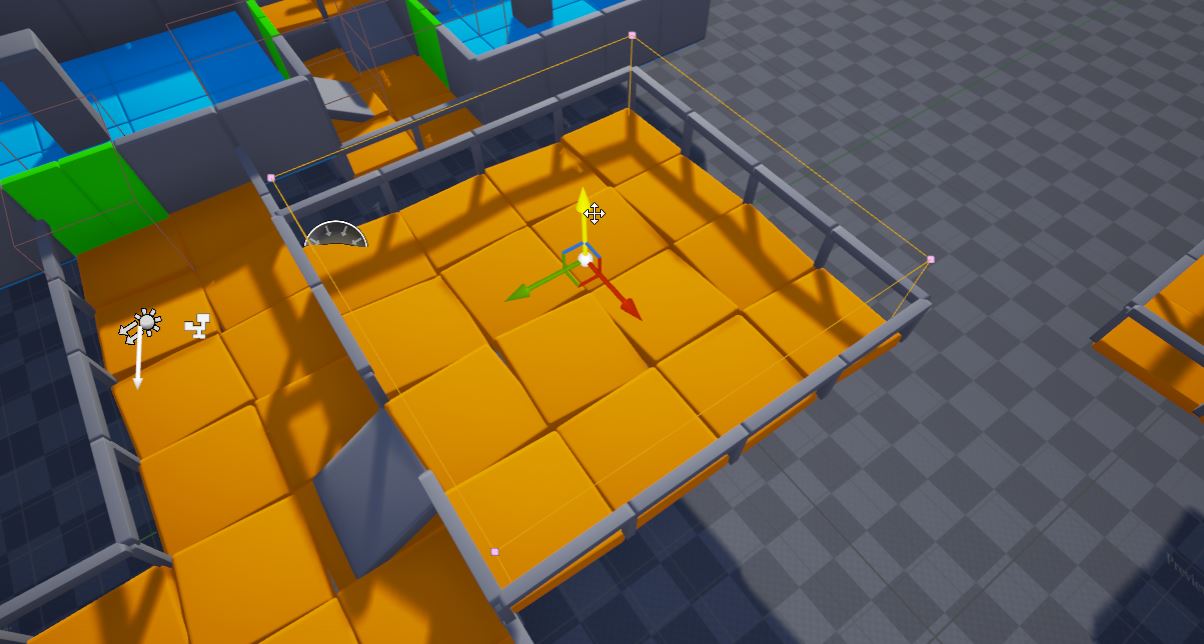
Section titled “Example #3”In this example a small random rotation is applied to orange ground tiles. Useful while creating ruins when laying down broken tile meshes
Spawn logic
Section titled “Spawn logic”Spawn Logics are blueprints that are attached to visual nodes and are executed whenever that visual item (mesh, actor, particle system, light etc) is spawned into the scene
These are great for initializing blueprints (or randomizing them). Some use cases include randomizing the colors of the lights that spawn from a light node, or you can use it to initialize your blueprints spawned from the actor nodes
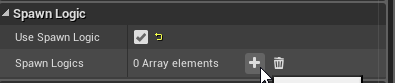
You can attach a spawn logic to any visual node (e.g. mesh node, light node, particle system node, actor node etc)
Set the Use Spawn Logic flag and choose your spawn logic blueprint
Create Spawn Logic
Section titled “Create Spawn Logic”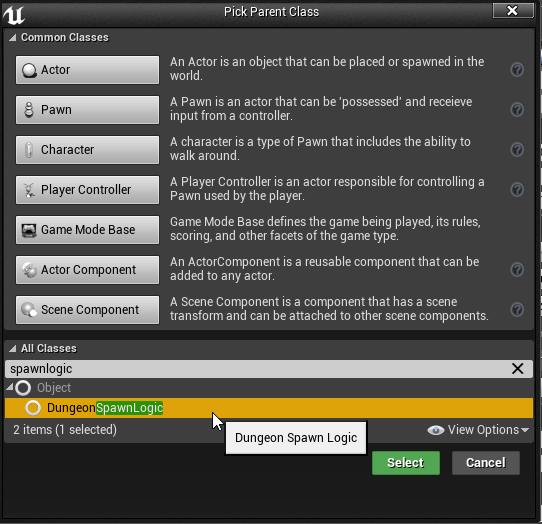
Create a new blueprint class and pick DungeonSpawnLogic class as the parent
Define Spawn Logic
Section titled “Define Spawn Logic”Open your blueprint and override the OnItemSpawn function.
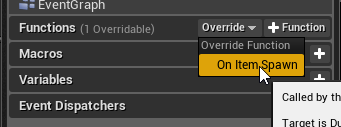
Get the reference of the spawn actor and cast it to the type you are expecting. Since this logic was attached to a mesh node, it is cast to a static mesh and customizations can be applied to it
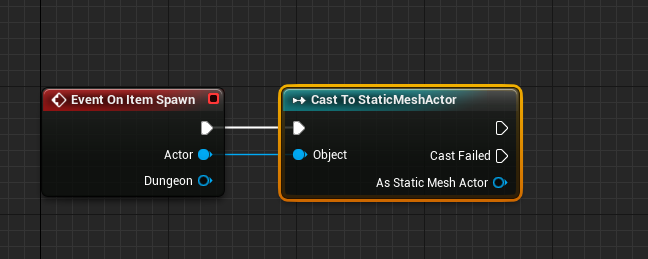
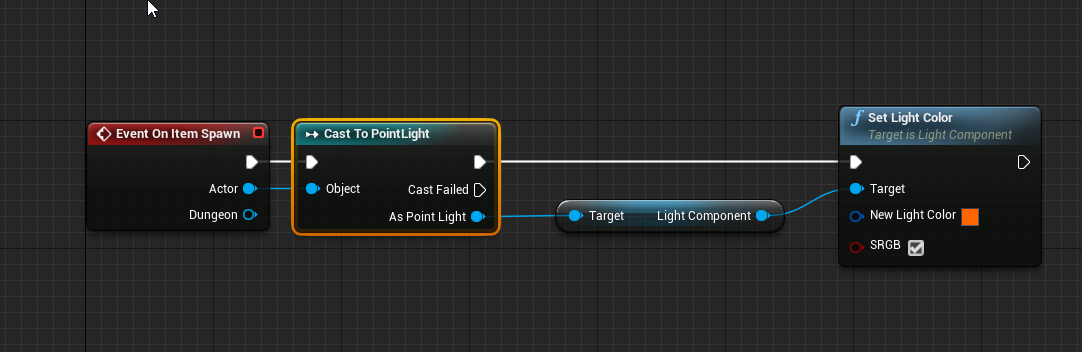
Another blueprint that was attached to a point light. Since we expect a point light, we cast to the correct type and change the color