
Console Variables and Profiling
Dungeon Architect registers a few console variables, console commands and stat groups. Type them in the editor console (the ~ key, or the Cmd box at the bottom of the editor) or in a running game. They all start with da. except the stat groups
Theme Engine
Section titled “Theme Engine”| Console Variable | Default | Description |
|---|---|---|
da.ThemeEngine.Profile |
0 |
Set to 1 to log a timing breakdown of every theme build and blockout build to the output log |
da.MaxLatentTasks |
96 |
The most multi-frame spawn tasks that run at the same time. Today this is the GPU voxel chunk generation. Higher values keep the GPU busier but use more GPU memory |
da.MaxLatentTasks only matters on large voxel worlds. Lower it if voxel builds run out of GPU memory, raise it if a build leaves the GPU idle between chunks
Profile a slow theme build
Section titled “Profile a slow theme build”Two tools tell you where the time goes. stat DAThemeEngine shows the live cost of each stage on screen. da.ThemeEngine.Profile logs one summary line per build, which is easier to read when the build is spread over many frames
Start with the stat view. Open the console and run:
stat DAThemeEngineThen rebuild the dungeon. The rows show the cost per frame of each stage:
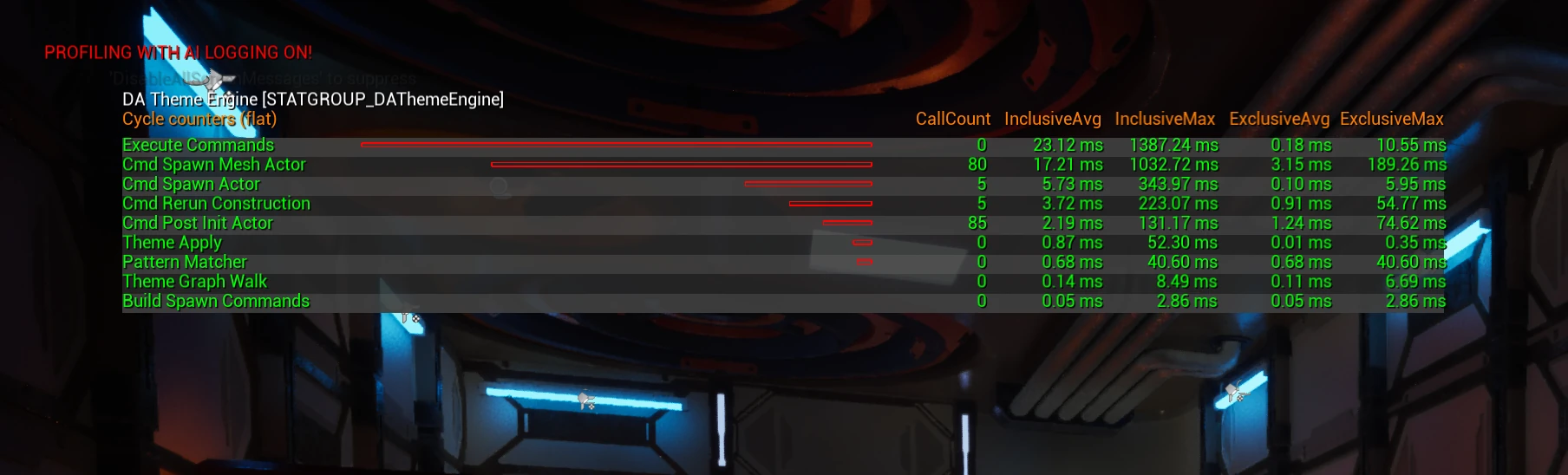
| Stat | What it covers |
|---|---|
Theme Apply |
The whole theme pass on the first frame of the build |
Pattern Matcher |
Pattern matcher rules running over the markers |
Theme Graph Walk |
Matching markers to the nodes in your theme graph |
Build Spawn Commands |
Turning the matched nodes into spawn commands |
Execute Commands |
Running the spawn commands. With Max Build Time Per Frame Ms set on the dungeon config, this spreads over several frames |
Cmd Spawn Mesh Actor, Cmd Spawn Actor, Cmd Spawn Light, Cmd Add Mesh Instances |
Spawning each kind of object |
Cmd Rerun Construction |
Running Blueprint construction scripts on spawned actors |
Cmd Reuse Actor, Cmd Destroy Actor, Cmd Post Init Actor |
Reusing and cleaning up actors from the previous build |
Component Clear Theme, Component Collect Markers, Component Folder Paths |
The Theme Engine Component path |
Blockout Build, Blockout Rasterize, Blockout Openings, Blockout Greybox Instances, Blockout Greybox Lights, Blockout Ramp Geometry |
Blockout grid builds |
Run stat DAThemeEngine again to hide it.
For a full breakdown of one build, turn on the profile log:
da.ThemeEngine.Profile 1Rebuild and open the output log. Each dungeon build writes one line that starts with Spawn items on followed by the dungeon name. It has the total time and frame count, the time spent in the pattern matcher, theme graph and command building, how many markers went in and how many nodes were spawned, and the execute time per command type, slowest first
A Theme Engine Component writes a Theme apply on line instead. If it uses the pattern matcher, a second Pattern matcher on line lists the placements tried and passed, the time spent in conditions and actions, and the five slowest layers. A blockout grid writes a Blockout build on line with the time of each build step
Some things to look for:
- Most of the time in
Pattern Matcher: check the slowest layers in thePattern matcher online - A large
Cmd Rerun Construction: your theme spawns Blueprints with heavy construction scripts - A large
SpawnMeshActorcount: consider instancing static meshes, see Instance Static Meshes
Set da.ThemeEngine.Profile 0 when you’re done. The profile adds a little timing work to every build
| Console Variable | Default | Description |
|---|---|---|
da.Voxel.UseGPU |
-1 |
Overrides the voxel density generation path. -1 uses the dungeon’s Use GPU setting, 0 forces CPU, 1 forces GPU. Dedicated servers, -nullrhi runs and commandlets always use the CPU |
da.Voxel.CPUExactDensity |
-1 |
Chooses the CPU density evaluator. -1 is exact on targets with no renderer and coarse otherwise, 0 forces coarse, 1 forces exact, which matches the GPU math |
You don’t need these for a dedicated server to work, it falls back to the CPU on its own. Use them when you want to check that the CPU path gives the same world as the GPU, e.g. set da.Voxel.UseGPU 0 and da.Voxel.CPUExactDensity 1 in the editor and compare. See Dedicated Servers
The stat groups stat DAVoxel and stat DAVoxelGPU show the voxel build stages (SDF generation, noise texture, coarse and fine passes) and the GPU dispatch and readback time
Builders
Section titled “Builders”stat SGF shows the Snap Grid Flow build and module resolve time. stat CellFlow shows the Cell Flow tile fitting and cell merge steps. These help when one layout is slower than the others. For Snap Grid Flow, the Performance Analyzer is the better tool to see why a graph needs many retries
Blockout
Section titled “Blockout”| Command | Description |
|---|---|
da.Blockout.SaveLayout MyRoom |
Saves the blockout grid volumes and markers to a layout file. A bare name writes Saved/Blockout/MyRoom.json |
da.Blockout.LoadLayout MyRoom |
Replaces the blockout grid volumes and markers with a layout file and builds |
Both are editor only. See Layout Files for the file format
| Console Variable | Default | Description |
|---|---|---|
da.Blockout.ShowVolumeGuides |
0 |
Shows the guides of every blockout volume, not just the selected ones. The Blockout tools turn this on while they are active and off when you leave them |
Debugging
Section titled “Debugging”These are rarely needed.
da.EnablePresets(default1): set to0to hide the tool preset panel in the Dungeon Architect tools mode. Takes effect the next time the panel is built