Canvas Player Setup
Applies to Dungeon Architect 3.7 · Unreal Engine
Two things get the minimap on screen with the player showing up on it:
- A
Dungeon Canvas Itemcomponent on your player pawn, which draws its icon and reveals the fog of war around it - Your UI with the minimap widget, created from your player controller
Note: Check the canvas samples for reference:
Dungeon Architect Content > Showcase > Samples > Features > Canvas > CanvasExamples
Add Components
Section titled “Add Components”Dungeon Actor
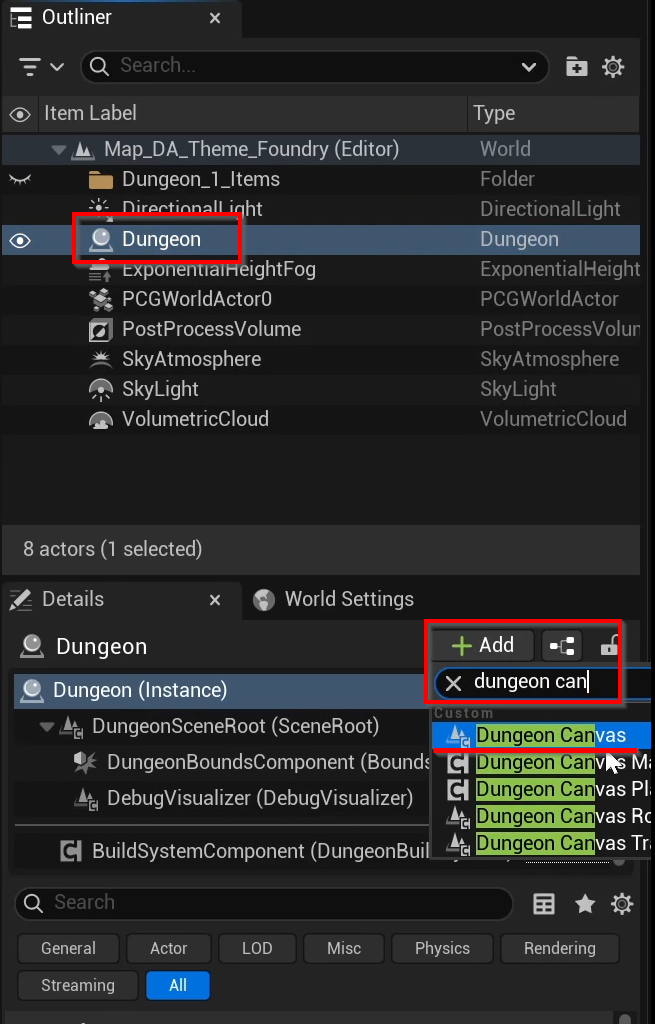
Section titled “Dungeon Actor”Select the Dungeon Actor in the scene and add the DungeonCanvas component to it
Player Pawn
Section titled “Player Pawn”Open your player pawn and add the Dungeon Canvas Item component to it. This gives the pawn an icon on the
map, and reveals the fog of war around it as it moves
Set Item Type to Player and check Explore Fog Of War
| Property | Default | Description |
|---|---|---|
| Icon Name | empty | Names the icon drawn for this item, looked up in the canvas theme’s Overlay Icons list. Leave it empty to draw no icon at all |
| Fallback Icon | empty | Drawn when Icon Name isn’t in the theme’s list, so an actor can bring its own icon without anyone editing the theme. A theme entry under the same name takes over from it |
| Override Icon Tint | false |
Draws the icon with the tint set below, instead of the tint on the icon itself |
| Icon Tint | white | The color to draw the icon with. Lets many actors share a single icon and differ only by color, e.g. one key icon tinted per key color. Author the icon art in a neutral color, since a colored icon won’t tint cleanly |
| Item Type | World Object |
Player entries follow the fog of war share mode set on the canvas component. World Object entries ignore it - visible to everyone when no team is set, or only to their team otherwise |
| Explore Fog Of War | false |
Reveals the fog of war around this item. Enable it on player pawns, and on world objects that light up the map like a shrine or a watch tower |
| Fog Of War Explorer Enabled | true |
Turns the exploration on and off at runtime, e.g. keep a shrine’s explorer disabled until the shrine is activated. Mark the component as replicated if you toggle it on the server |
| Fog Of War Settings | How far the item reveals the map and how soft the shadow edges are. See Fog of War & Multiplayer | |
| Team Id | -1 |
The team this item belongs to. -1 means no team |
| Orient To Rotation | false |
Rotates the icon to match the actor’s rotation |
| Occludes Fog Of War | false |
Blocks fog of war reveal, so this item casts a shadow on the map |
| Hide When Out Of Sight | false |
Hides the icon when the item is not currently visible |
| Z Order | 0 |
Higher numbers draw on top when icons overlap. Bump the player icon up (e.g. 1000) to keep it above everything else |
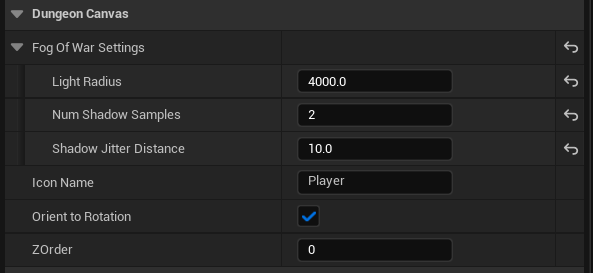
The same component works on any actor, not just the player pawn - see Fog of War & Multiplayer for world object explorers, teams and how exploration is shared between players
Show UI
Section titled “Show UI”Open your player controller and create your UI widget and add to viewport
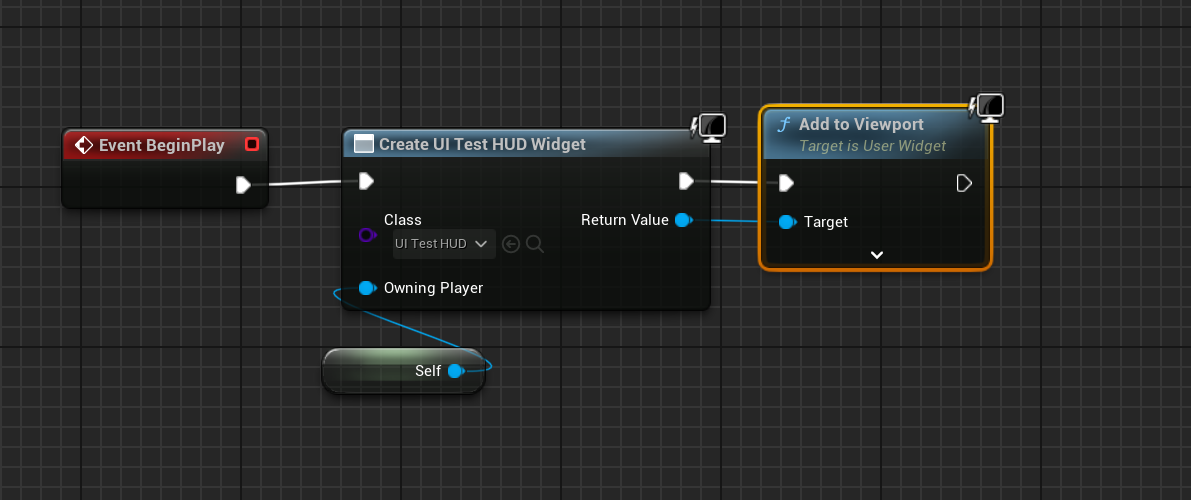
This will make the UI show up when your game starts. The Dungeon Canvas widget you placed in your UI will auto register itself when it constructs. So there’s no more setup required here on the UI side