Fog of War & Multiplayer
Applies to Dungeon Architect 3.7 · Unreal Engine
Any actor can show up on the canvas with an icon and reveal the fog of war around it. Add the Dungeon Canvas Item component to the actor - it works on player pawns, bots and world objects like shrines or watch towers
The Player Setup page covers the player pawn. This page covers world object explorers, toggling them at runtime and how exploration is shared between players in multiplayer
World Object Explorers
Section titled “World Object Explorers”A world object can light up the map around it, like a shrine or a watch tower the player discovers
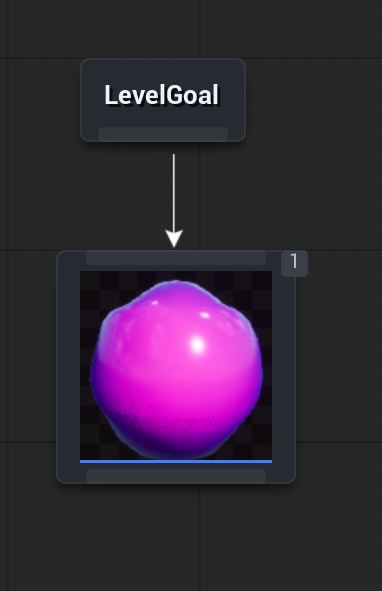
For example, the theme below spawns this actor at the LevelGoal marker, so it ends up in the level as the dungeon’s exit
Open that actor and add a Dungeon Canvas Item component to it, the same way as on a pawn
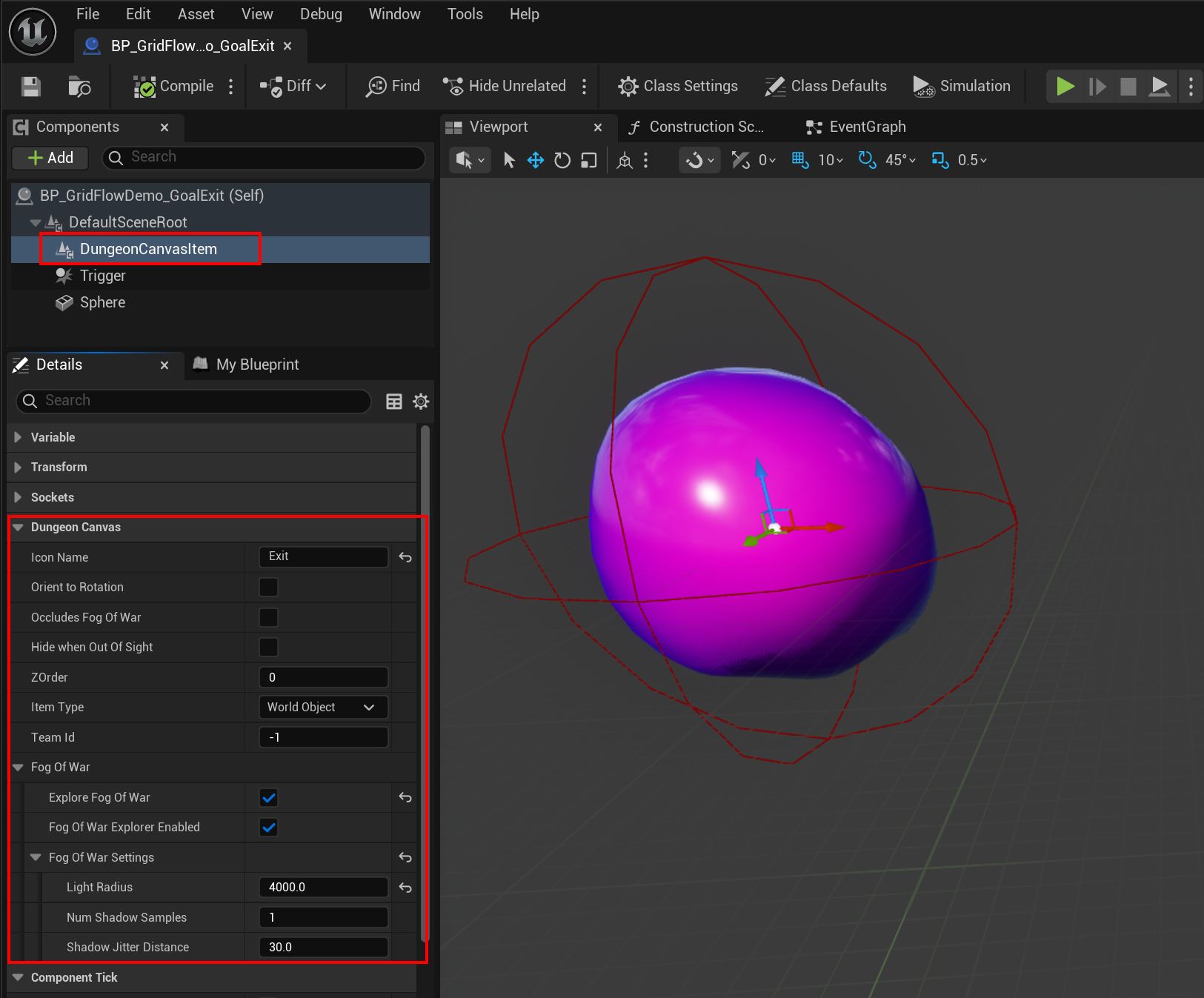
- Leave
Item TypeasWorld Object - Check
Explore Fog Of War - Set an
Icon Nameif you also want an icon drawn for it, e.g.Exit
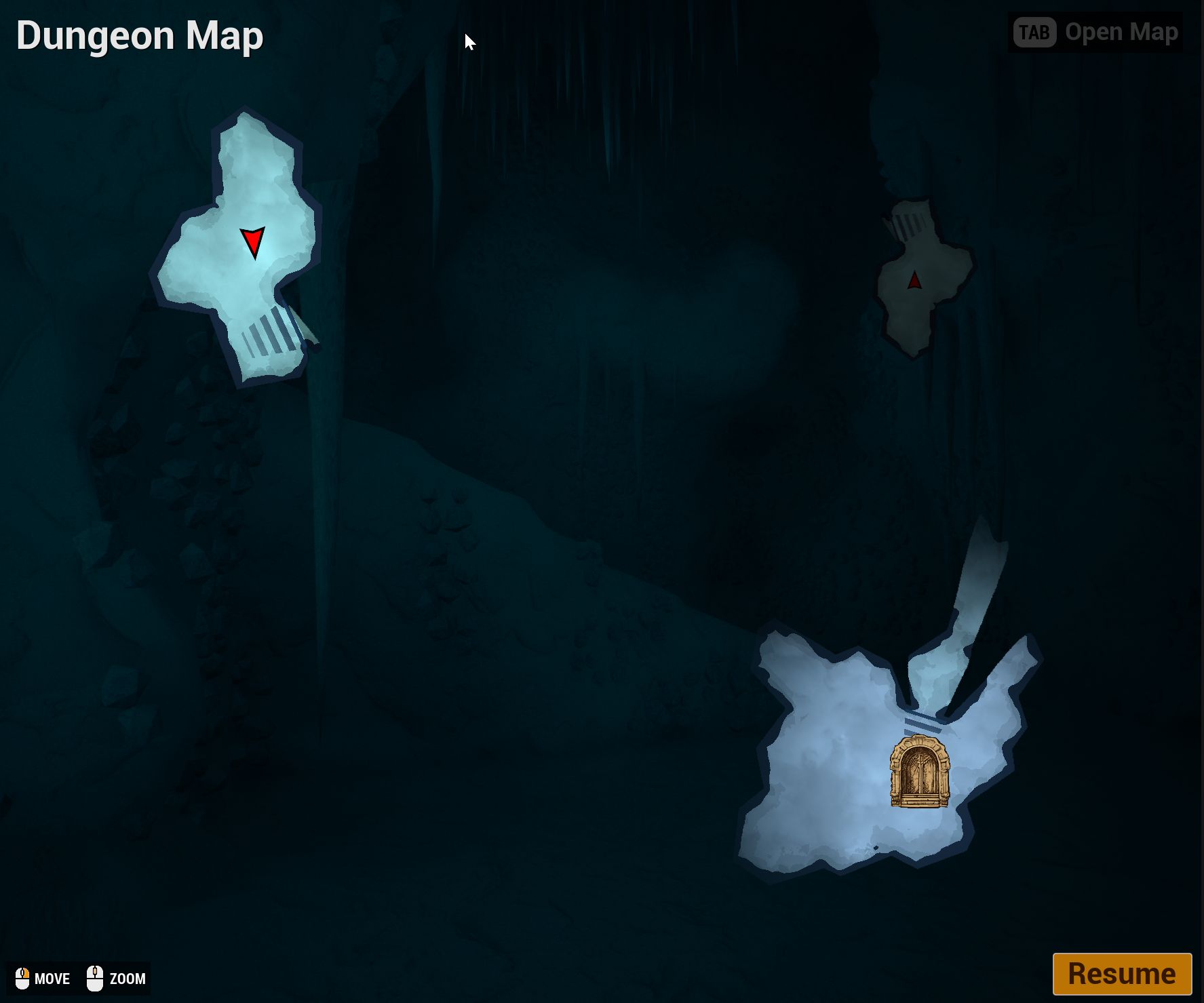
Once the dungeon builds, the exit reveals the fog of war around it and shows up on the minimap
Fog of War Settings
Section titled “Fog of War Settings”The Fog Of War Settings on the component control how the item reveals the map
| Property | Default | Description |
|---|---|---|
| Light Radius | 2000 |
How far the item reveals the map around it, in world units |
| Num Shadow Samples | 1 |
Number of jittered samples used to soften the shadow edges. Higher values give softer shadows at a higher cost |
| Shadow Jitter Distance | 30 |
How far apart the samples are spread. Larger values give a wider soft edge |
Toggle Exploration at Runtime
Section titled “Toggle Exploration at Runtime”Use Fog Of War Explorer Enabled to turn the exploration on and off while the game runs. E.g. keep a shrine’s
explorer disabled and enable it when the player activates the shrine
You can also register an actor that has no canvas item component with the Add Fog Of War Explorer function
on the dungeon actor’s canvas component, passing in its own fog of war settings
Sharing in Multiplayer
Section titled “Sharing in Multiplayer”The Fog Of War Share Mode setting on the dungeon actor’s Dungeon Canvas component controls who sees whose
exploration and icons
| Mode | Description |
|---|---|
| Free For All | Each player only sees their own exploration. Other player icons are hidden |
| Team | Players with the same Team Id share their exploration and see each other’s icons |
| All Players | Everyone shares their exploration and sees everyone’s icons |
You always see your own pawn and your own exploration, whatever the mode
Set the Team Id on the Dungeon Canvas Item component. -1 means the item belongs to no team
Playeritems follow the share mode aboveWorld Objectitems ignore the share mode. With no team they are visible to everyone. With a team, only that team sees their icon and gets their fog of war reveal - e.g. a team’s watch tower lights up the map for that team only
To tell teams apart on the map, check Override Icon Tint on the item component and set Icon Tint from the
team id. One icon entry in the theme covers every team, and you pick the color per actor. The same trick
works for your own player - point the local pawn at a different tint once it is possessed, so you can tell
yourself apart from everyone else
Custom Team Systems
Section titled “Custom Team Systems”The canvas reads the local player’s team from the Dungeon Canvas Item component on the possessed pawn. If
your game has its own team system, override the Get Local Player Team Id function on the Dungeon Canvas
component and return the team id from there
Older Projects
Section titled “Older Projects”Older projects tracked actors with the DungeonMiniMapTrackedObject or DungeonCanvasTrackedObject component.
These are redirected automatically to the Dungeon Canvas Item component when your project loads, no manual
changes needed